
Learn the real reasons laptops overheat quickly in 2026 and how to cool yours down with simple fixes that actually work.
A laptop that heats up too fast can feel scary. The fan gets loud, the keyboard feels hot, and performance suddenly drops. However, overheating is usually caused by a few common issues like dust buildup, heavy background apps, or poor airflow.
The good news is you can often fix it without replacing the laptop. Once you understand what’s causing the heat, you can lower temperatures and make your laptop run smoother again.
The Most Common Reasons Laptops Overheat Quickly
Laptop heat builds up when the CPU or GPU works too hard, or when the cooling system can’t push hot air out fast enough.
Here are the most common causes.
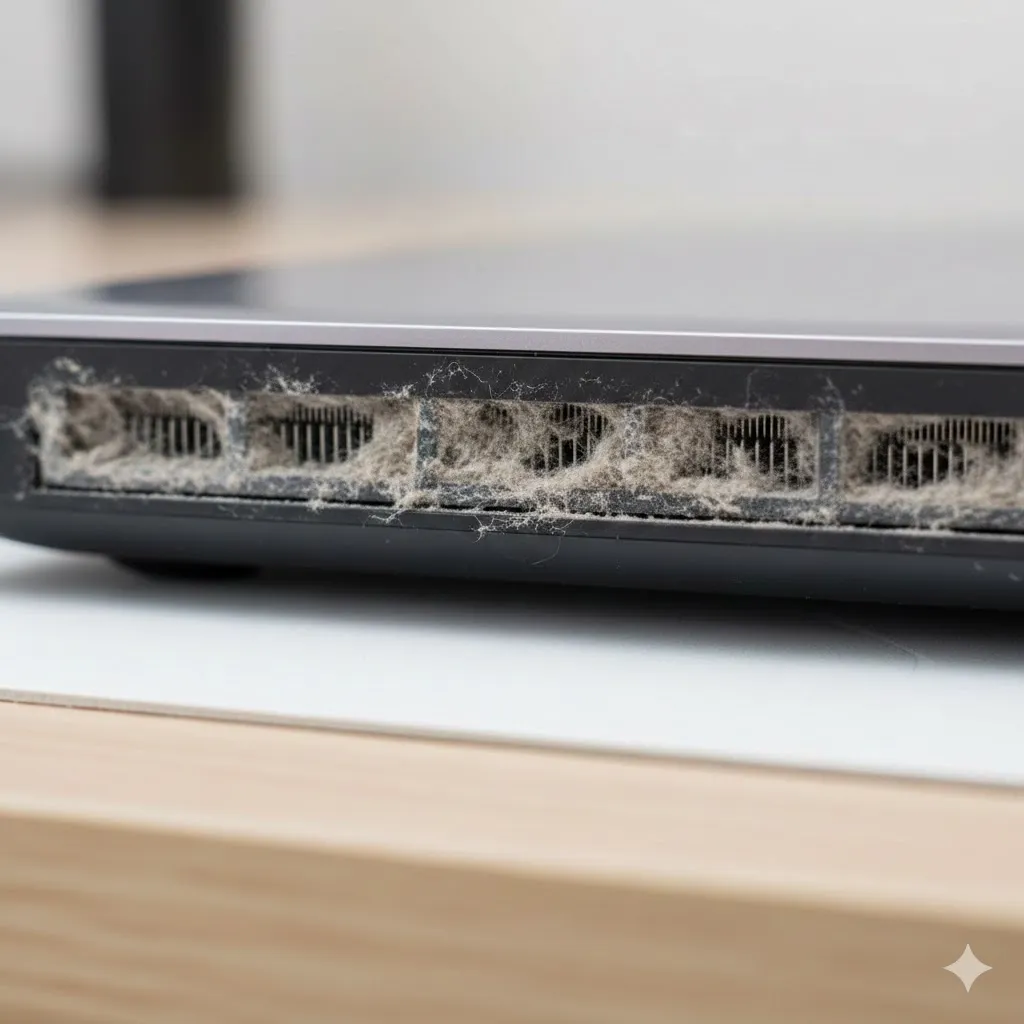
Dust and blocked air vents
Dust is one of the biggest hidden problems. Over time, dust clogs the fan and heatsink, which traps heat inside.
Real-life micro-scenario:
You use your laptop on a bed or sofa. After a few months, the vents collect dust and fabric fibers. Suddenly, the fan runs nonstop and the laptop gets hot even during light work.
Heavy Apps Running in the Background
Even if you’re not gaming, your laptop can overheat from background tasks like:
- browser tabs with video autoplay
- cloud sync apps
- antivirus scans
- software updates
- video calls
Open Task Manager (Windows) or Activity Monitor (Mac) to check CPU usage.
If the CPU stays high while you’re doing nothing, something is working too hard.
Poor Airflow and Bad Laptop Placement
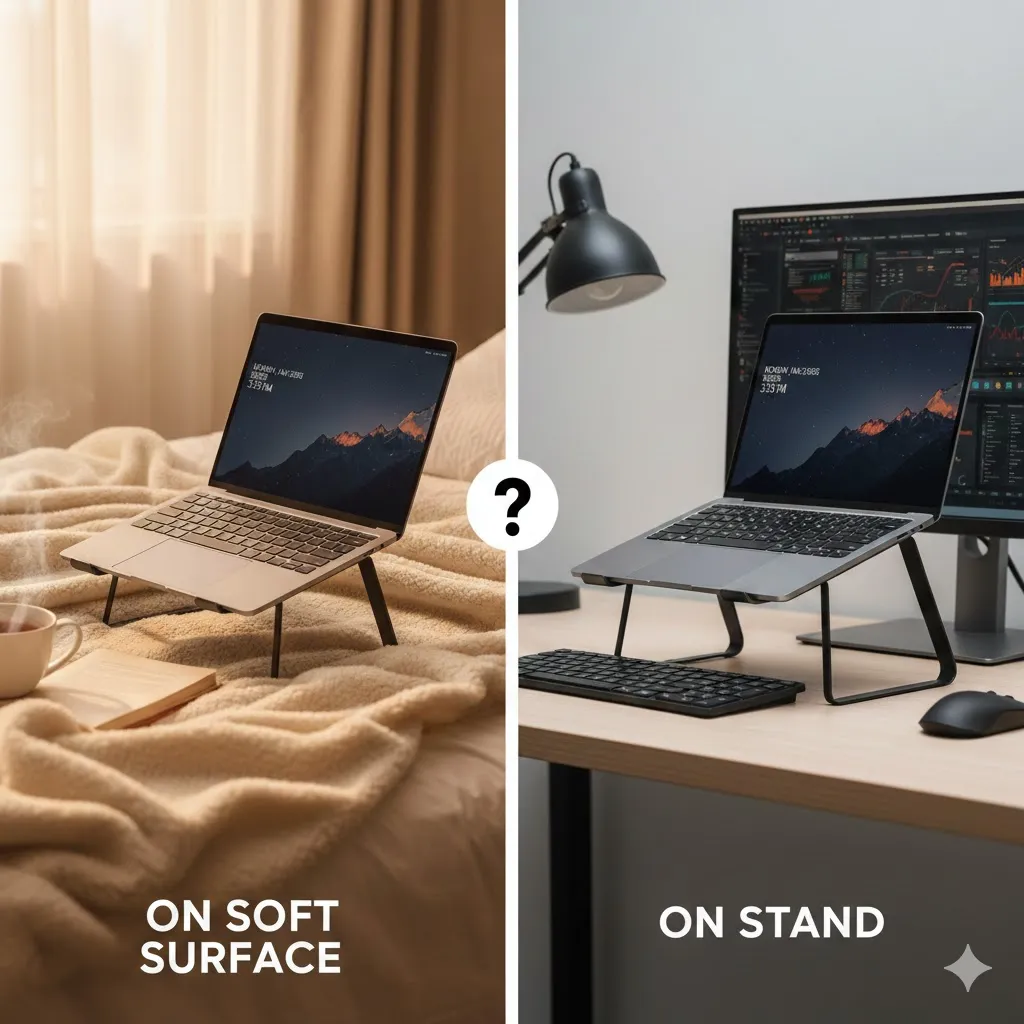
Where you place your laptop matters more than most people think.
Bad airflow happens when you use it on:
- blankets
- pillows
- soft couches
- your lap for long periods
These surfaces block vents and trap heat.
A flat hard surface is much better. A laptop stand can also help by lifting it up.
Quick Comparison Table of Overheating Causes
| Cause | What You Notice | Best Fix |
|---|---|---|
| Dust buildup | loud fan, hot keyboard | clean vents and fan |
| Heavy apps | heat during simple tasks | close background apps |
| Poor airflow | overheats on bed/sofa | use hard surface/stand |
| Old thermal paste | heat spikes fast | repaste (advanced) |
| High performance mode | hot even when idle | switch power mode |
This makes it easier to find the real issue without guessing.
Simple Ways to Fix Laptop Overheating
You don’t need complicated tools for the first fixes. Start with the basics.
Clean the air vents safely
Use compressed air to blow dust out of vents. Do it gently and in short bursts.
If the fan is extremely dirty, professional cleaning may help.
Reduce CPU load
Try these quick actions:
- close extra browser tabs
- disable unnecessary startup apps
- uninstall apps you don’t use
- pause cloud syncing during heavy work
Change power settings
On Windows:
Settings → System → Power & battery → Power mode
Choose Balanced instead of Best performance when you don’t need speed.
Update drivers and system
Updates often improve fan control and thermal performance.
Pro Insight
Many laptops overheat because the cooling system is working fine, but airflow is blocked. Simply lifting the laptop and cleaning the vents can drop temperatures fast.
When Overheating Becomes a Serious Problem
Sometimes overheating is a warning sign that needs attention.
Watch out for:
- random shutdowns
- frequent freezing
- sudden FPS drops while gaming
- battery swelling
- burning smell
If you see these signs, stop heavy use and get it checked.
Quick Tip
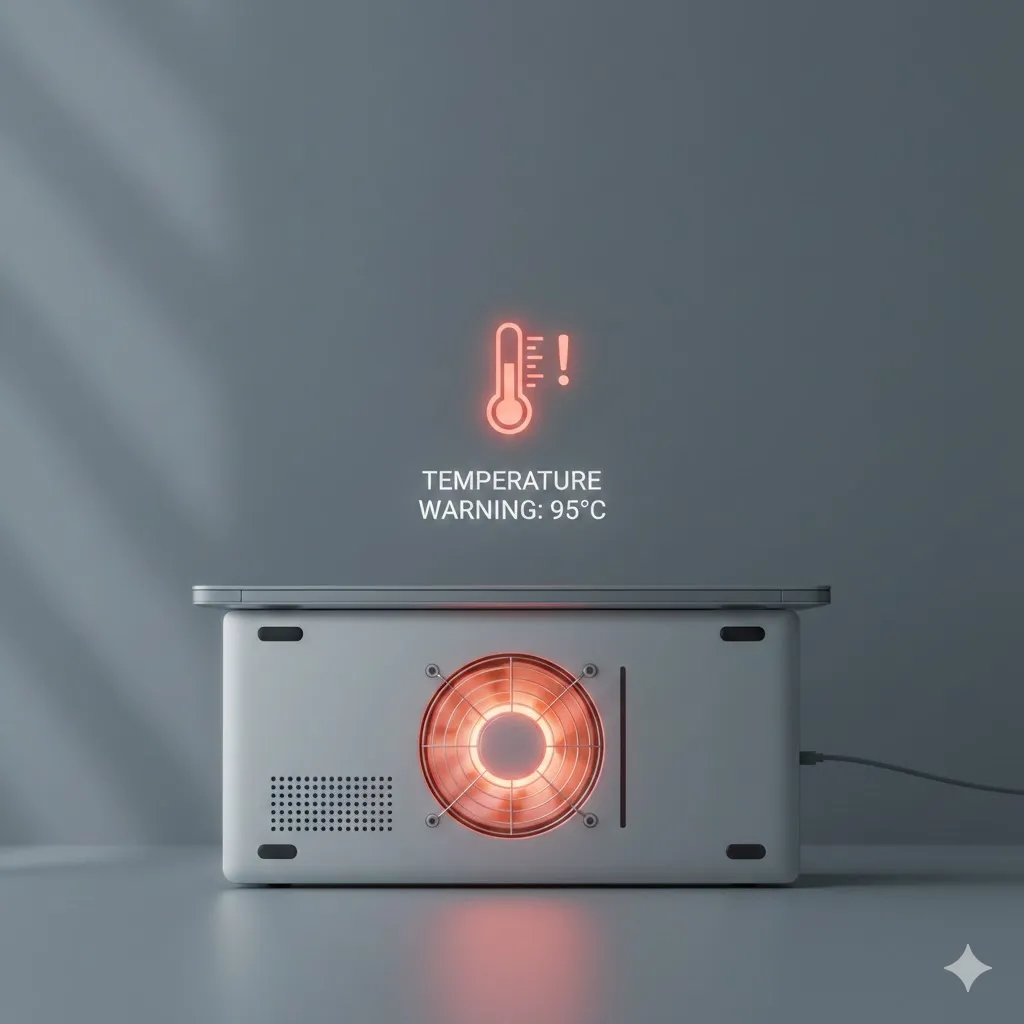
If your laptop overheats during Zoom or gaming, try using a cooling pad. It improves airflow and can reduce heat spikes quickly.
FAQs
Is it normal for a laptop to get hot?
Yes, some heat is normal. However, extreme heat, loud fans, and slow performance are signs of overheating.
Can overheating damage my laptop?
Yes. Long-term overheating can shorten the lifespan of internal components and battery.
Why does my laptop overheat even when idle?
It may be caused by background apps, malware, or high performance settings.
Should I replace thermal paste?
If your laptop is older and overheating badly, thermal paste replacement can help. However, it’s an advanced fix.
What is the fastest way to cool down a laptop?
Close heavy apps, move it to a hard surface, and improve airflow. Cleaning vents is often the best long-term fix.
Disclaimer
This article is for general informational purposes only. Results may vary depending on your laptop model, age, and hardware condition.