
Introduction
You tap an app, and it takes a split second to “whoosh” open. You switch screens, and there is a fancy sliding animation. It looks nice, but over time, these animations make your phone feel sluggish and slow.
“Can I just make it open instantly?”
Yes! Android has a hidden menu called “Developer Options” that allows you to control the speed of these animations. By changing just three settings, you can make a 3-year-old Samsung Galaxy feel as snappy as the latest model.
In this guide, I will show you how to unlock this secret menu and turbocharge your phone in less than 1 minute.
Step 1: Unlock “Developer Options”
This menu is hidden by default to protect beginners from changing system settings. But it is 100% safe to enable.
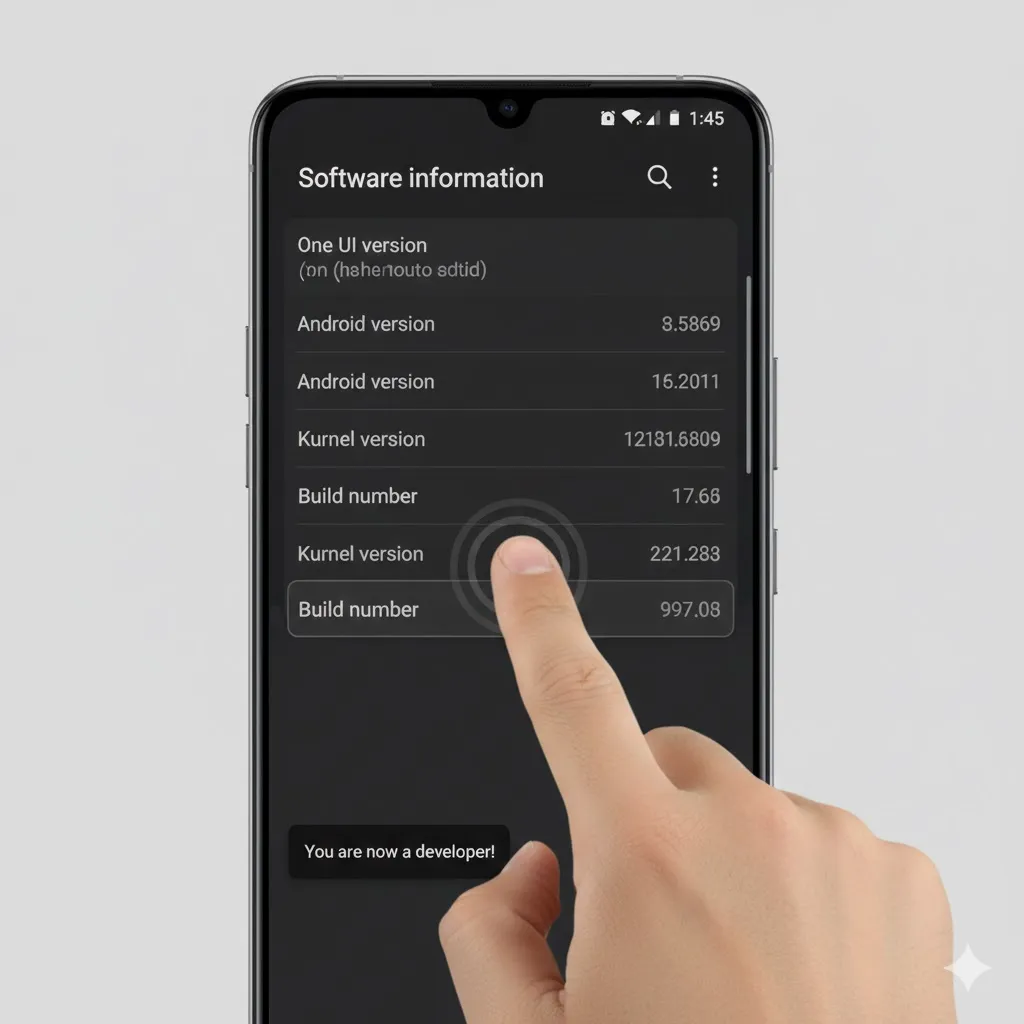
- Go to Settings > About phone.
- Tap Software information.
- Find Build number.
- Tap on “Build number” 7 times rapidly.
- You will see a message: “Developer mode has been enabled.” (You might need to enter your PIN).
Step 2: Locate the Animation Settings
Now that you are a “Developer,” let’s find the speed controls.
- Go back to the main Settings menu.
- Scroll to the very bottom. You will see a new option: Developer options. Tap it.
- Scroll down (about halfway) until you find the “Drawing” section.
- Look for these three settings:
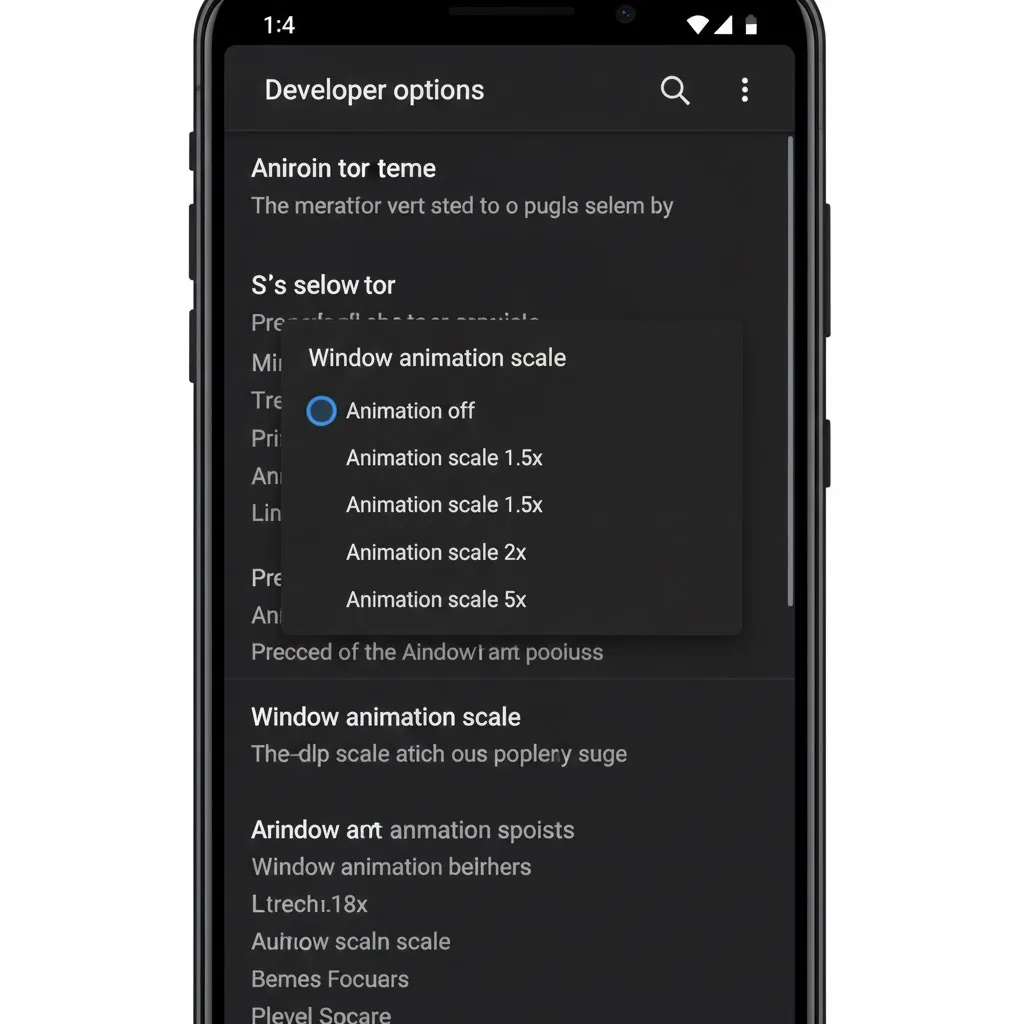
- Window animation scale
- Transition animation scale
- Animator duration scale
Step 3: Change Animation Scale to 0.5x (or Off)
By default, these are set to 1x. This is the standard “slow and smooth” speed.
- Tap Window animation scale and select Animation scale .5x.
- Tap Transition animation scale and select Animation scale .5x.
- Tap Animator duration scale and select Animation scale .5x.
The Result: Your windows will now open twice as fast. If you want instant snapping (zero delay), you can choose Animation off, but .5x usually feels the most natural and fluid.
Step 4: Limit Background Processes (Optional)
If your phone has low RAM (memory), apps running in the background can slow it down.
- Still in Developer options, scroll down to the “Apps” section.
- Tap Background process limit.
- Change it from “Standard limit” to At most 4 processes.
- This prevents too many apps from clogging up your memory, keeping the active app fast.
Step 5: Restart Your Phone
To make sure all changes apply smoothly and to clear out the current system cache:
- Press and hold the Power button.
- Tap Restart.
- Once it boots up, try opening Instagram or Settings. Do you feel the difference? It should be snappy!
Frequently Asked Questions (FAQ)
Q: Does enabling Developer Options drain the battery?
A: No. Simply having the menu enabled does nothing. In fact, reducing animation speed (Step 3) might save a tiny bit of battery since the GPU has to render fewer frames.
Q: Is it safe? Can I break my phone?
A: Changing animation scales is 100% safe. However, avoid touching other settings in Developer Options (like “USB Debugging” or “OEM Unlocking”) unless you know what they do.
Q: How do I turn it off?
A: Just go to Settings > Developer options and toggle the switch at the top to OFF. The menu will hide itself again.
Conclusion
You don’t always need to buy a new phone to get better performance. By simply changing the Animation Scale to .5x, you remove the unnecessary visual fluff and get straight to speed.
It’s the best “free upgrade” you can give your Android device!
Did you choose .5x or Animation Off? Tell me which feels faster in the comments!