
Introduction
You are scrolling through your Gallery, deleting blurry shots to save space. Your finger slips, and suddenly, you delete your favorite vacation photo or a video of your pet.
Your heart stops. “Is it gone forever?”
Panic sets in immediately. But here is the good news: on modern Android phones (especially Samsung), “Deleting” doesn’t actually delete the file instantly. It just moves it to a temporary holding area.
In this guide, I will show you how to find that hidden Trash folder and restore your memories in seconds.

Method 1: Check the Samsung Gallery “Trash” (Bin)
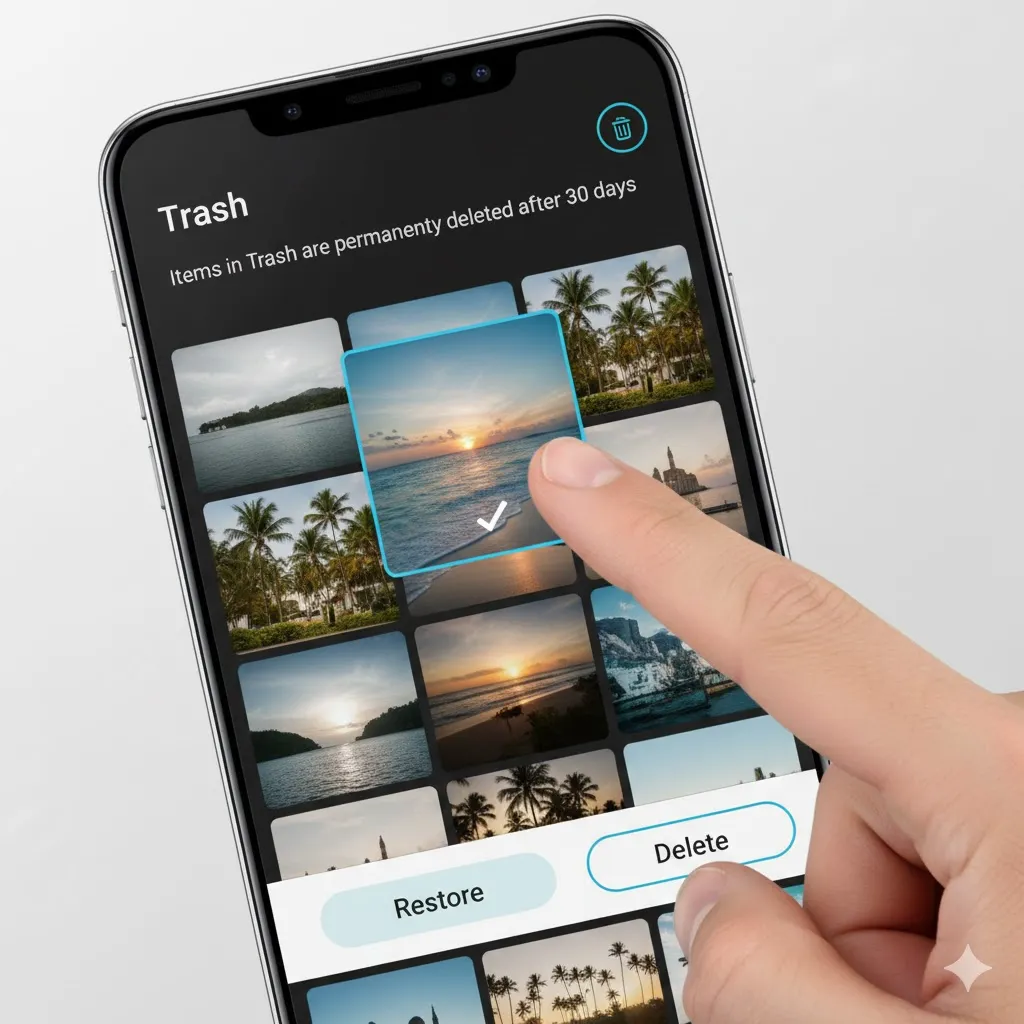
Samsung phones have a built-in “Trash” feature that keeps deleted photos for 30 days. This is where 99% of “lost” photos are hiding.
- Open the Gallery app.
- Tap the Hamburger Menu (three lines) at the bottom right.
- Tap Trash (or Recycle Bin).
- You will see all the photos you deleted recently.
- Long-press the photo you want to save and tap Restore.
Method 2: Check Google Photos “Bin”
If you use Google Photos (the app with the pinwheel icon) instead of Samsung Gallery, it has its own separate trash can.
- Open the Google Photos app.
- Tap Library at the bottom.
- Tap Bin (or Trash) at the top.
- Google keeps deleted items for 60 days.
- Select your photo and tap Restore. It will jump back into your main timeline.
Method 3: Check OneDrive / Samsung Cloud
Samsung no longer backs up photos to “Samsung Cloud” directly; they sync to Microsoft OneDrive. If you enabled this sync, your photo might be safe in the cloud.
- Open the OneDrive app (or check via Gallery Settings > Sync with OneDrive).
- Go to the Photos tab.
- Check if your missing picture is there.
- Also, check the Recycle Bin inside the OneDrive app (Me > Recycle Bin).
Method 4: Check “My Files” (Internal Storage)
Sometimes, photos aren’t deleted; they are just moved to a hidden folder by a messy app.
- Open the My Files app (Samsung).
- Tap Images.
- Look through the folders. Sometimes you will find a folder named “Restored” or “WhatsApp Images” containing the file you thought was lost.
Method 5: Use a Recovery App (DiskDigger)
If you deleted the photo more than 30 days ago and the Trash is empty, you need a specialized tool. DiskDigger is a trusted app that scans your phone’s internal memory for “ghost” files.
- Download DiskDigger Photo Recovery from the Play Store (Free version is fine).
- Open it and tap “Start Basic Photo Scan” (No Root needed).
- It will scan your cache. This might not recover the full HD quality, but it can often recover a lower-resolution version of the photo.
- Select the files and tap Recover.

Frequently Asked Questions (FAQ)
Q: Can I recover photos deleted 1 year ago?
A: Honestly? It’s very unlikely. Unless you backed them up to a cloud service (Google Drive, Dropbox) or a PC, files deleted from the phone’s chip are usually overwritten by new data within a few months.
Q: Why is the “Trash” option missing in my Gallery?
A: You might have turned it off to save space. Go to Gallery > Settings and ensure Trash is toggled ON. If it was off, sadly, previously deleted photos were erased instantly.
Q: Does DiskDigger work on iPhones?
A: No, DiskDigger is an Android tool. iOS has a “Recently Deleted” album that works similarly to Method 1.
Conclusion
Accidentally deleting a photo is terrifying, but the Samsung Gallery Trash (Method 1) is your safety net. Always check there first! To prevent future heartache, turn on Google Photos Backup today—it’s free (up to 15GB) and saves photos even if you lose your phone.
Go rescue your memories right now!
Did you find your photo in the Trash? Let me know in the comments below!