
Learn how to fix the “No Bootable Device” error on a laptop or PC with practical steps that still work in 2026.
Seeing a “No Bootable Device” message when turning on your laptop or PC can be stressful. The system powers on, but the operating system never loads. Instead, you’re blocked before Windows or macOS even starts.
The good news is this error is often recoverable. In many cases, the issue is related to settings, boot order, or drive detection—not permanent hardware failure.
What “No Bootable Device” Actually Means
This error means your computer cannot find a storage device that contains a valid operating system. In simple terms, the system doesn’t know where to boot from.
For example, a laptop may suddenly show this message after a system update, a power interruption, or a BIOS reset. The operating system is still there—but the system can’t locate it.

Understanding this helps you focus on detection and configuration before assuming data loss.
Start With These Quick Checks
Before changing advanced settings, try these basic steps. They fix a large percentage of cases.
Remove External Devices
USB drives, external hard disks, or memory cards can confuse the boot process. Disconnect everything except keyboard and mouse, then restart.
Restart and Enter BIOS or UEFI
Reboot and enter BIOS/UEFI (usually by pressing F2, Del, Esc, or F10). If the system boots normally afterward, the issue may have been temporary.
Check If the Drive Is Detected
Inside BIOS/UEFI, look for your internal SSD or HDD. If it appears, the problem is likely configuration-related.
Common Causes Behind the Error
If the drive is detected but the error persists, one of these causes is likely responsible.
Incorrect Boot Order
The system may be trying to boot from the wrong device. Setting the internal drive as the first boot option often resolves the issue.
Boot Mode Mismatch
Switching between UEFI and Legacy mode can break boot recognition. The boot mode must match how the operating system was installed.
Corrupted Boot Files
Unexpected shutdowns or updates can damage boot records, preventing the system from loading the OS.
“No Bootable Device” vs Hardware Failure
| Symptom | Likely Cause | What to Do First |
|---|---|---|
| Drive visible in BIOS | Boot config or software issue | Fix boot order / mode |
| Drive missing in BIOS | Connection or hardware issue | Reseat or replace drive |
| Error after update | Corrupted boot files | Repair boot loader |
| Clicking or grinding noises | Physical drive failure | Backup and replace drive |
This comparison helps you decide whether troubleshooting or repair is needed.
How to Fix Boot Configuration Problems
If your drive is detected, adjusting settings or repairing boot files usually works.
Reset BIOS to Default
Restoring default BIOS settings often fixes misconfigurations caused by updates or manual changes.
Repair Boot Files
Using a Windows recovery USB or macOS recovery mode allows you to repair startup files without reinstalling everything.
Update BIOS Firmware
Outdated firmware may fail to detect newer SSDs correctly. Updating BIOS can restore compatibility.
Disclaimer
This article is for informational purposes only and does not constitute professional repair or technical advice. Results may vary depending on system model and configuration.
Pro Insight
Most “No Bootable Device” errors are configuration-related. Hardware replacement should be the last step, not the first.
Quick Tip
If the drive is visible in BIOS, do not reinstall the OS immediately—try boot repair first to avoid data loss.
Common Mistakes to Avoid
One common mistake is reinstalling the operating system without checking BIOS settings first. Another is assuming the drive is dead simply because the system won’t boot.
Opening the device without proper diagnosis can also risk damaging otherwise recoverable hardware.
FAQs About “No Bootable Device” Errors
Does this error mean my data is gone?
Usually no. In many cases, the data is still intact.
Can a BIOS update cause this error?
Yes. Updates can reset boot mode or boot order.
Will replacing the hard drive fix it?
Only if the drive has actually failed.
Can I fix this without technical tools?
Often yes, using BIOS settings and built-in recovery options.
When should I seek professional repair?
If the drive isn’t detected at all or shows physical failure signs.
Conclusion
A “No Bootable Device” error looks serious, but it’s often a solvable startup issue rather than a disaster. By checking drive detection, boot order, and boot mode first, many users restore their systems without losing data.
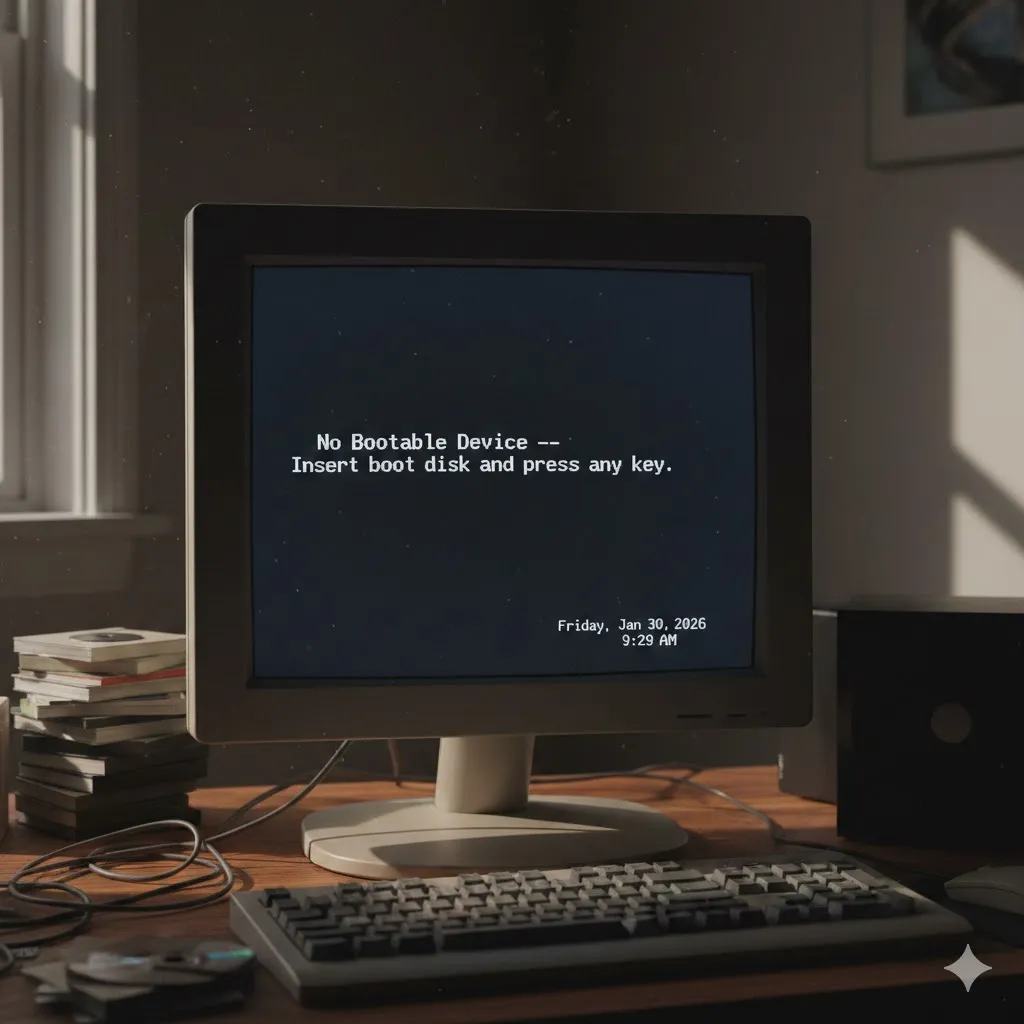
In 2026, knowing how to troubleshoot this error calmly can save time, money, and unnecessary stress—getting your laptop or PC back to work faster.
U.S. Trusted Resources
- Microsoft Support – Windows Startup Issues
https://support.microsoft.com - Apple Support – macOS Startup Problems
https://support.apple.com - Consumer Reports – Computer Repair Guidance
https://www.consumerreports.org - Federal Communications Commission (FCC) – Device Basics
https://www.fcc.gov