
Learn how to fix Disk 100% usage in Task Manager with safe, proven steps that restore Windows performance.
Seeing Disk at 100% in Task Manager while your computer feels painfully slow is one of the most frustrating Windows problems. Apps freeze, boot times drag on, and even simple clicks feel delayed.
This issue is especially common on Windows systems using HDDs, but SSD users can experience it too. The good news is that Disk 100% usage is usually caused by background processes—not failing hardware—and can often be fixed without reinstalling Windows.
Why Disk Usage Hits 100% in Windows
Disk 100% usage happens when Windows or an application constantly reads from or writes to the drive. Even if overall data usage looks small, continuous access can fully saturate the disk.
A real-life example: you open Task Manager and see “System,” “Service Host,” or “Windows Search” consuming disk resources. Nothing seems heavy, yet performance collapses. That’s because these services can overwhelm slower drives when misconfigured or stuck.
Common causes include background services, corrupted system files, startup programs, and disk errors.
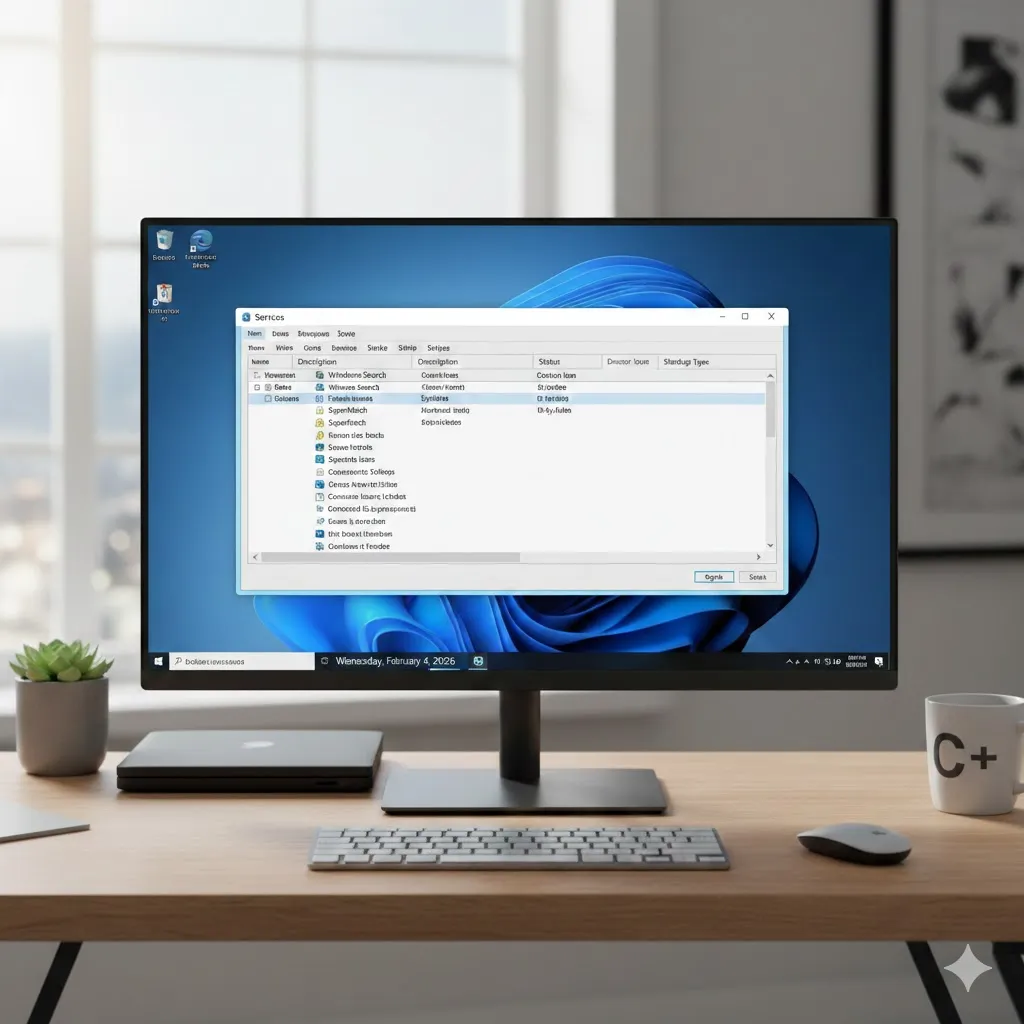
Disable High-Impact Background Services
Some Windows services are known to trigger Disk 100% usage.
Windows Search indexing and SysMain (formerly Superfetch) frequently cause excessive disk activity, especially on HDDs. Temporarily disabling them can instantly reduce disk pressure and improve responsiveness.
This step is reversible and safe, making it an ideal first fix when disk usage spikes without warning.
Check Startup Programs and Running Processes
Too many startup apps can silently overload your disk the moment Windows boots.
Using Task Manager, you can identify programs that start automatically and consume disk resources in the background. Disabling unnecessary startup items reduces disk activity and speeds up boot times.
In many cases, antivirus scans or update services stuck in loops are the real culprits behind constant disk saturation.
Scan for Disk Errors and Corrupted Files
Disk errors and corrupted system files force Windows to retry operations repeatedly—driving disk usage to 100%.
Running built-in disk checks allows Windows to identify and repair file system issues. System file repairs help restore damaged Windows components that may be causing excessive read/write activity.
This step is especially effective if Disk 100% usage began after an improper shutdown or power loss.
Compare the Most Effective Fix Methods
| Fix Method | Best For | Difficulty | Data Risk |
|---|---|---|---|
| Disable SysMain & Search | Background service overload | Easy | Low |
| Startup program cleanup | Slow boot & background load | Easy | Low |
| Disk error scan | File system issues | Medium | Low |
| System file repair | Corrupted Windows files | Medium | Low |
| Windows reset | Severe system corruption | Hard | Medium |
Trying these fixes in order minimizes risk and avoids unnecessary system resets.
Adjust Virtual Memory and Background Settings
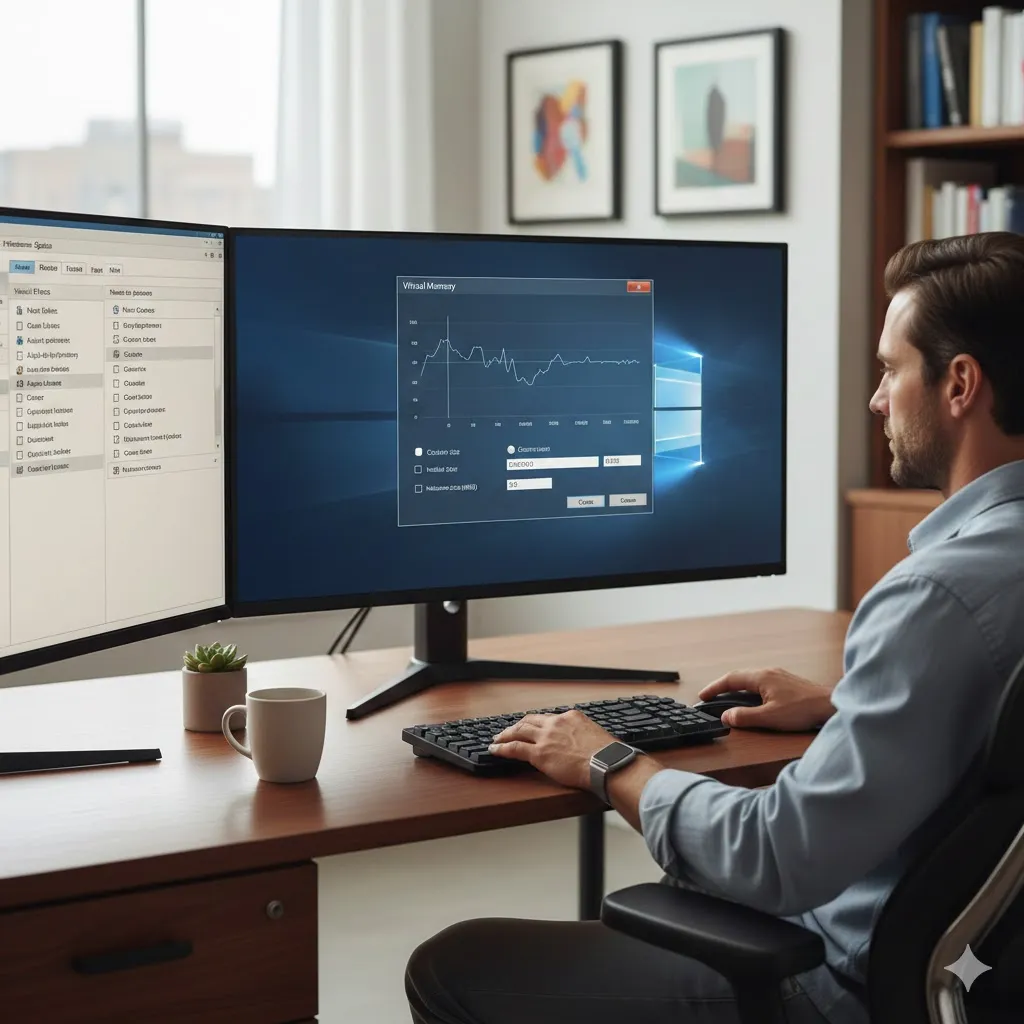
Virtual memory (pagefile) helps Windows manage RAM shortages, but incorrect settings can overload disks.
Allowing Windows to manage virtual memory automatically often resolves excessive disk usage. Reducing background app activity and limiting unnecessary sync services also helps keep disk usage stable.
These adjustments are particularly helpful on systems with limited RAM.
Disclaimer
This article is for general informational purposes only. It does not provide professional technical repair advice. Always back up important data before making system changes.
Pro Insight
Disk 100% issues on older PCs often stem from HDD limitations. Migrating Windows to an SSD can permanently eliminate the problem.
Quick Tip
If Disk usage spikes right after startup, wait 5–10 minutes before troubleshooting—Windows may still be finishing background tasks.
Frequently Asked Questions
Why does Disk show 100% but usage looks low?
Because constant small read/write operations can fully saturate the disk.
Is Disk 100% a hardware failure?
Usually no. Most cases are software or service-related.
Will disabling SysMain damage Windows?
No. It may slightly affect app preloading but often improves performance.
Can antivirus software cause Disk 100%?
Yes. Real-time scans can overload disk access.
How long should disk usage stay at 100%?
If it stays above 90% for more than 10–15 minutes during idle use, it’s likely a problem.
Conclusion
Disk 100% in Task Manager is frustrating, but it’s rarely permanent. By disabling problematic services, cleaning startup programs, repairing disk errors, and tuning system settings, most users can restore smooth performance without drastic steps.
With the right fixes, Windows becomes responsive again—and your patience doesn’t have to run out first.
Trusted U.S. Resources
Microsoft Support — Fix Disk Usage Issues
https://support.microsoft.com
Microsoft Learn — Windows Performance Troubleshooting
https://learn.microsoft.com
CISA — System Maintenance and Reliability
https://www.cisa.gov