
Blue Screen of Death errors—often called BSOD—are among the most frustrating problems Windows users face. One moment everything works fine, the next your screen turns blue, your system restarts, and you’re left wondering what just happened. In Windows 10 and Windows 11, BSOD issues are still common, but the good news is that most of them are fixable with the right steps.
This guide explains how to fix blue screen errors on Windows 10 and 11 using practical, up-to-date methods that work in 2026.
Why Blue Screen errors happen in Windows 10 and 11
A BSOD appears when Windows encounters a critical error it can’t safely recover from. Instead of risking data corruption, the system stops immediately.
A common real-life scenario: you install a new driver or Windows update, restart your PC, and suddenly the system crashes with a blue screen. In many cases, the cause is a driver conflict, corrupted system file, or hardware instability.
The most frequent causes include outdated drivers, faulty hardware, incompatible software, overheating, and corrupted Windows system files.
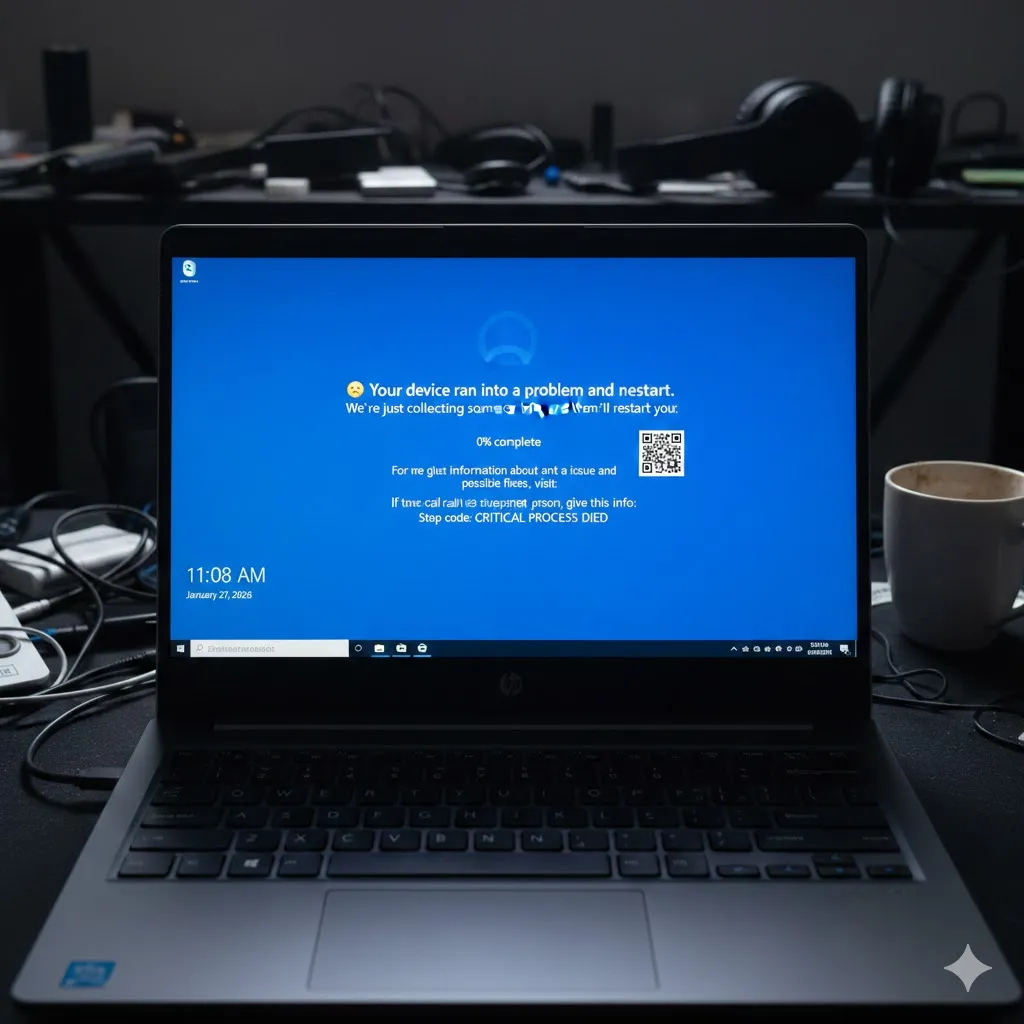
Check error codes before doing anything else
Every BSOD shows a stop code such as CRITICAL_PROCESS_DIED or IRQL_NOT_LESS_OR_EQUAL. These codes are not random—they point directly to the type of problem Windows detected.
If your PC restarts too fast, Windows usually saves the error details. After rebooting, note the stop code and any driver names shown. This information helps you avoid guesswork and focus on the right fix.
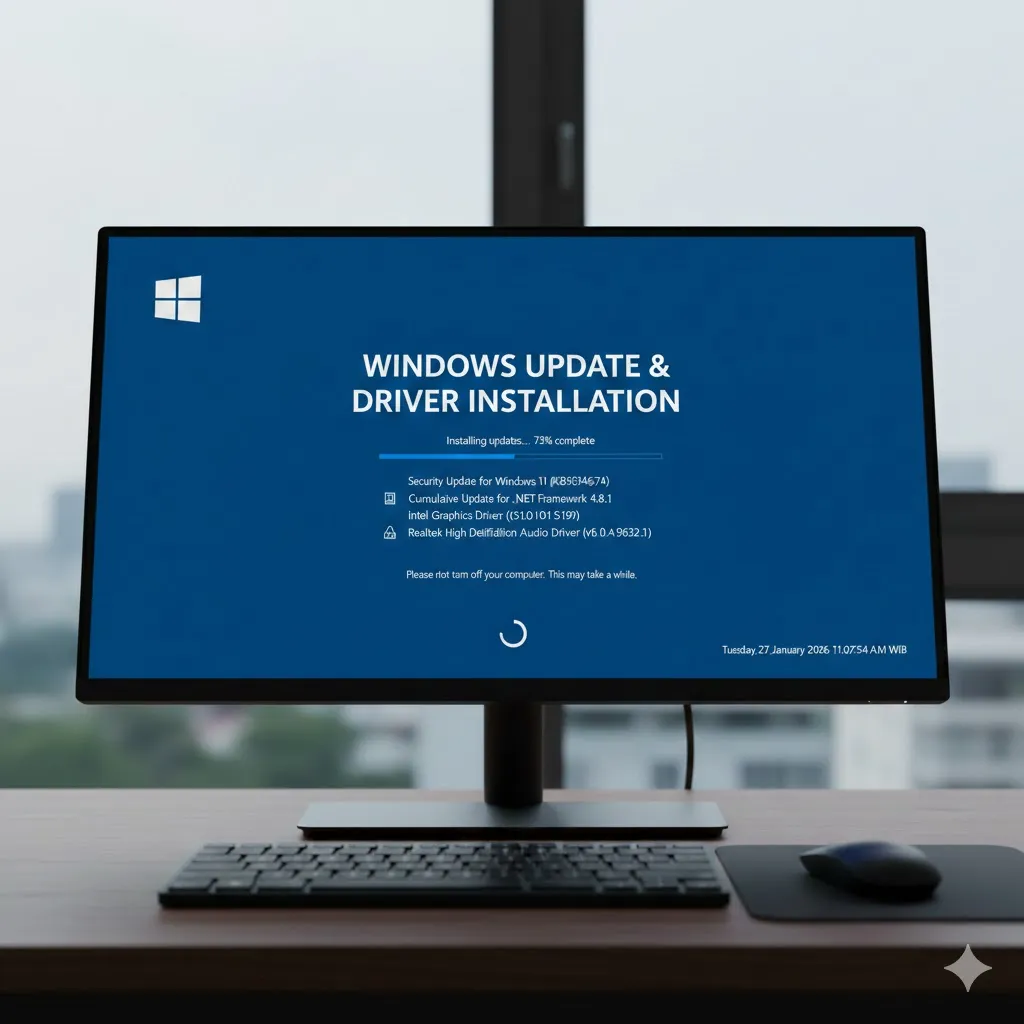
Update drivers and Windows the right way
Outdated or broken drivers are one of the top causes of BSOD issues.
A simple example: a gamer updates Windows 11 but keeps an old graphics driver. The system crashes repeatedly until the driver is updated to a compatible version.
Always update drivers directly from official sources such as the manufacturer’s website or Windows Update. Avoid third-party driver tools, as they often cause more problems than they solve.
| Update target | Why it matters | Recommended action |
|---|---|---|
| Windows updates | Fix system bugs and security issues | Install all pending updates |
| Graphics drivers | Common BSOD trigger | Download from GPU manufacturer |
| Chipset drivers | Control hardware communication | Update from motherboard vendor |
Run built-in Windows repair tools
Windows 10 and 11 include tools specifically designed to fix system-level issues.
If your system crashes randomly, running these tools can repair corrupted files without reinstalling Windows. Many users are surprised how often this resolves BSOD errors caused by incomplete updates or disk issues.
Use System File Checker and Disk Check tools from Windows Recovery or Safe Mode when crashes prevent normal startup.
Disclaimer
This content is for general informational purposes only and does not provide financial, legal, medical, or investment advice.
Pro Insight
If BSOD errors started after a recent change—new hardware, driver update, or Windows update—that change is often the root cause. Rolling it back can be faster than troubleshooting everything else.
Quick Tip
If Windows keeps crashing, boot into Safe Mode first. It loads only essential drivers, making it easier to identify whether software or hardware is causing the problem.
Check hardware and overheating issues
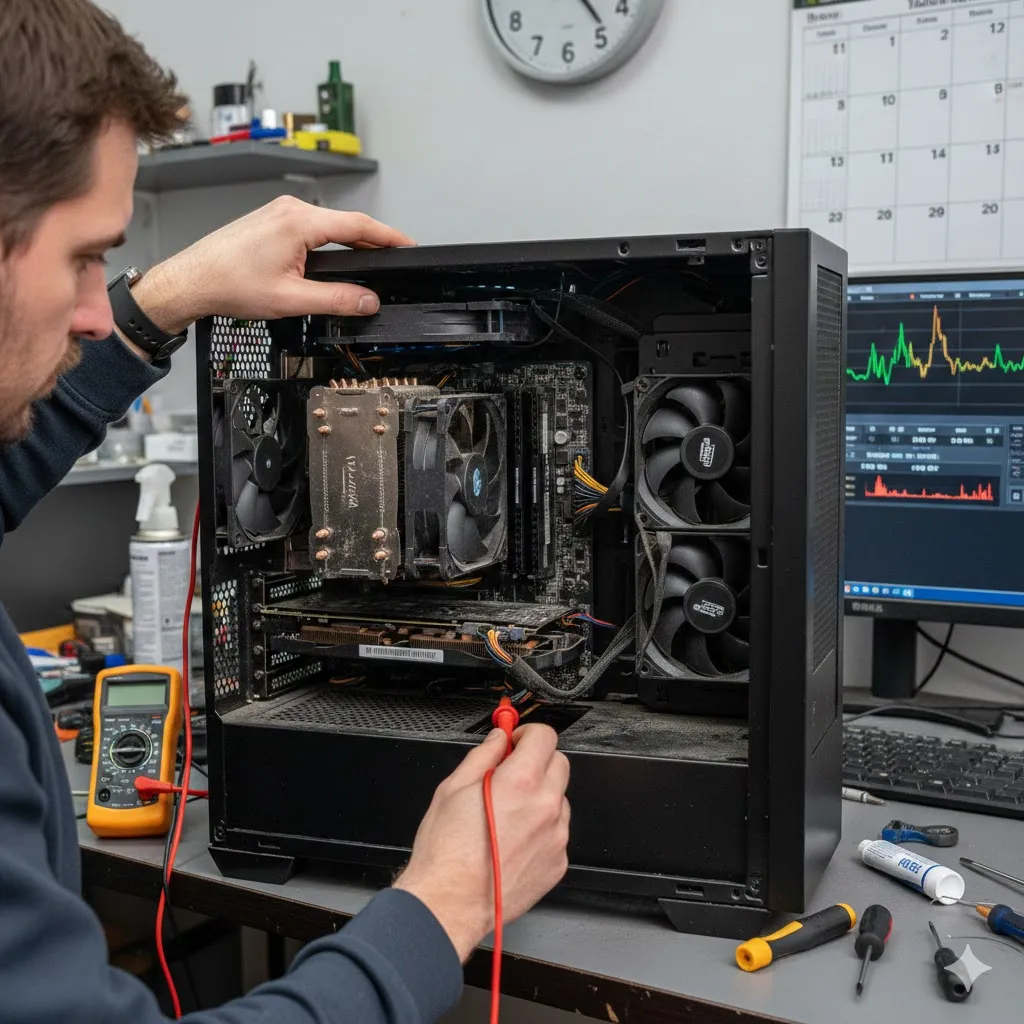
Hardware problems often show up as random or frequent BSOD crashes.
For example, a desktop PC that crashes during gaming but works fine during light use may be overheating or suffering from unstable RAM. Dust buildup, failing power supplies, or loose components can all trigger system failures.
If possible, check temperatures, reseat RAM modules, and disconnect unnecessary peripherals to isolate the issue.
Frequently asked questions about BSOD on Windows
Can a BSOD damage my computer?
The blue screen itself does not damage hardware, but repeated crashes may indicate underlying problems that should be addressed.
Should I reinstall Windows to fix BSOD?
Reinstalling Windows is a last resort. Most BSOD issues are resolved by fixing drivers, updates, or hardware problems.
Do BSOD errors mean my hard drive is failing?
Not always. While disk issues can cause BSOD errors, drivers and system files are more common causes.
Can malware cause blue screen errors?
Yes. Malware can corrupt system files or drivers, leading to crashes. Running a trusted security scan is recommended.
Is Windows 11 more stable than Windows 10?
Both are stable, but Windows 11 relies more heavily on modern drivers. Keeping drivers updated is especially important.
Trusted U.S. sources
- https://learn.microsoft.com/windows/client-management/troubleshoot-blue-screen-errors
- https://support.microsoft.com/windows
- https://www.consumerreports.org/electronics-computers/computer-troubleshooting/
Blue screen errors are frustrating, but they’re rarely permanent. With a calm, step-by-step approach, most BSOD issues in Windows 10 and Windows 11 can be identified and fixed without professional repair.