
Learn practical ways to fix a laptop that won’t connect to WiFi, with clear steps and realistic solutions updated for 2026.
When a laptop can’t connect to WiFi, everything suddenly feels stuck. Work pauses, meetings get delayed, and even simple browsing becomes frustrating. This issue is more common than many people realize—and in most cases, it can be fixed without replacing hardware or calling a technician.
Understanding why the connection fails is the first step toward solving it calmly and effectively.
Why a Laptop Suddenly Can’t Connect to WiFi
WiFi problems often appear without warning. Sometimes the network works perfectly on a phone but refuses to connect on a laptop. Other times, the WiFi icon disappears entirely.
Common causes include software conflicts, outdated drivers, incorrect network settings, or temporary router issues. However, the key is not guessing—but checking things in the right order.
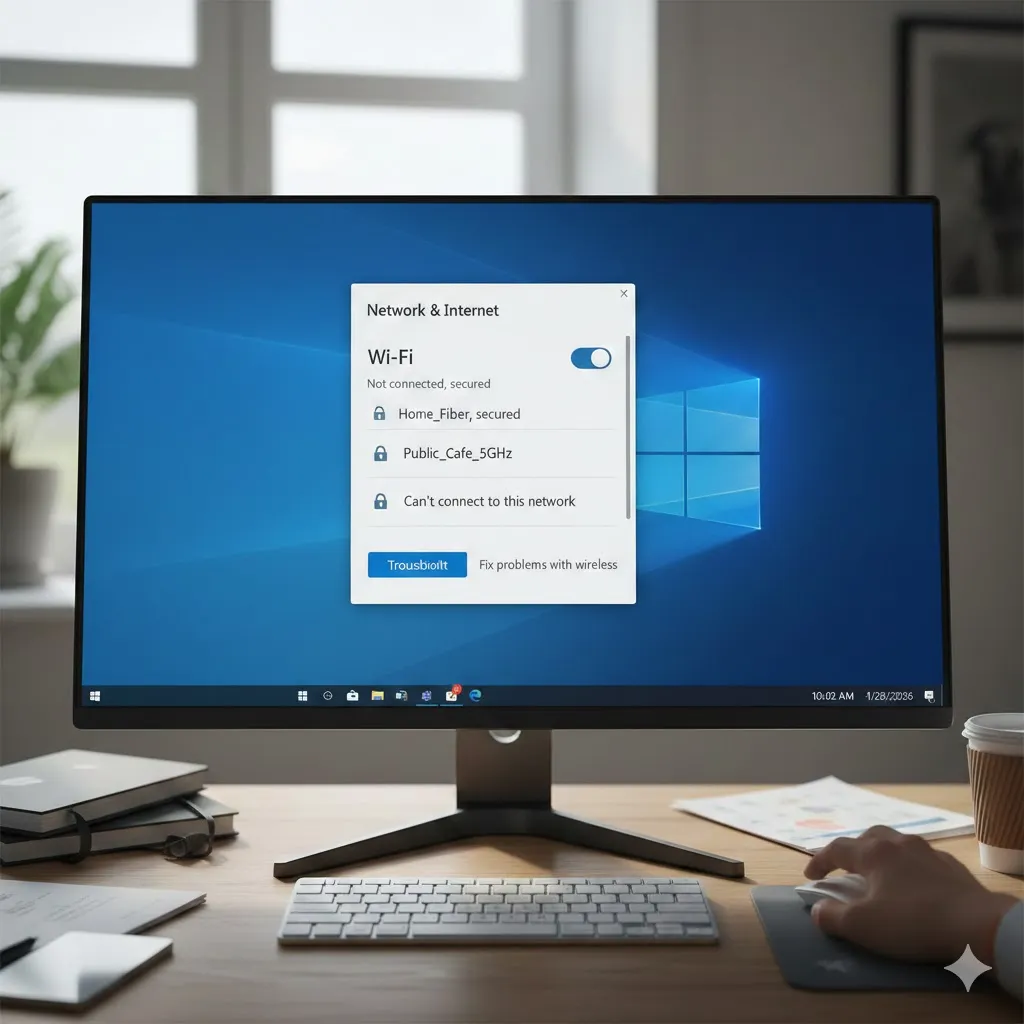
For example, a remote worker might wake up, open their laptop, and find the WiFi network visible but unable to connect. Meanwhile, other devices work fine. In many cases, the issue lies within the laptop itself, not the internet service.
Check the Basics Before Digging Deeper
Before changing advanced settings, start with simple checks. These steps solve more problems than expected.
Restart the Laptop and Router
This may sound basic, but restarting clears temporary glitches. Many connection failures are caused by background processes that reset during a reboot.
Make Sure Airplane Mode Is Off
Laptops sometimes enable airplane mode accidentally, especially after updates or keyboard shortcuts. When this is on, WiFi won’t work at all.
Confirm the Correct Network and Password
Connecting to the wrong network or using an outdated password can block access. Forgetting the network and reconnecting often fixes authentication errors.
Software and Settings That Often Cause WiFi Issues
If basic steps don’t work, the problem is usually software-related.
Outdated or Disabled Network Drivers
WiFi drivers allow your laptop to communicate with the wireless adapter. If they’re outdated, corrupted, or disabled, connections can fail.
Updating drivers through the operating system or manufacturer’s website often restores normal function.
Network Configuration Conflicts
Sometimes saved network profiles or VPN software interfere with WiFi connections. Temporarily disabling VPNs or resetting network settings can help isolate the issue.
Operating System Updates
System updates can silently change network behavior. A laptop that connected yesterday may struggle after an update if settings were reset or drivers became incompatible.
Laptop WiFi Issue vs Router or Internet Problem
| Situation | Likely Cause | Where to Focus Fixes |
|---|---|---|
| WiFi works on other devices | Laptop-specific issue | Laptop settings or drivers |
| No devices can connect | Router or ISP issue | Router or internet service |
| WiFi connects but no internet | DNS or network configuration | Network settings |
| WiFi network not visible | Adapter or driver problem | Hardware or drivers |
This comparison helps narrow down the source of the problem quickly.
When Hardware Might Be the Issue
In some cases, software fixes aren’t enough. Internal WiFi adapters can fail, especially on older laptops or devices that have been dropped or overheated.
A simple test is connecting a USB WiFi adapter. If the laptop connects instantly, the internal adapter may be failing.
Disclaimer
This article is for informational purposes only and does not constitute professional IT or repair advice. Results may vary depending on device model and software configuration.
Pro Insight
Most laptop WiFi problems are software-related. Hardware failure is far less common than people assume.
Quick Tip
If WiFi fails after a system update, check driver compatibility first—rolling back or updating the driver often fixes the issue quickly.
Common Mistakes That Make WiFi Problems Worse
One common mistake is repeatedly entering the password without checking keyboard language settings. Another is installing multiple network tools or “WiFi boosters” that conflict with system settings.
Also, ignoring system updates for too long can create compatibility issues that show up unexpectedly later.
FAQs About Laptop WiFi Connection Problems
Why does my laptop see WiFi but won’t connect?
This is often caused by password issues, driver problems, or network configuration conflicts.
Should I reset network settings?
Yes, if other fixes fail. Network resets can clear corrupted configurations.
Can antivirus software block WiFi?
Rarely, but some security tools or firewalls can interfere temporarily.
Is it safe to update WiFi drivers?
Yes, as long as you use official sources from the laptop manufacturer or OS provider.
When should I seek professional repair?
If WiFi fails even with external adapters or after clean system resets.
Conclusion
A laptop that won’t connect to WiFi is frustrating, but it’s rarely hopeless. By checking basics first, understanding software-related causes, and testing hardware only when needed, most connection problems can be resolved calmly and efficiently.
In 2026, reliable internet access is essential. Knowing how to troubleshoot WiFi issues gives you control—without panic or unnecessary repairs.
U.S. Trusted Resources
- Microsoft Support – Network & Internet Troubleshooting
https://support.microsoft.com - Federal Communications Commission (FCC) – Internet Basics
https://www.fcc.gov - Apple Support – Wi-Fi Connection Issues (macOS)
https://support.apple.com - Consumer Reports – Home Networking Guides
https://www.consumerreports.org