
Introduction
You decide to be a responsible user and update your Windows. You click “Check for updates,” and it starts downloading.
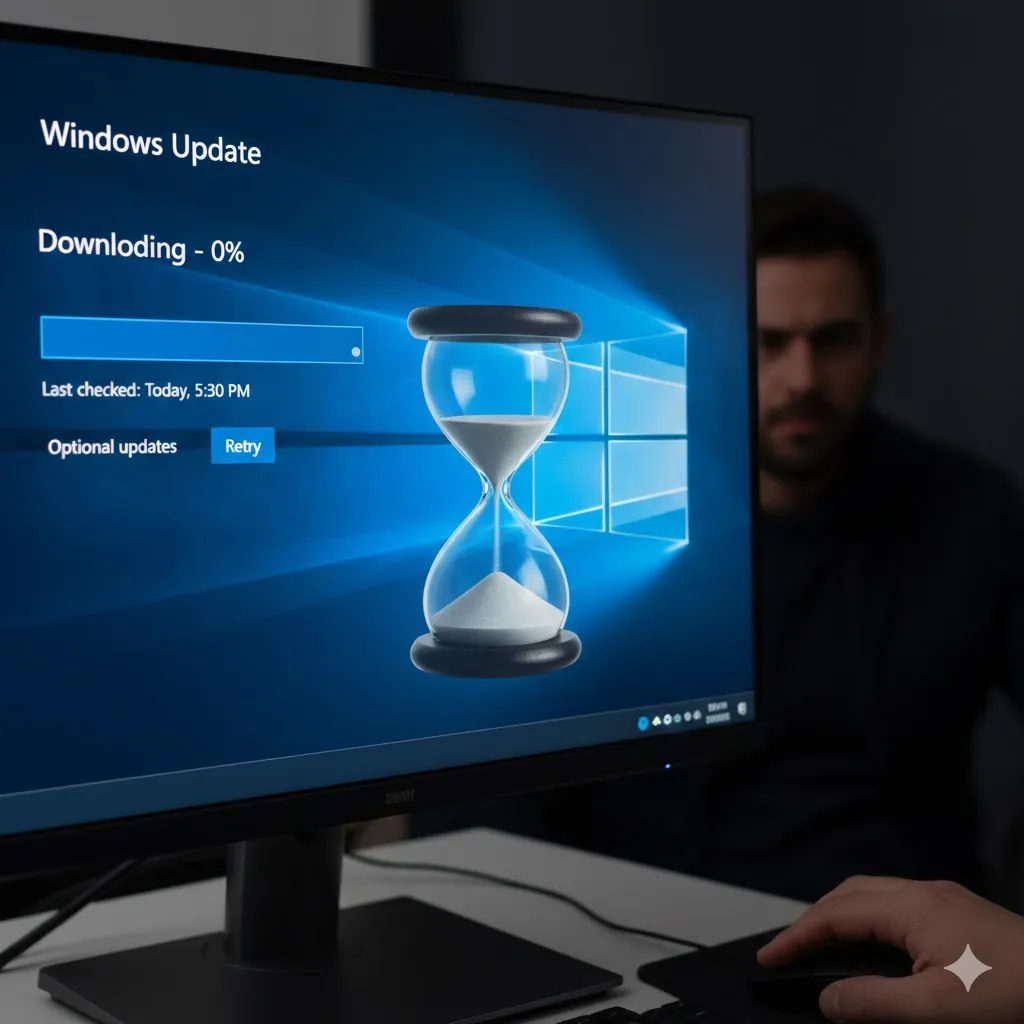
But then, disaster strikes. The progress bar sits at “Downloading 0%”… for 10 minutes. Then 30 minutes. Then 2 hours.
“Is it actually doing anything?”
Usually, no. It’s frozen. The Windows Update service is notoriously buggy, often getting stuck in a loop trying to download a corrupted file.
In this guide, I will show you how to “unstick” the update process and get your PC patched and secure again.
Method 1: The “Windows Update Troubleshooter”
Microsoft knows their update system is fragile, so they built a repair tool directly into Windows. Always try this first.
- Go to Settings > System > Troubleshoot.
- Click Other troubleshooters.
- Find Windows Update and click Run.
- The tool will scan for stuck services and restart them automatically.
- Once finished, go back and try updating again.
Method 2: Restart the Update Service (CMD Method)
If the troubleshooter was too polite, let’s force the service to restart using Command Prompt.
- Type “cmd” in the Windows search bar.
- Right-click Command Prompt > Run as administrator.
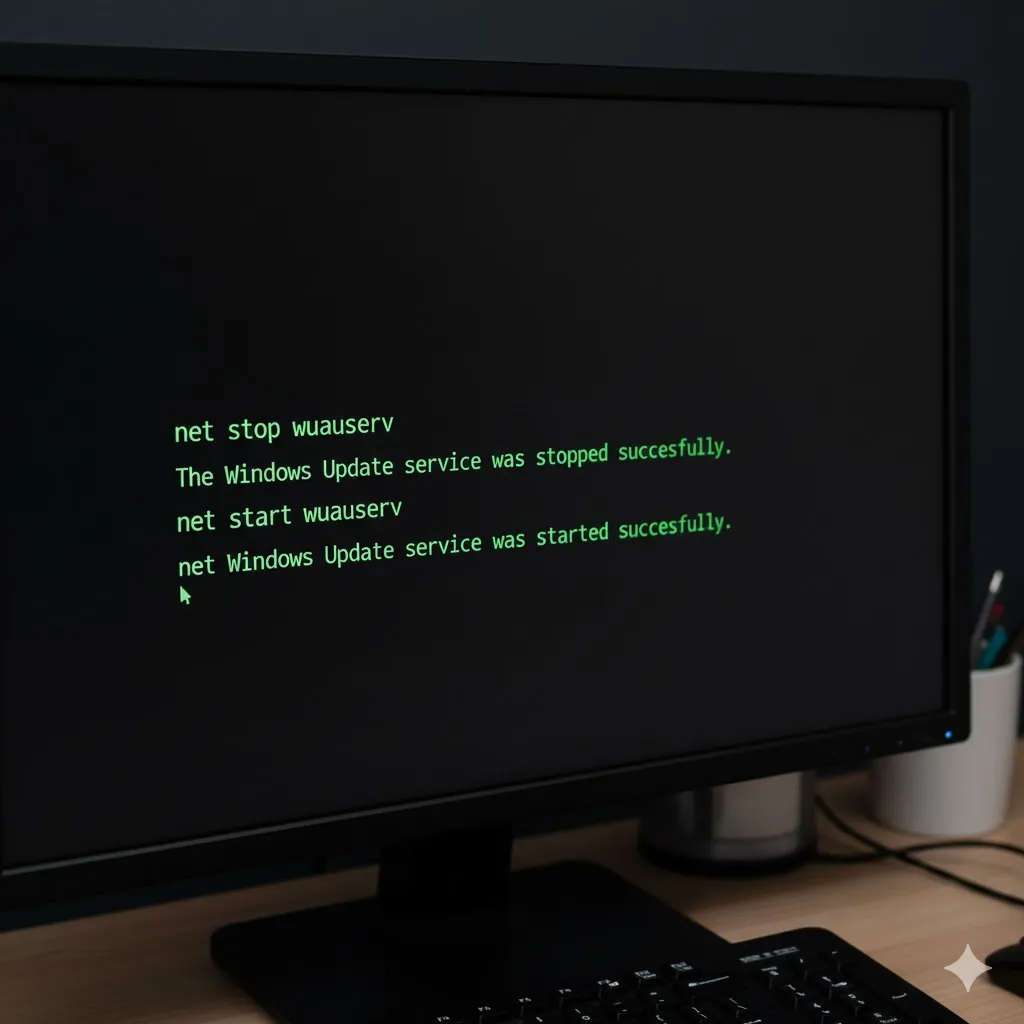
- Type these commands one by one, pressing Enter after each:net stop wuauservnet stop bitsnet start wuauservnet start bits
- This stops and restarts the “Windows Update” and “Background Intelligent Transfer” services.
Method 3: Delete the “SoftwareDistribution” Folder (The Nuclear Fix)
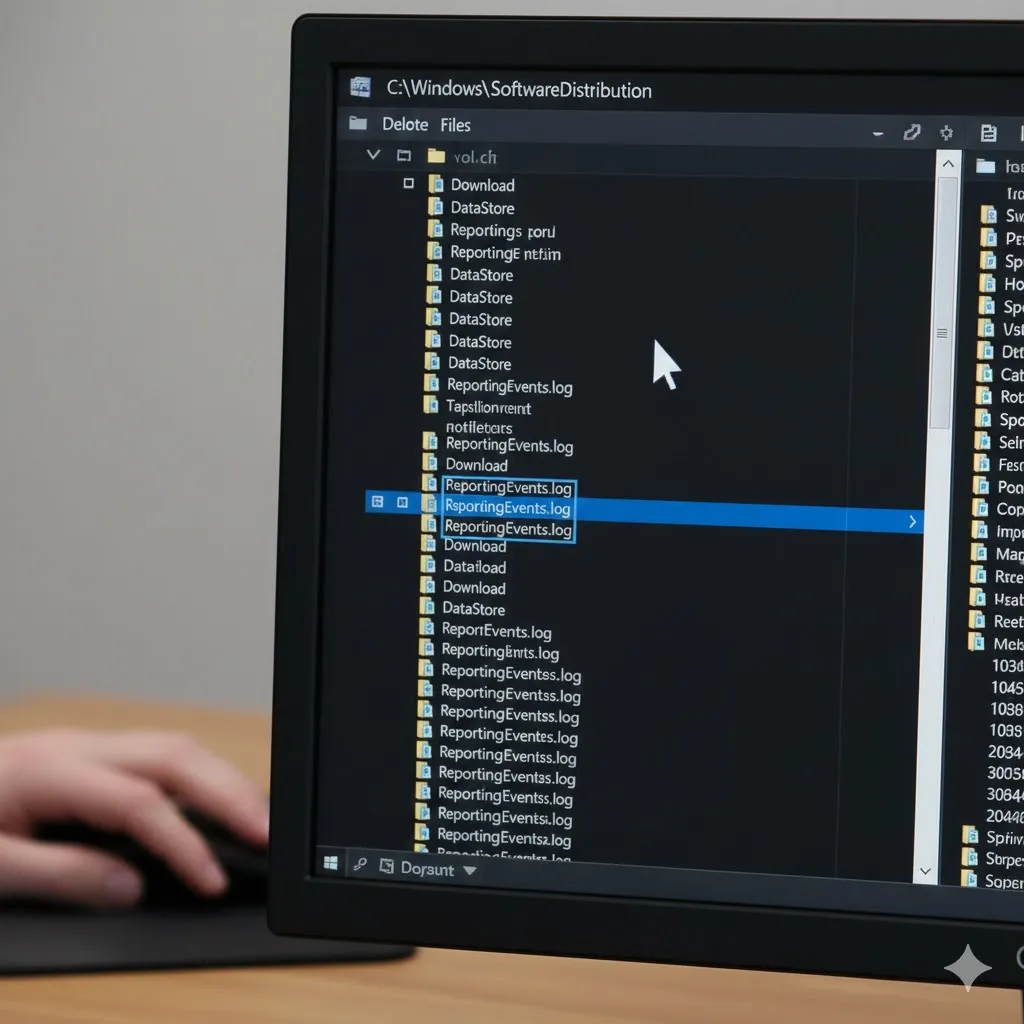
This is the most effective fix for “stuck at 0%”. We are going to delete the temporary folder where Windows stores the update files. If a file inside is corrupted, deleting it forces Windows to download a fresh copy.
- Stop the services first (use Method 2 commands:
net stop wuauservandnet stop bits). - Open File Explorer and go to
C:\Windows\SoftwareDistribution. - Select everything inside this folder (Ctrl + A) and Delete it.
- Restart the services (use Method 2 commands:
net start wuauservandnet start bits). - Now check for updates again. It will start from 0%, but this time it will actually move!
Method 4: Check Your Internet & VPN
Sometimes it’s not Windows; it’s your connection.
- Disable VPN: Microsoft’s servers often block VPN IP addresses. Turn off your VPN and try again.
- Metered Connection: If you set your Wi-Fi as “Metered” to save data, Windows won’t download updates. Go to Settings > Network & Internet > Wi-Fi > Manage known networks and ensure “Set as metered connection” is OFF.
Method 5: Run SFC Scan
If system files are missing, the update installer can’t run.
- Open Command Prompt (Admin).
- Type
sfc /scannowand hit Enter. - If it says “Windows Resource Protection found corrupt files and successfully repaired them,” try updating again.
Frequently Asked Questions (FAQ)
Q: Can I just shut down my PC if it’s stuck?
A: If it’s stuck at “Downloading” or “Installing 0%”, yes, you can restart safely. BUT, if it’s stuck on a blue screen saying “Don’t turn off your computer”, try to wait at least 2-3 hours before forcing a shutdown to avoid breaking Windows.
Q: Why does this happen so often?
A: The SoftwareDistribution folder is sensitive. If your internet cuts out for a second while downloading a huge file, the file gets corrupted, and the installer gets confused. Method 3 fixes this.
Q: How long should I wait before trying to fix it?
A: Give it 30 minutes. If the percentage hasn’t moved a single digit in 30 minutes, it’s stuck.
Conclusion
A frozen Windows Update is annoying, but it’s rarely permanent. Clearing the SoftwareDistribution folder (Method 3) is the magic bullet that fixes 99% of “Stuck at 0%” errors.
Get those updates installed so you can stay safe!
Did clearing the folder work for you? Let me know in the comments below!