
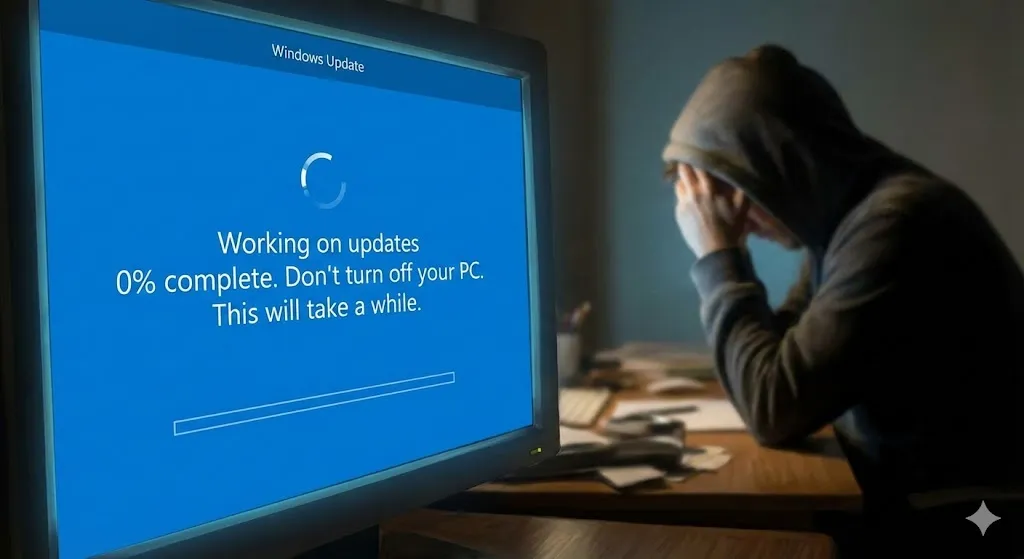
We have all been there. You are ready to shut down your computer after a long day of work, or perhaps you are eager to install the latest features Microsoft has promised. You click “Update and Restart,” expecting the process to take a few minutes. You go grab a cup of coffee, come back, and stare at the screen in disbelief.
The progress bar hasn’t moved. It is still sitting there, mocking you: “Downloading – 0%.”
A frozen Windows update is one of the most frustrating issues for PC users. It leaves you in a state of limbo—you can’t turn off your computer for fear of corrupting your operating system, but you also can’t use it. Whether you are running Windows 10 or the newer Windows 11, this issue is surprisingly common. But don’t worry, you haven’t bricked your computer.
In this guide, I will walk you through the most effective, step-by-step solutions to get your Windows Update unstuck. We will start with the easiest fixes and move on to more advanced troubleshooting if the simple tricks don’t work.
Why is Windows Update Stuck?
Before we dive into the fixes, it helps to understand why this happens. Usually, the “stuck at 0%” issue isn’t because Microsoft’s servers are down (though that can happen). It is often caused by:
- Corrupted Update Files: Sometimes the files downloaded partially and got “tangled” digitally.
- Service Conflicts: Another program or background service is fighting with the Windows Update service.
- Insufficient Storage: Your drive simply doesn’t have room to unpack the new files.
- Software Glitches: Temporary cache files confuse the system.
Now, let’s fix it.
Method 1: The Official Windows Update Troubleshooter
Microsoft knows this happens, so they included a built-in repair tool. This should always be your first step because it is safe and automatic.
- Press the Start button and click on the Settings (Gear icon).
- Go to Update & Security (Windows 10) or System > Troubleshoot (Windows 11).
- Click on Additional troubleshooters.
- Select Windows Update and click Run the troubleshooter.

The tool will scan your system for common problems and attempt to fix them automatically. If it finds an issue and fixes it, restart your computer and try updating again.
Method 2: Restart the Windows Update Service
If the troubleshooter didn’t work, we need to manually kickstart the services responsible for downloading the update. Think of this as waking up a sleeping employee.
- Press Windows Key + R on your keyboard to open the Run dialog box.
- Type
services.mscand hit Enter. - In the list of services, scroll down until you find Windows Update.
- Right-click on it and select Stop.
- Wait for a moment, then right-click it again and select Start.
Pro Tip: While you are in there, do the same restart process for Background Intelligent Transfer Service (BITS). This service helps transfer files in the background and is crucial for updates.
Method 3: Clearing the SoftwareDistribution Folder
This is the “magic bullet” for 90% of stuck updates. Windows stores temporary update files in a specific folder. If these files are corrupt, the update will never finish. We are going to delete them so Windows is forced to download fresh, clean copies.
Step-by-Step Instructions:
- Stop the Services: Use the method above (Method 2) to STOP the “Windows Update” service and “BITS” service. Do not close the Services window yet.
- Navigate to the Folder: Open File Explorer and go to this path:
C:\Windows\SoftwareDistribution - Delete Everything: Open the folder. Select all files (Ctrl + A) and hit Delete.
- Note: If it says some files are in use, restart your computer and try again, ensuring the services are stopped first.
- Restart Services: Go back to the Services window and START the “Windows Update” and “BITS” services again.
Now, go back to Settings and check for updates. It might take a moment to initialize, but it should start downloading from 0% and actually move this time.
Method 4: Using Command Prompt (CMD) to Fix Corrupted Files
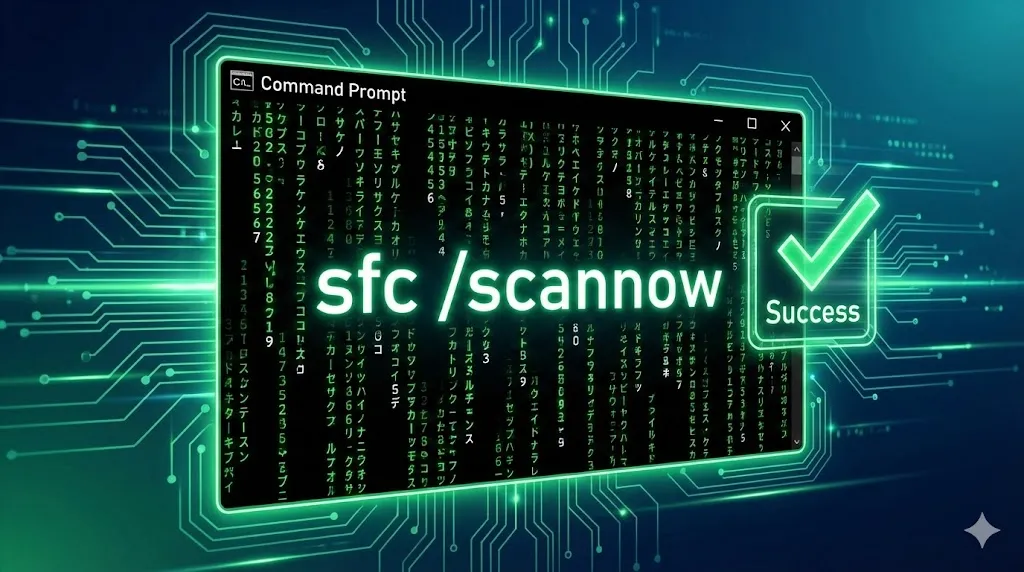
If deleting the cache didn’t work, your core system files might be damaged. We can use the System File Checker (SFC) and DISM tools to repair them. This looks technical, but you just need to copy and paste.
- Type “cmd” in your Windows search bar.
- Right-click on Command Prompt and select Run as administrator.
- Type the following command and press Enter:
sfc /scannow - Wait for the scan to reach 100%. If it finds errors, it will fix them.
- Next, type this command (Deployment Image Servicing and Management) and press Enter:
DISM /Online /Cleanup-Image /RestoreHealth
This process effectively connects to Microsoft’s servers to replace any broken system files with fresh ones.
Method 5: The DNS Switch
Sometimes, the issue isn’t your computer; it’s your internet connection to the Microsoft servers. Changing your DNS to Google’s public DNS can sometimes unblock the connection.
- Go to Control Panel > Network and Internet > Network and Sharing Center.
- Click on your connection (Wi-Fi or Ethernet).
- Click Properties.
- Select Internet Protocol Version 4 (TCP/IPv4) and click Properties.
- Select “Use the following DNS server addresses” and enter:
- Preferred DNS server:
8.8.8.8 - Alternate DNS server:
8.8.4.4
- Preferred DNS server:
- Click OK and try updating again.
Frequently Asked Questions (FAQ)
Q: How long should I wait before deciding the update is stuck? A: It depends on your internet speed and the size of the update. However, if the percentage hasn’t moved for more than 2 hours, it is likely stuck.
Q: Will deleting the SoftwareDistribution folder delete my personal files? A: No. That folder only contains temporary installation files for Windows Update. Your photos, documents, and apps are completely safe.
Q: Can I just turn off my computer if the update is stuck? A: If it is stuck at the “Downloading” or “Installing” stage inside Windows, yes, you can restart. However, if you are on the blue screen that says “Don’t turn off your computer,” force-restarting carries a small risk, but it is often the only choice if it has been frozen for hours.
Q: Why does this keep happening? A: If this is a recurring issue, check your hard drive health or consider a clean installation of Windows, as your current OS might have deep-seated registry errors.
Conclusion
Seeing your Windows Update stuck at 0% is annoying, but it is rarely a fatal error. By following these steps—starting with the troubleshooter and moving to clearing the cache—you can solve 99% of update issues without paying for a technician.
Technology is great when it works, and manageable when you know how to fix it. Keep your system updated for the best security and performance!
Did one of these methods work for you? Or do you have a different trick that solved the problem? Let us know in the comments below—your tip might help someone else save their PC!