
Introduction
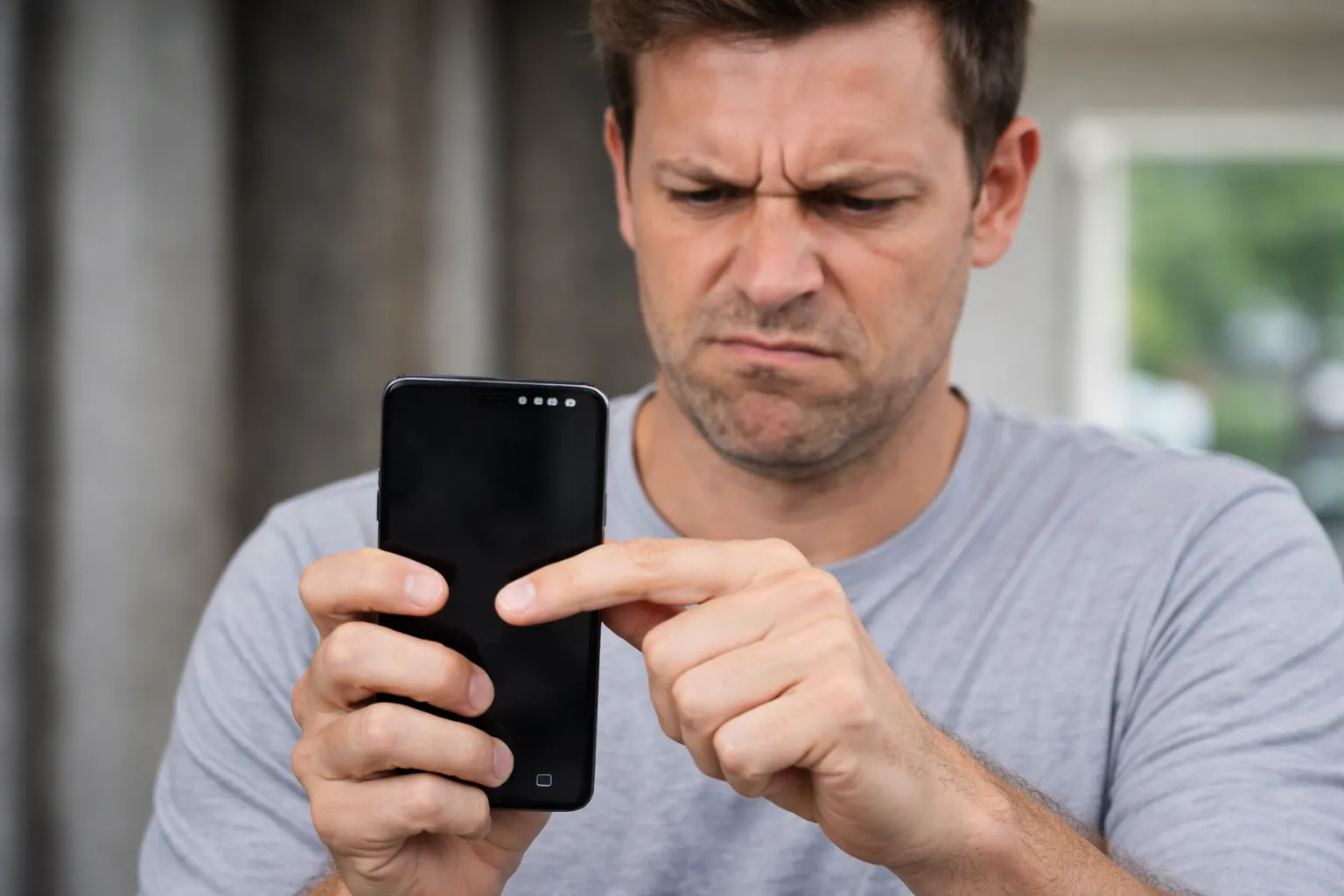
You tap an app, but nothing happens. You swipe to unlock, but the screen is stuck. Or even weirder—your phone starts typing messages or opening apps by itself like an invisible finger is touching it.
“Is my screen broken?”
Not necessarily. While a cracked screen is a hardware issue, “Ghost Touch” or unresponsiveness is often caused by a software glitch, a bad screen protector, or outdated touch firmware.
In this guide, I will show you how to recalibrate your touch sensor and get your Galaxy responding perfectly again.
Method 1: Force Restart (The First Step)
If the screen is frozen, you can’t tap “Power Off”. You need to force a restart using the physical buttons to clear the temporary glitch.
- Press and hold the Volume Down button and the Power (Side) button simultaneously.
- Keep holding them for 10 to 15 seconds.
- The screen will go black, and the Samsung logo will appear.
- Release the buttons.
- Once it reboots, check if the touch is working.
Method 2: Update Touch Screen Firmware (Secret Code)
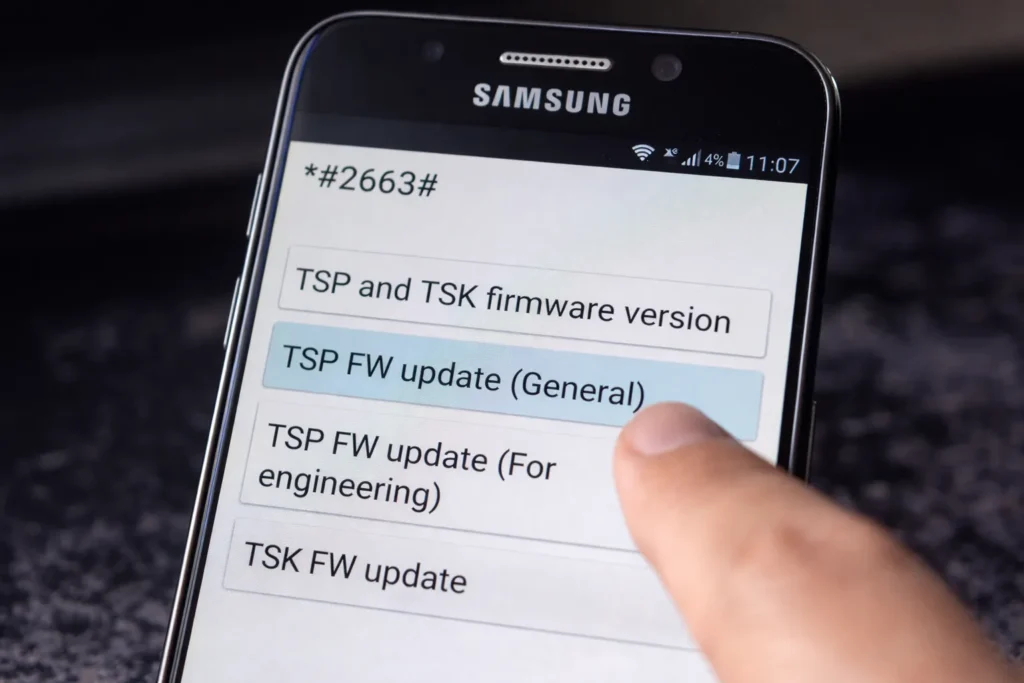
Samsung phones have a hidden menu to update the touch sensor’s firmware. This is a pro tip that fixes many “Ghost Touch” issues.
- Open the Phone (Dialer) app.
- Dial this code:
*#2663# - A menu called “Firmware version” will open.
- Tap the button “TSP FW update (General)”.
- Wait for it to say “PASS”. Do not turn off the screen while it’s updating.
Method 3: Remove Screen Protector & Case
Sometimes, the issue is physical.
- Screen Protector: If it’s old, cracked, or has an air bubble, it can confuse the sensor. Peel it off and test the bare screen.
- Case: Some bulky cases press against the edges of the screen, causing “Ghost Touches.” Remove the case and test.
Method 4: Increase Touch Sensitivity
If you use a thick glass screen protector, your phone might just need a sensitivity boost.
- Go to Settings > Display.
- Scroll down and toggle ON “Touch sensitivity”.
- This increases the voltage to the screen, making it register lighter taps.
Method 5: Test in Safe Mode
If a bad app is causing the screen to freeze (like a malicious game or launcher), Safe Mode will prove it.
- Press and hold Power.
- Long-press the Power off icon on the screen.
- Tap Safe Mode.
- If the touch works perfectly in Safe Mode, an app you installed recently is the culprit. Uninstall the latest apps one by one.
Frequently Asked Questions (FAQ)
Q: Can water cause Ghost Touch?
A: Yes. Even a tiny drop of water or sweat on the screen conducts electricity and registers as a finger tap. Wipe your screen thoroughly with a microfiber cloth.
Q: My screen is cracked. Will these fixes work?
A: Probably not. If the digitizer (the layer under the glass) is physically damaged, no software update can fix it. You need a screen replacement.
Q: Does factory reset fix touch issues?
A: If Method 2 (Firmware Update) didn’t work, a factory reset is the last resort. If it still fails after a reset, it is 100% a hardware failure.
Conclusion
A frozen screen feels like a dead phone, but don’t panic. Force restarting (Method 1) and updating the TSP Firmware (Method 2) are powerful fixes that save you a trip to the repair shop.
Get your touch back and stop the ghost!
Did the secret *#2663# code work for you? Share your experience in the comments!