
Introduction
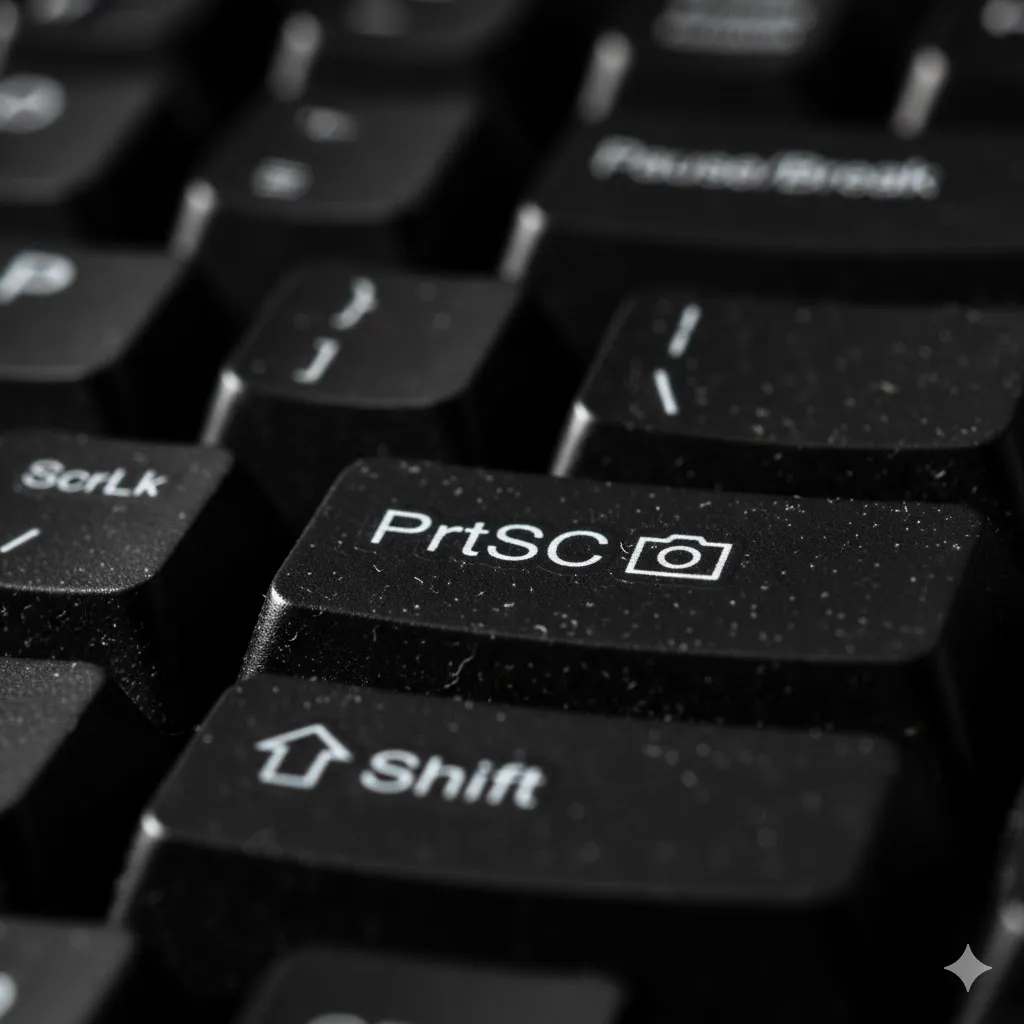
You see something funny or important on your screen. You instinctively press the “PrtSc” (Print Screen) key, expecting the screen to flash or a “Screenshot Saved” notification to appear.
But nothing happens. You check your “Pictures > Screenshots” folder, and it’s empty.
“Why won’t my computer take a picture?”
This is frustrating, but your keyboard isn’t necessarily broken. Often, the Print Screen function is hijacked by other apps (like OneDrive or Dropbox), or you simply need to use a different key combination on modern laptops.
In this guide, I will show you how to fix the PrtSc key and introduce you to better ways to capture your screen.
Method 1: Use the “Win + Shift + S” Shortcut (The Modern Way)
If the old PrtSc key is acting up, ignore it. Windows 10 and 11 have a much better built-in tool called “Snip & Sketch”.
- Press Windows Key + Shift + S at the same time.
- Your screen will dim, and a small toolbar will appear at the top.
- Click and drag to select exactly what you want to capture (Rectangle, Freeform, or Full Screen).
- Once you let go, it is copied to your clipboard. Click the notification to save it.
Method 2: Check the F-Lock / Fn Key
On many laptops (Dell, HP, Lenovo), the “PrtSc” key is a secondary function. You might need to unlock it.
- Look for a key that says “F-Lock” or has a padlock icon. Press it once to toggle the Function keys.
- Try pressing Fn + PrtSc together.
- On some keyboards, press Win + PrtSc to automatically save the file to your Screenshots folder.

Method 3: Stop OneDrive / Dropbox Hijacking
Cloud storage apps love to “take over” the screenshot button to save files directly to the cloud. If they aren’t running properly, the key stops working entirely.
- Right-click the OneDrive (cloud icon) in your taskbar.
- Go to Settings > Sync and backup (or Backup).
- Uncheck “Automatically save screenshots I capture to OneDrive”.
- Do the same for Dropbox if you use it.
- Now try pressing PrtSc again.
Method 4: Enable “Use PrtSc to open Screen Snipping”
You can program the Print Screen key to launch the modern Snipping Tool directly, making it much more useful.
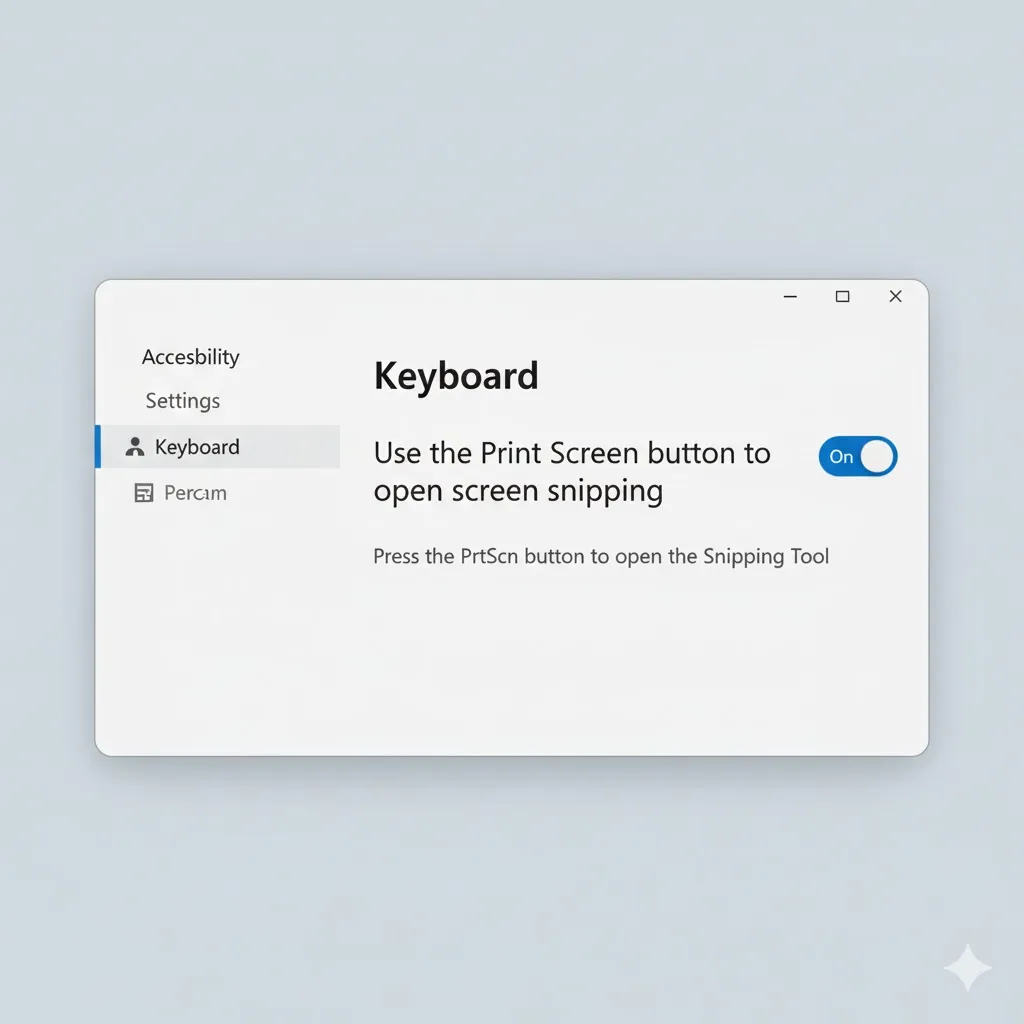
- Go to Settings > Accessibility > Keyboard.
- Scroll down to the “On-screen keyboard, access keys, and Print Screen” section.
- Turn ON the switch for “Use the Print Screen button to open screen snipping”.
- Now, pressing PrtSc will trigger the cool selection tool from Method 1.
Method 5: Update Keyboard Drivers
If absolutely no keys are working properly, the driver might be the issue.
- Right-click Start > Device Manager.
- Expand Keyboards.
- Right-click Standard PS/2 Keyboard > Update driver.
- Select Search automatically for drivers.
- Restart your PC.
Frequently Asked Questions (FAQ)
Q: Where do my screenshots go?
A: If you press Win + PrtSc, they go to C:\Users\[You]\Pictures\Screenshots. If you just press PrtSc, it is often just copied to your Clipboard (you must Paste it into Paint or Word).
Q: How do I take a screenshot of just one window?
A: Press Alt + PrtSc. This captures only the active window you are using, not the whole background.
Q: My screen goes black when I screenshot. Why?
A: Some apps (like Netflix or Banking apps) block screenshots for copyright/security reasons. This is normal and cannot be bypassed easily.
Conclusion
The Print Screen key is old technology. While fixing it (Method 3 & 4) is good, I highly recommend switching to the Win + Shift + S shortcut (Method 1). It gives you way more control and works 100% of the time.
Start capturing like a pro!
Did you know about the Win+Shift+S trick? Let me know in the comments!