
You turn on your laptop, connect to your home Wi-Fi, and… nothing loads. No Google, no YouTube, no emails.
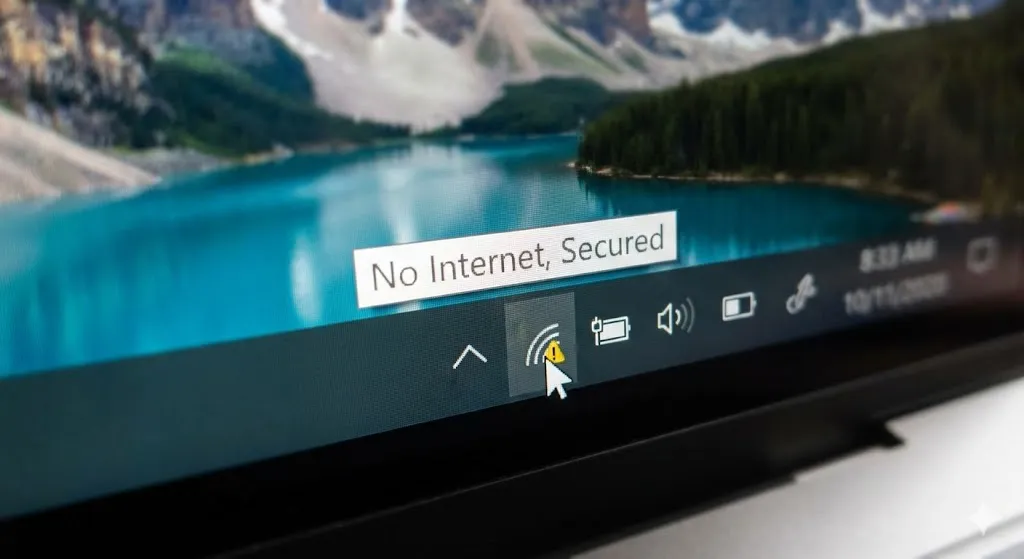
You check the Wi-Fi icon, and it looks fine. But when you hover over it, you see the confusing message:
“No Internet, Secured”
It’s frustrating because your computer is technically connected to the router (that’s the “Secured” part), but the router isn’t giving you any data (that’s the “No Internet” part). It’s like being plugged into a power outlet that has no electricity.
This issue is usually caused by a conflict in your IP address settings or a glitch in the Windows network configuration. In this guide, I will show you how to reset your connection settings and get back online in minutes.
Why Does This Happen?
Even though your router works for your phone, your PC might fail to connect because:
- Invalid IP Configuration: Your computer is asking for an IP address that the router can’t give.
- DNS Issues: The “phonebook” of the internet (DNS) is not responding.
- Driver Glitch: Your Wi-Fi adapter driver crashed silently.
- VPN Interference: A VPN software changed your settings and didn’t change them back.
Method 1: Forget and Reconnect (The Easiest Fix)
Sometimes, just refreshing the connection is enough to clear the glitch.
- Click the Wi-Fi icon in your taskbar.
- Right-click your network name and select Forget.
- Wait 10 seconds.
- Click the network again and enter your password to reconnect.
If it still says “No Internet,” we need to get technical.
Method 2: Reset IP and Flush DNS (The Magic Commands)
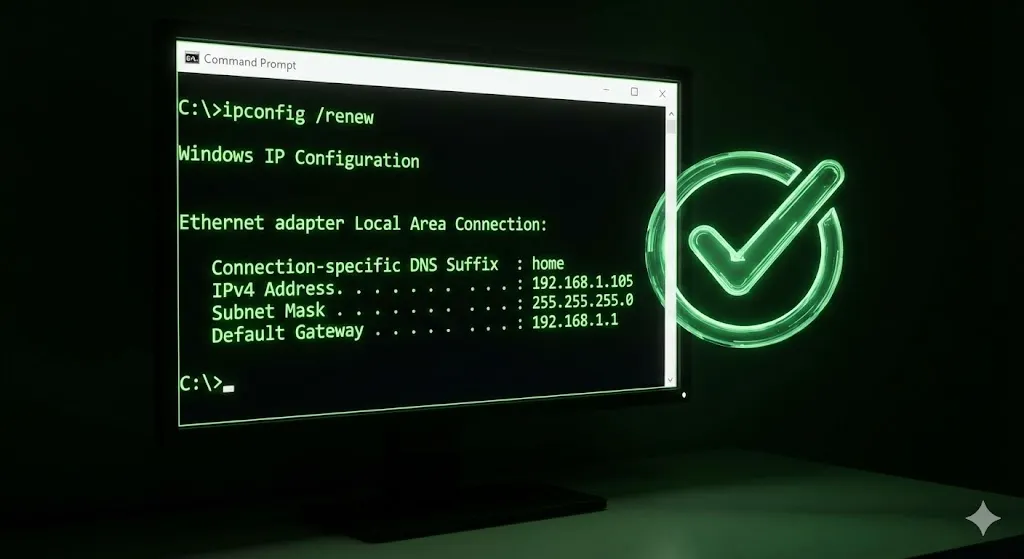
This is the most effective fix for this specific error. We will force Windows to dump all its old network settings and ask the router for a fresh connection.
- Type “cmd” in the Windows search bar.
- Right-click Command Prompt and run as Administrator.
- Type the following commands one by one, pressing Enter after each:
netsh winsock resetnetsh int ip resetipconfig /releaseipconfig /renewipconfig /flushdns - Restart your computer.
When you reboot, your PC will handshake with the router like it’s the first time.
Method 3: Change DNS Settings
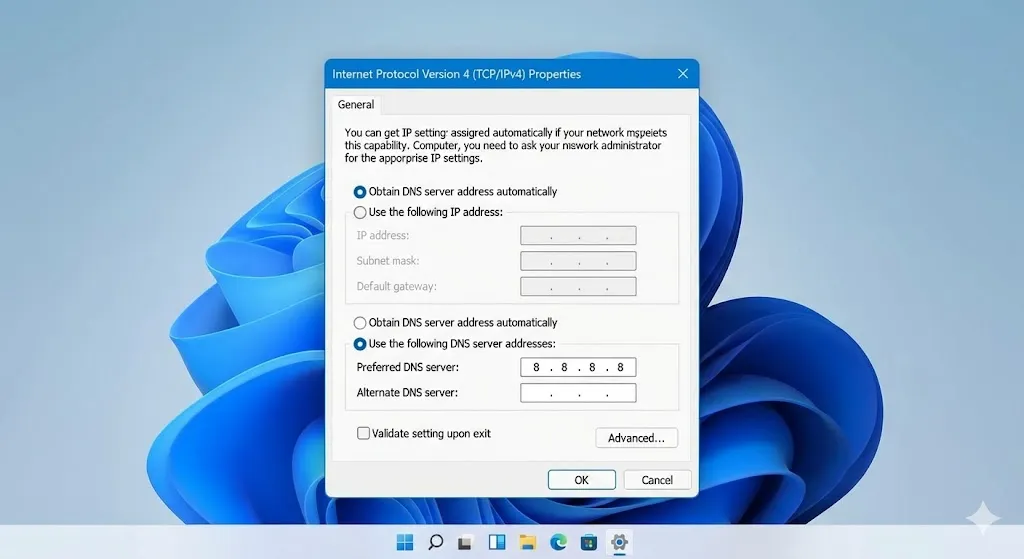
If your IP is fine but you can’t load websites, your ISP’s DNS might be down. Let’s switch to Google’s reliable servers.
- Go to Settings > Network & Internet > Wi-Fi.
- Click on Hardware properties (or “Change adapter options”).
- Right-click your Wi-Fi adapter > Properties.
- Double-click Internet Protocol Version 4 (TCP/IPv4).
- Select “Use the following DNS server addresses”:
- Preferred:
8.8.8.8 - Alternate:
8.8.4.4
- Preferred:
- Click OK and check your internet.
Method 4: Update Network Adapter Driver
An outdated driver can stop communicating with newer routers.
- Right-click the Start button > Device Manager.
- Expand Network adapters.
- Look for your Wireless/Wi-Fi adapter (e.g., Intel, Realtek).
- Right-click it > Update driver > Search automatically.
- Tip: If you have no internet to download drivers, try Uninstall device instead, then restart. Windows will reinstall the basic driver automatically.
Method 5: Uncheck IPv6
This is a weird quirk in Windows 10/11, but disabling the unused IPv6 protocol often solves the “No Internet” bug.
- Go back to your Wi-Fi Properties window (same as Method 3).
- In the list of items, find Internet Protocol Version 6 (TCP/IPv6).
- Uncheck the box next to it.
- Click OK and restart.
Frequently Asked Questions (FAQ)
Q: My phone works on Wi-Fi, but my PC doesn’t. Why? A: This proves the issue is with your PC’s settings (IP or Driver), not the router itself. Method 2 usually fixes this.
Q: Should I restart my router? A: Yes! It’s always good practice. Unplug your router’s power cable, wait 30 seconds, and plug it back in. Sometimes the router just needs to clear its memory.
Q: Does “Secured” mean I was hacked? A: No. “Secured” just means the connection between your PC and the router is encrypted with a password. It has nothing to do with hackers; it just confirms you are logged into the Wi-Fi correctly.
Conclusion
Seeing “No Internet, Secured” is an annoyance, but it’s rarely a hardware failure. By resetting your IP address (ipconfig) or changing your DNS, you can solve 95% of these cases.
Now that you are back online, you can get back to streaming and browsing!
Did the CMD commands work for you? Or did changing the DNS do the trick? Let me know in the comments!