
Introduction
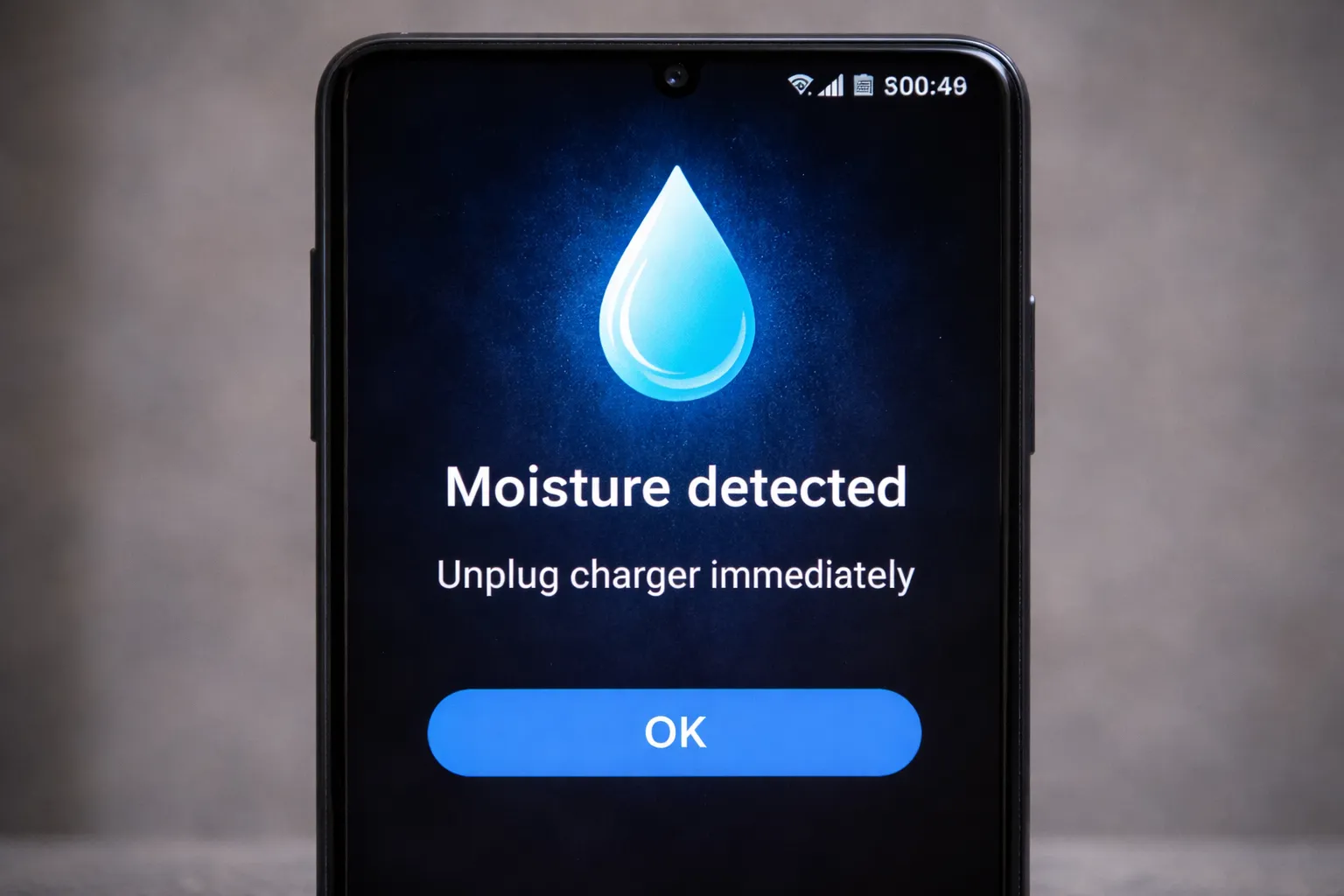
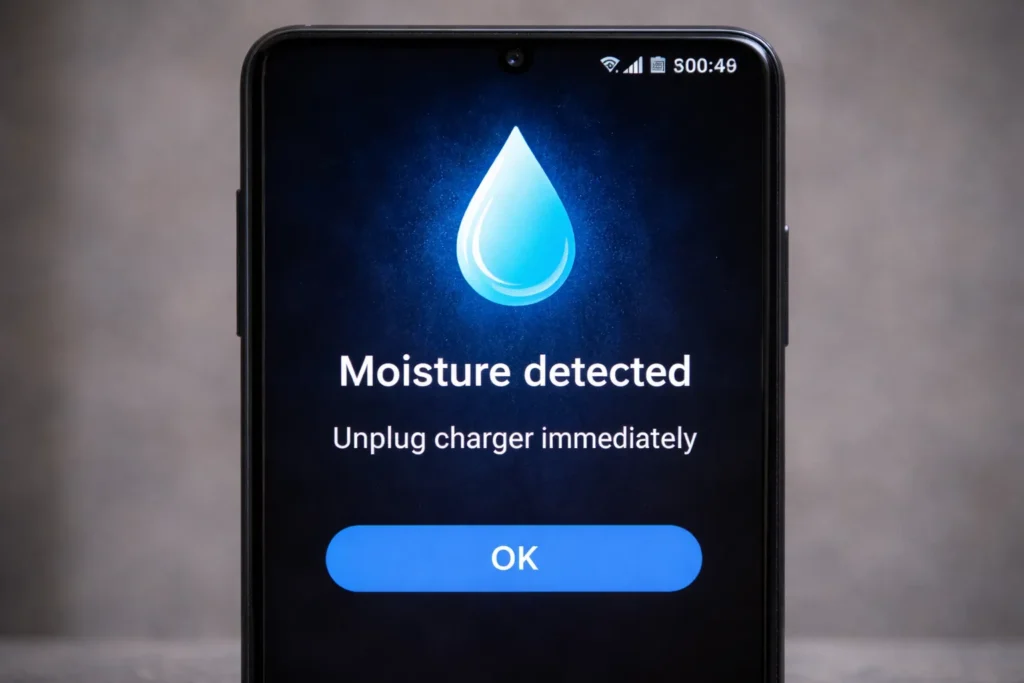
You plug your charger into your Samsung Galaxy before bed, but instead of the charging sound, you hear a loud alarm and a vibration. A blue water drop icon appears on the screen with the message:
“Moisture detected in charging/USB port.”
Your phone refuses to charge to prevent a short circuit. This is a great safety feature if your phone actually fell in the pool. But what if your phone is bone dry?
This “phantom” moisture error is a common bug caused by high humidity, a dirty port, or a stuck sensor. In this guide, I will show you how to clear this error and get your battery charging again.
Why Am I Seeing This Error?
Even if you didn’t drop your phone in water, the sensor is extremely sensitive. It can be triggered by:
- Humidity: Taking your phone into a steamy bathroom while showering.
- Debris: Dust or lint in the charging port absorbing moisture from the air.
- Cable Issue: A wet or damaged charging cable.
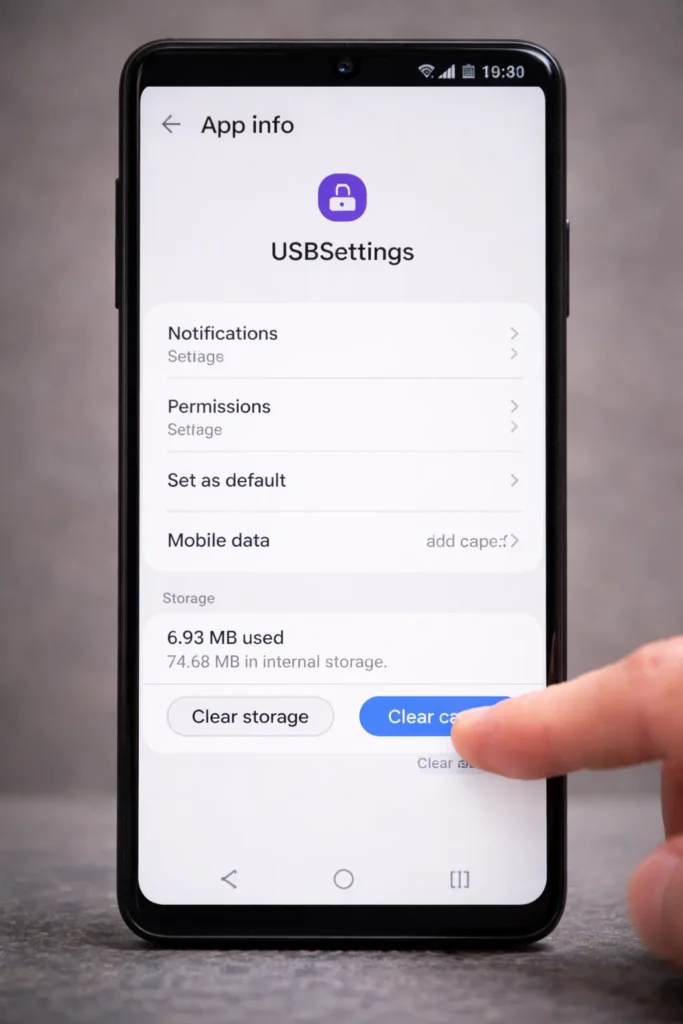
- Software Glitch: The “USBSettings” system app is frozen.
Method 1: The “USBSettings” Reset (The Secret Fix)
If your phone is dry but the error won’t go away, the software cache is likely corrupted. This is the #1 fix for persistent errors.
- Go to Settings > Apps.
- Tap the Filter/Sort icon (next to “Your apps”) and turn on Show system apps.
- Scroll down and find USBSettings (or USB Settings).
- Tap Storage > Clear Cache.
- Restart your phone and try charging.
Method 2: Clean the Port Gently
Sometimes, a piece of lint inside the port is holding onto moisture.
- Turn off your phone.
- Use a plastic / wooden toothpick (never metal!) to gently scrape out lint from the USB-C port.
- Use a can of compressed air to blow it out.
- Use a fan (cool air) to dry the port for 10-15 minutes. Do not use a hair dryer with hot air!
Method 3: Charge While Powered Off
The moisture sensor runs on the Android OS level. Sometimes, charging it while off can bypass the check and give you enough power to reset the system.
- Plug in your charger. (The alarm might sound).
- Restart your phone, but connect the charger as soon as the Samsung logo appears.
- Alternatively, turn the phone completely OFF and plug it in. Sometimes it charges slowly without the OS blocking it.
Method 4: Use a Wireless Charger
If the USB port is blocked by the error, wireless charging is your savior. The moisture error does not stop wireless charging.
- Place your phone on a Qi wireless charger.
- Let it charge to 100%.
- Often, the heat generated from wireless charging helps evaporate any microscopic moisture in the port.
Method 5: Disable Fast Charging
Fast charging generates more heat and requires a stricter safety check. Disabling it can sometimes bypass a sensitive sensor.
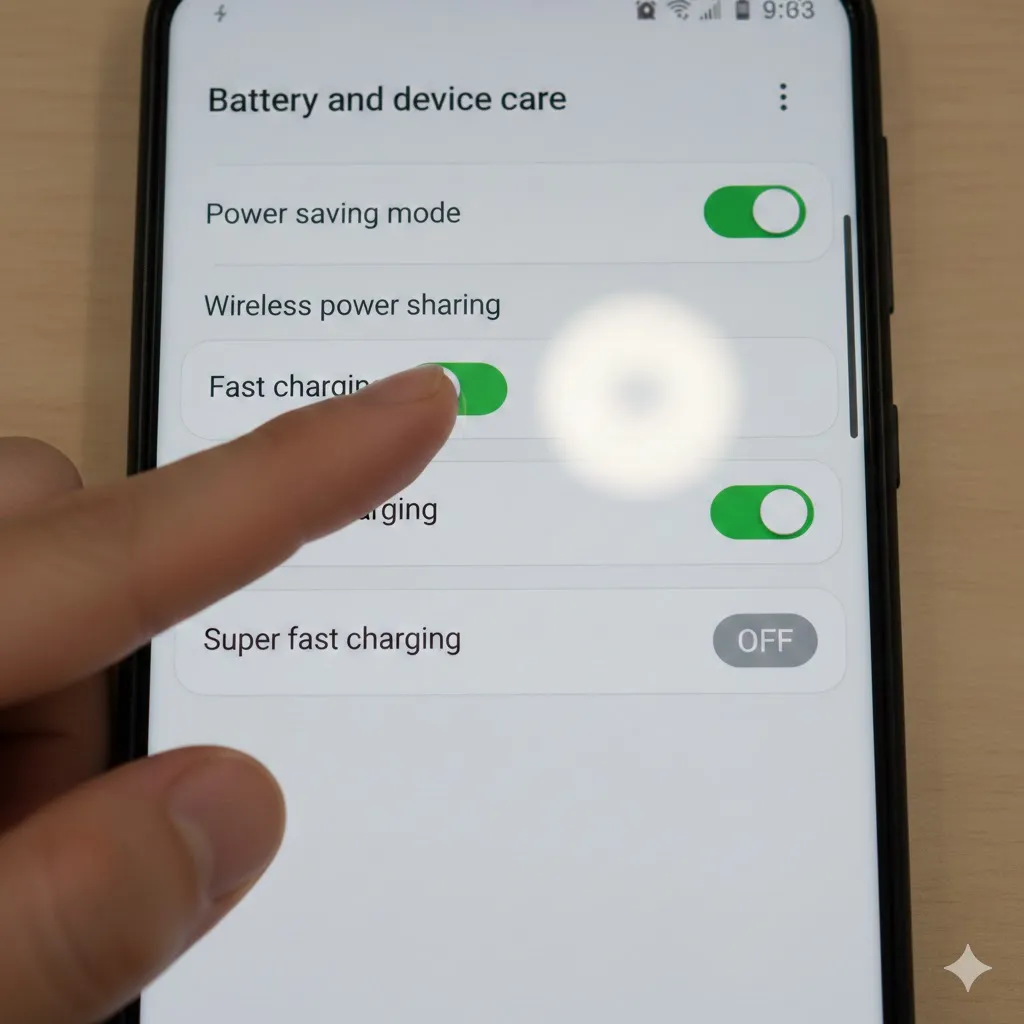
- Go to Settings > Battery and device care > Battery.
- Tap More battery settings.
- Toggle OFF “Fast charging” and “Super fast charging”.
- Try plugging in the cable again.
Frequently Asked Questions (FAQ)
Q: Can I force disable the moisture sensor?
A: No, Samsung does not allow you to turn off this safety feature permanently. Method 1 (clearing cache) is the closest way to reset it.
Q: How long does the error last?
A: If it’s actually wet, it takes 1 to 2 hours to dry naturally. If it lasts for days, it’s a software glitch or port damage.
Q: Is salt water dangerous?
A: Yes! If you dropped it in the ocean, rinse the port with fresh water immediately. Salt corrodes the metal contacts instantly, ruining the port forever.
Conclusion
The “Moisture Detected” error is annoying, especially when you know your phone is dry. Usually, it’s just a software hiccup. Clearing the USBSettings cache (Method 1) fixes the phantom error for most users.
If nothing works, rely on a wireless charger until the port decides to behave!
Did the USBSettings trick clear the error? Let me know in the comments below!