
You are working on your laptop, and you notice the battery is getting low. You plug in the charger, expecting the icon to turn into a lightning bolt and the percentage to climb.
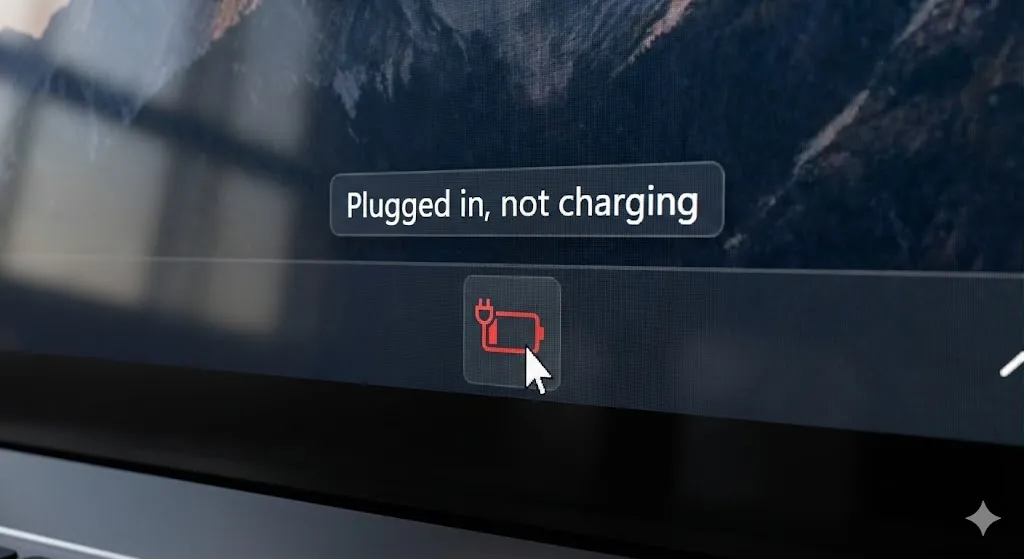
But something is wrong. The icon shows a plug, but the percentage is stuck at 5% or dropping. Hovering over it reveals the dreaded message:
“Plugged in, not charging.”
Is your charger broken? Is your battery dead? Before you spend $100 on a replacement, stop! This is often a software glitch where Windows “forgets” how to read the battery status.
In this guide, I will show you how to fix this common issue on Windows 10 and 11 laptops (works for HP, Dell, Lenovo, and Asus).
Why Is My Laptop Not Charging?
It’s rarely a broken battery. The most common reasons are:
- Driver Glitch: The software that controls the battery (ACPI) is frozen.
- Static Build-up: Residual electricity is confusing the motherboard sensors.
- Overheating: Laptops stop charging to prevent explosion if they get too hot.
- Loose Connection: The charging port or wall outlet is loose.
Method 1: The “ACPI Driver” Reset (The Golden Fix)
This works for 90% of users. We are going to delete the battery driver and let Windows reinstall a fresh one automatically.
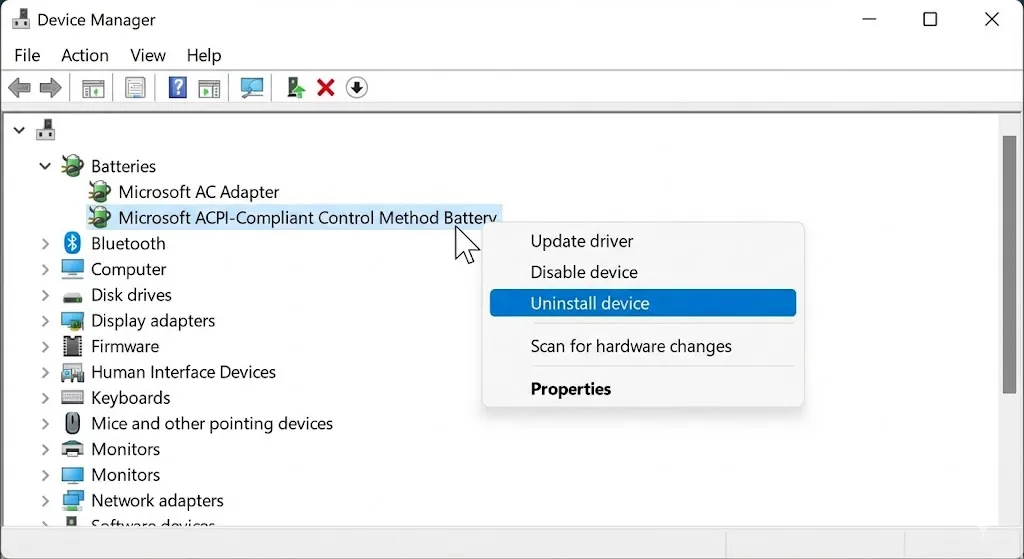
- Right-click the Start button and select Device Manager.
- Expand the Batteries section.
- You will see two items:
- Microsoft AC Adapter
- Microsoft ACPI-Compliant Control Method Battery
- Right-click on the second one (ACPI-Compliant…) and select Uninstall device.
- Don’t panic. Your laptop will stay on.
- Restart your laptop.
When Windows boots back up, it will automatically detect the battery and reinstall the fresh driver. Check if it’s charging now.
Method 2: The “Hard Power Reset”
If software wasn’t the issue, static electricity might be blocking the charge. We need to drain it.
- Shutdown your laptop and unplug the charger.
- If your laptop has a removable battery, take it out.
- Hold down the Power Button for 30 seconds. (This drains residual power from the capacitors).
- Put the battery back in (if you removed it) and plug in the charger.
- Turn it on.
Note: If your laptop has a sealed battery (internal), just holding the power button for 30 seconds while unplugged often triggers a reset mode.
Method 3: Check Battery Health Report
Is your battery actually dead? Windows has a secret command to tell you exactly how healthy your battery is.
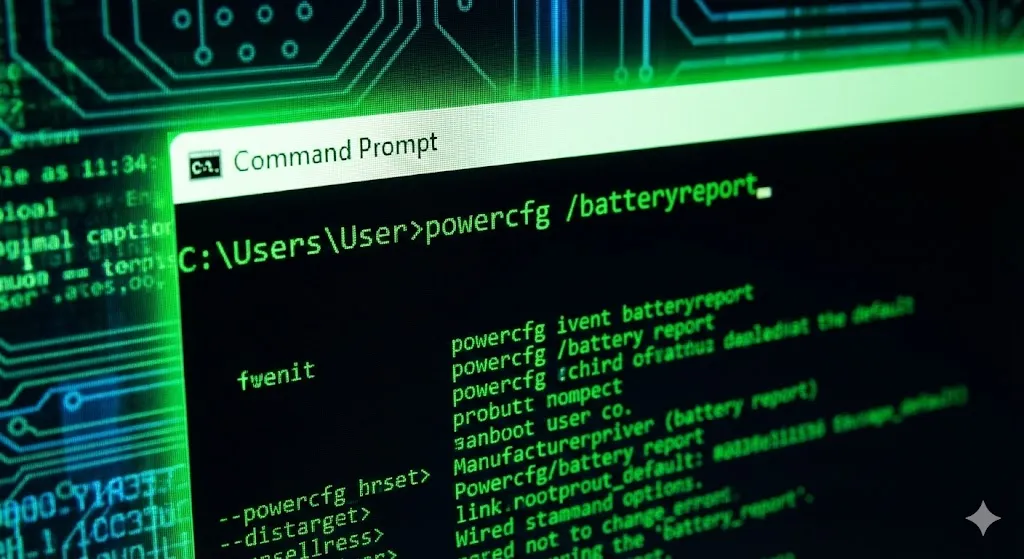
- Open Command Prompt (CMD) as Administrator.
- Type this command and hit Enter:
powercfg /batteryreport - It will save a file (usually in
C:\Windows\system32\battery-report.html). - Open that file in your browser.
- Look for “Design Capacity” vs “Full Charge Capacity”.
If “Full Charge Capacity” is significantly lower than “Design Capacity” (e.g., half the size), your battery is physically worn out and might need replacement.
Method 4: Check Your Power Outlet and Brick
Sometimes the problem is stupidly simple.
- Try a different wall outlet.
- Check the charging brick. Is it hot? Does it smell like burnt plastic?
- Check the charging port on the laptop. Is it wobbly? Blow into it to remove dust.
Method 5: Cool It Down
Lithium-ion batteries have safety sensors. If your laptop is extremely hot (gaming or rendering video), the system might cut off charging to prevent a fire.
- Shut down the laptop.
- Let it cool for 30 minutes in a cool room.
- Plug it in while it’s off and see if the charging light turns orange/white.
Frequently Asked Questions (FAQ)
Q: Can I use my laptop without the battery? A: Yes. If your battery is completely dead, you can remove it and run the laptop directly from the AC charger. (Just don’t unplug the cord, or it turns off instantly!)
Q: How much does a replacement battery cost? A: Usually between $30 and $80 depending on the model. It’s much cheaper than buying a new laptop.
Q: My battery is stuck at 80%. Is it broken? A: Not necessarily. Many modern laptops (especially Dell and Lenovo) have a “Battery Conservation Mode” in their settings app that stops charging at 80% to extend battery lifespan. Check your manufacturer’s app.
Conclusion
Seeing “Plugged in, not charging” is scary, but usually, it’s just a confused driver. The ACPI Driver Uninstall (Method 1) is your best friend here.
If all software fixes fail, your charging port or brick might be damaged. But try these free fixes first before opening your wallet!
Did the driver reset work for you? Let me know in the comments below!