
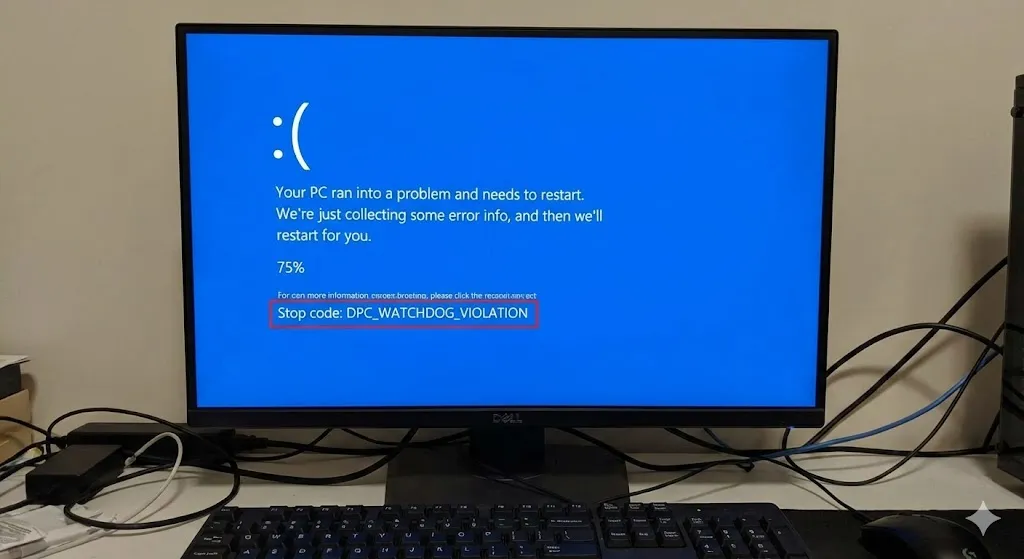
You are working on your PC or playing a game, and suddenly everything freezes. The mouse stops moving, the audio buzzes, and then—boom. The Blue Screen of Death (BSOD) appears with a long, scary error code:
Stop Code: DPC_WATCHDOG_VIOLATION
It sounds serious, doesn’t it? “Watchdog Violation” sounds like you broke a law.
But don’t panic. This error simply means your computer’s “Watchdog” (a system monitor) noticed that a specific component (usually your hard drive or SSD) stopped responding for too long, so it shut down the system to prevent damage.
In this guide, I will show you exactly how to fix the driver conflict causing this crash.
Method 1: Change SATA Controller Driver (The #1 Fix)
This is the most common solution. The standard driver for your SSD often conflicts with Windows 10/11. We need to force Windows to use the correct one.
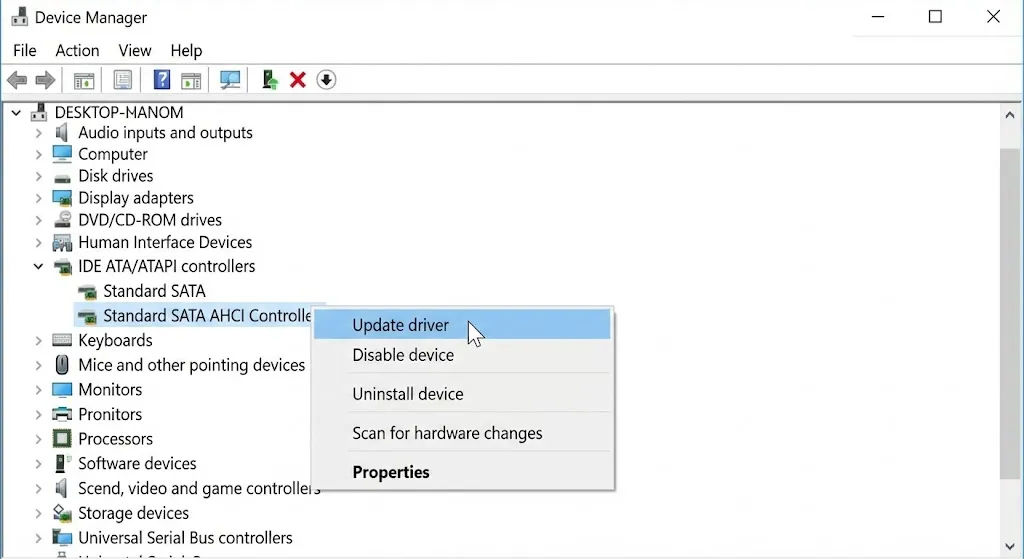
- Right-click the Start button > Device Manager.
- Expand IDE ATA/ATAPI controllers.
- Right-click Standard SATA AHCI Controller > Properties.
- Go to the Driver tab > Update Driver.
- Select Browse my computer for drivers.
- Select Let me pick from a list of available drivers.
- Choose Standard SATA AHCI Controller and click Next.
- Restart your PC.
Method 2: Check Your Disk for Errors (CHKDSK)
If your SSD or HDD has corrupted sectors, the Watchdog will time out while trying to read them.
- Type “cmd” in the Windows search bar.
- Right-click Command Prompt > Run as administrator.
- Type
chkdsk /f /rand hit Enter. - Type Y to schedule the scan for the next restart.
- Restart your computer and let it scan (this can take 20-30 minutes).
Method 3: Update SSD Firmware
Just like Windows needs updates, your SSD (Samsung, Crucial, WD) needs firmware updates to run smoothly.
- Find out your SSD brand (check Device Manager > Disk drives).
- Go to the manufacturer’s website (e.g., Samsung Magician, WD Dashboard).
- Download their management software.
- Check for Firmware Updates inside the software.
- If an update is available, install it immediately.
Method 4: Run System File Checker (SFC)
Corrupted Windows system files can also trigger the Watchdog.
- Open Command Prompt (Admin) again.
- Type
sfc /scannowand press Enter. - Wait until the verification reaches 100%. If it finds errors, it will fix them automatically.
Method 5: Remove External Devices
Sometimes, an old USB device (like a printer, scanner, or external hard drive) has a bad driver that causes the system to hang.
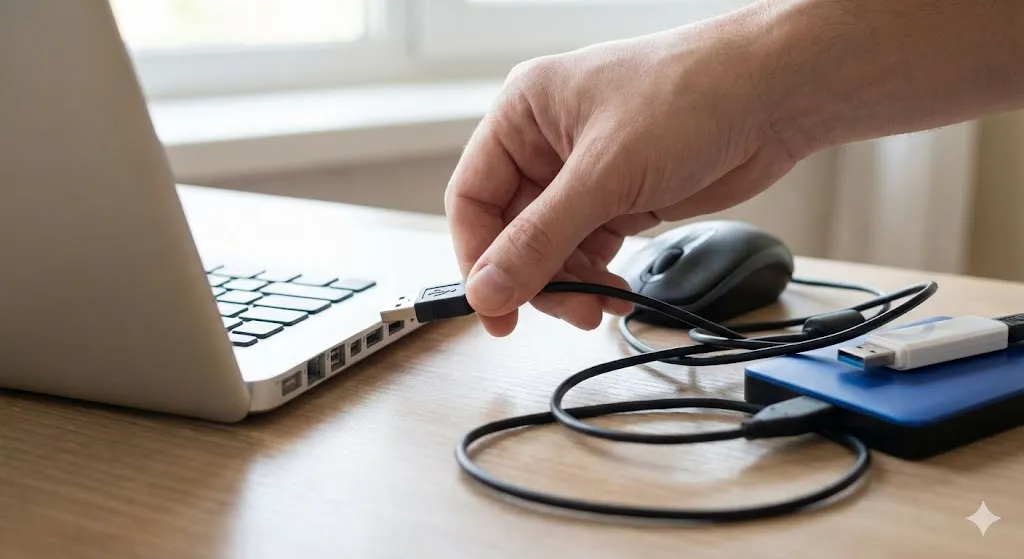
- Unplug all USB devices except your mouse and keyboard.
- Use your computer normally for a few hours.
- If the Blue Screen doesn’t happen, one of those devices is the culprit. Plug them back in one by one to find the bad one.
Frequently Asked Questions (FAQ)
Q: What does DPC mean? A: It stands for Deferred Procedure Call. Basically, it’s a task waiting in line to be processed by the CPU. If it waits too long (violation), the system crashes.
Q: Can I ignore this error? A: No. Unlike some minor errors, DPC_WATCHDOG_VIOLATION usually happens frequently (loops). If you don’t fix it, you will keep losing unsaved work.
Q: Is my SSD broken? A: Rarely. It is almost always a driver issue (Method 1) or outdated firmware (Method 3), not physical damage.
Conclusion
The “DPC_WATCHDOG_VIOLATION” error looks intimidating, but it’s just a communication breakdown between your drive and the CPU. Changing the SATA AHCI Controller driver (Method 1) fixes this for 80% of users.
Follow the steps, update your drivers, and say goodbye to the Blue Screen!
Did changing the SATA driver solve your crash? Tell us in the comments!