
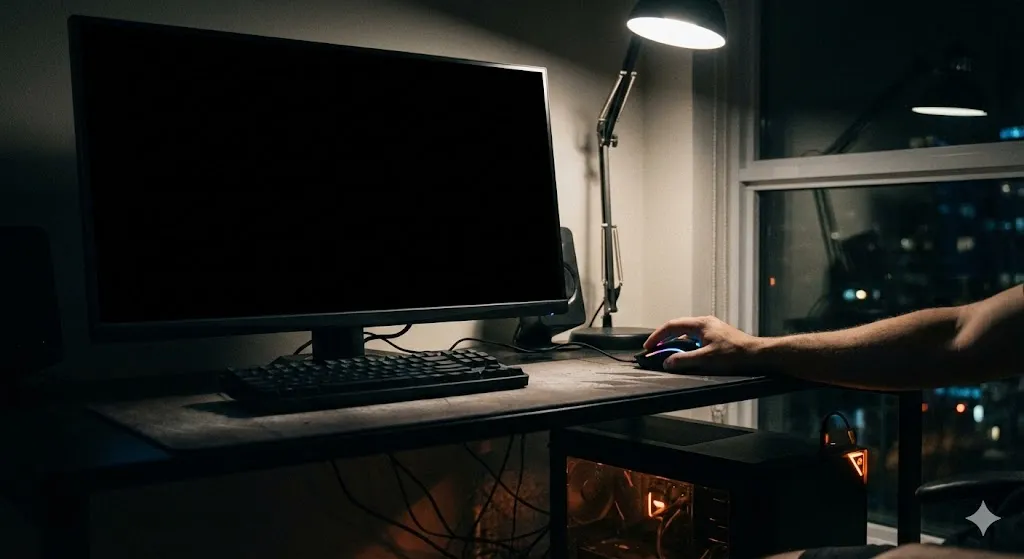
You stepped away for a coffee, and your computer went to sleep to save power. You come back, wiggle the mouse, tap the spacebar… and nothing.
The power light is blinking, the fans are spinning, but the screen remains pitch black.
“Is my computer dead?”
This “Sleep of Death” is a very common bug in Windows 10 and 11. Usually, the computer isn’t frozen; it just “forgot” how to wake up the graphics card or USB devices.
In this guide, I will show you how to wake it up safely and prevent this from happening ever again.
Method 1: The “Ctrl + Shift + Win + B” Trick
Before you reach for the power button, try this secret Windows keyboard shortcut. It restarts your graphics driver instantly without closing your apps.
- Press Ctrl + Shift + Windows Key + B at the same time.
- You will hear a short “beep,” and the screen will flash.
- If it was just a display glitch, your screen should turn back on immediately.
Method 2: Allow Mouse & Keyboard to Wake PC
Sometimes Windows turns off your USB ports to save power, so it can’t “feel” you moving the mouse.
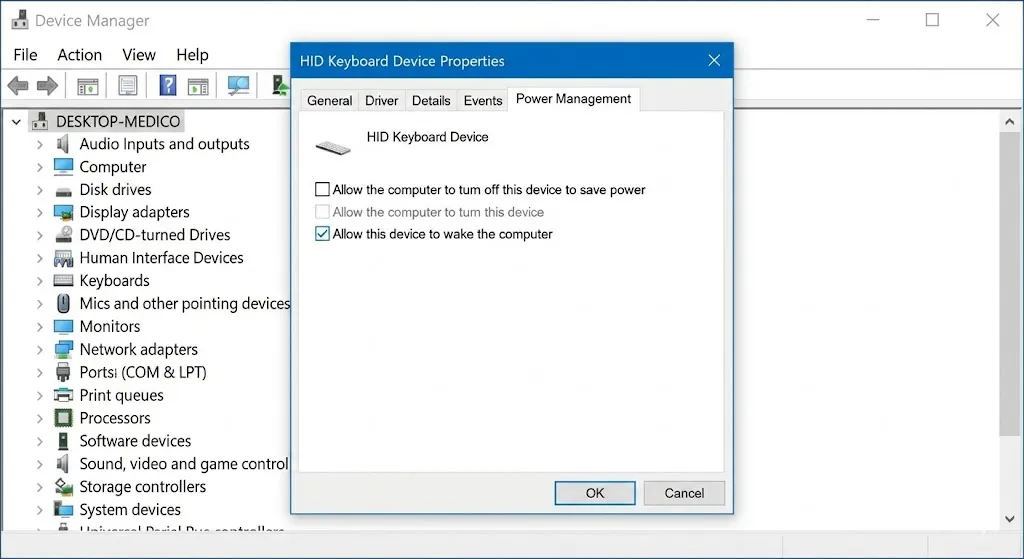
- Right-click the Start button > Device Manager.
- Expand Keyboards.
- Right-click your keyboard > Properties.
- Go to the Power Management tab.
- Check the box: “Allow this device to wake the computer”.
- Click OK.
- Repeat this for your Mice and other pointing devices too.
Method 3: Disable “Fast Startup” (The Main Culprit)
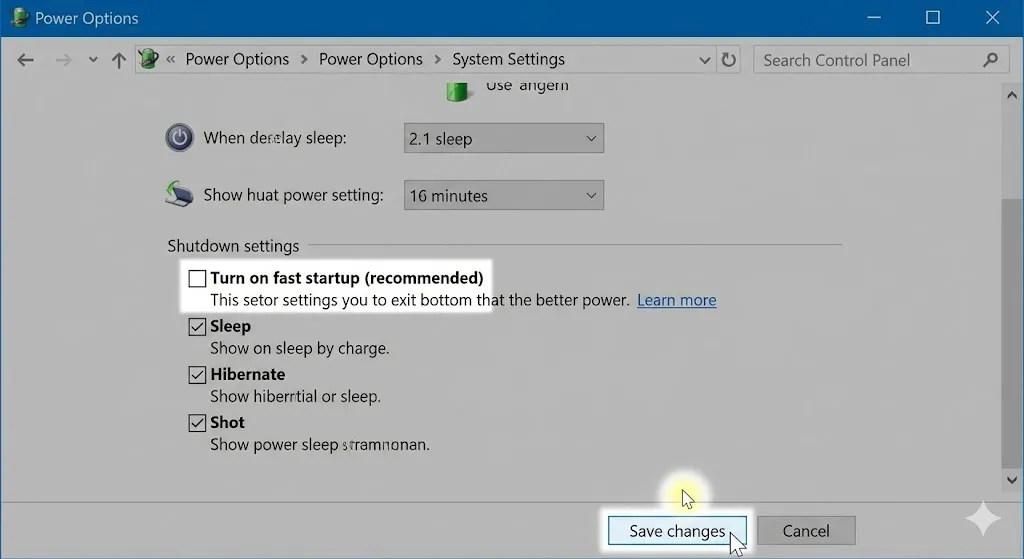
“Fast Startup” sounds good, but it often causes sleep mode bugs because it doesn’t shut down the kernel completely. Disabling it is the most effective fix.
- Open Control Panel > Hardware and Sound > Power Options.
- Click “Choose what the power buttons do”.
- Click “Change settings that are currently unavailable” (blue link at the top).
- Uncheck the box “Turn on fast startup (recommended)”.
- Click Save changes and restart your PC.
Method 4: Update Graphics Drivers
If your video card driver is outdated, it might fail to send a signal to the monitor when waking up.
- Right-click Start > Device Manager.
- Expand Display adapters.
- Right-click your card (NVIDIA, AMD, or Intel) > Update driver.
- Select Search automatically for drivers.
Method 5: Turn Off “Hybrid Sleep”
Hybrid sleep mixes “Sleep” and “Hibernation,” which can confuse older motherboards.
- Go to Control Panel > Power Options > Change plan settings.
- Click Change advanced power settings.
- Expand Sleep > Allow hybrid sleep.
- Change the setting to Off.
- Click Apply.
[🖼️ Insert Image 3 Here]
Frequently Asked Questions (FAQ)
Q: I’m currently stuck on a black screen. What do I do? A: If Method 1 (Keyboard shortcut) didn’t work, you have no choice but to force restart. Hold the physical Power Button on your PC case for 10 seconds until it turns off completely. Then turn it back on.
Q: Will disabling Fast Startup make my PC slow? A: Barely. If you have an SSD (which most modern PCs do), you won’t notice any difference in boot time. It’s worth it for a stable system.
Q: Why does the power light blink? A: A blinking power light usually means the computer is in sleep mode. If it’s solid, it’s on. If it’s off, it’s shutdown or hibernating.
Conclusion
Sleep mode should be convenient, not scary. By disabling Fast Startup (Method 3) and ensuring your mouse is allowed to wake the device (Method 2), you can fix 99% of these blackout issues.
Now you can grab your coffee without worrying if your PC will wake up!
Did the Ctrl+Shift+Win+B shortcut work for you? Share your experience in the comments!