
How to fix printer not detected in Windows is a question that often pops up at the worst possible moment—right before a deadline or during an important task. In 2026, Windows 10 and Windows 11 handle printers more intelligently than before, but that also means small connection or service issues can stop detection entirely.
The solution is usually methodical, not drastic.
This article is for general informational purposes only. It does not provide professional IT, hardware repair, or manufacturer-specific advice. Results may vary based on printer model and Windows version.
Why Windows suddenly can’t find your printer
When Windows can’t detect a printer, the issue is rarely the printer itself. Most failures trace back to connection paths, stopped services, or outdated drivers.
For example, a home office worker in Oregon spent an hour reinstalling software, only to realize the Print Spooler service had stopped after a Windows update. Once restarted, the printer appeared instantly.
Understanding where detection breaks saves time.
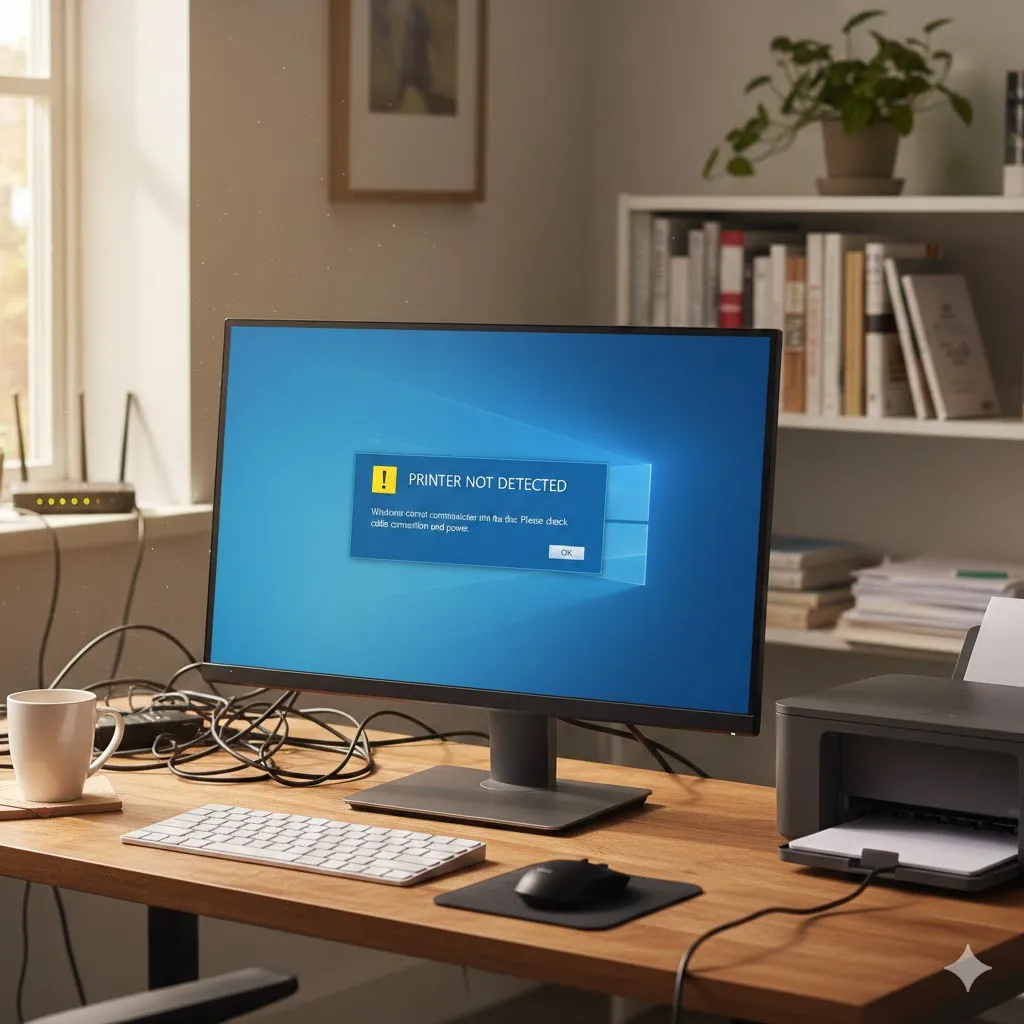
Start with connection and visibility checks
Before touching settings, confirm the basics—because Windows won’t detect what it can’t see.
Check that the printer is powered on and shows no error lights. For USB printers, try a different port and cable. For wireless printers, confirm it’s connected to the same Wi-Fi network as your PC.
A student in Texas fixed a detection issue simply by reconnecting the printer to the correct network after a router reset.
Set the printer to discoverable
Some wireless printers enter sleep or offline mode. Waking the printer and restarting it can restore visibility immediately.
Restart critical Windows printer services
Windows relies on background services to detect and manage printers.
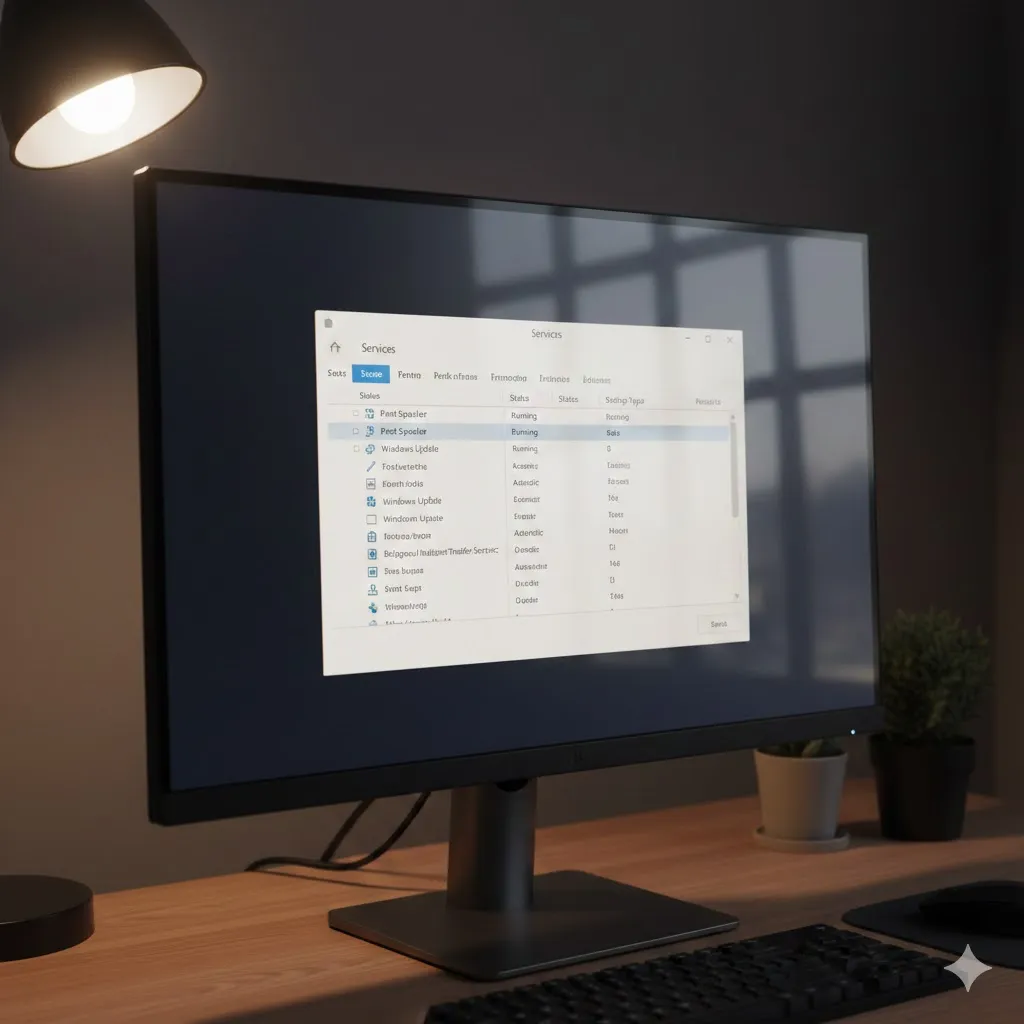
Open Services and ensure Print Spooler is running. If it’s stopped or stuck, restart it. This step alone resolves a large percentage of “printer not detected” cases.
Internal links to your Windows services troubleshooting guide fit naturally here.
Update or reinstall the printer driver
Drivers act as translators between Windows and your printer. When they’re outdated or corrupted, detection fails.
Download the latest driver directly from the printer manufacturer’s official website. Avoid generic or third-party driver tools, which often cause conflicts.
A nonprofit administrator in Florida restored detection instantly after replacing a legacy driver with the current Windows 11-compatible version.
Compare common printer detection fixes
Different symptoms point to different solutions. This table helps narrow the right fix quickly.
| Symptom | Most Effective Fix | Difficulty | Risk |
|---|---|---|---|
| Printer not listed at all | Restart Print Spooler | Easy | Low |
| USB printer not detected | Change port / reinstall driver | Easy | Low |
| Wireless printer missing | Reconnect to Wi-Fi | Medium | Low |
| Detected but won’t print | Remove and re-add printer | Medium | Low |
Pro Insight
Printer issues often appear after Windows updates—not because of bugs, but because drivers and services don’t always restart cleanly. Checking services first saves more time than reinstalling hardware.
Quick Tip
If Windows detects the printer but won’t use it, remove the printer completely and add it again. This refreshes ports, drivers, and permissions in one step.
Check Windows firewall and network settings
On shared or wireless networks, Windows Firewall can block printer discovery.
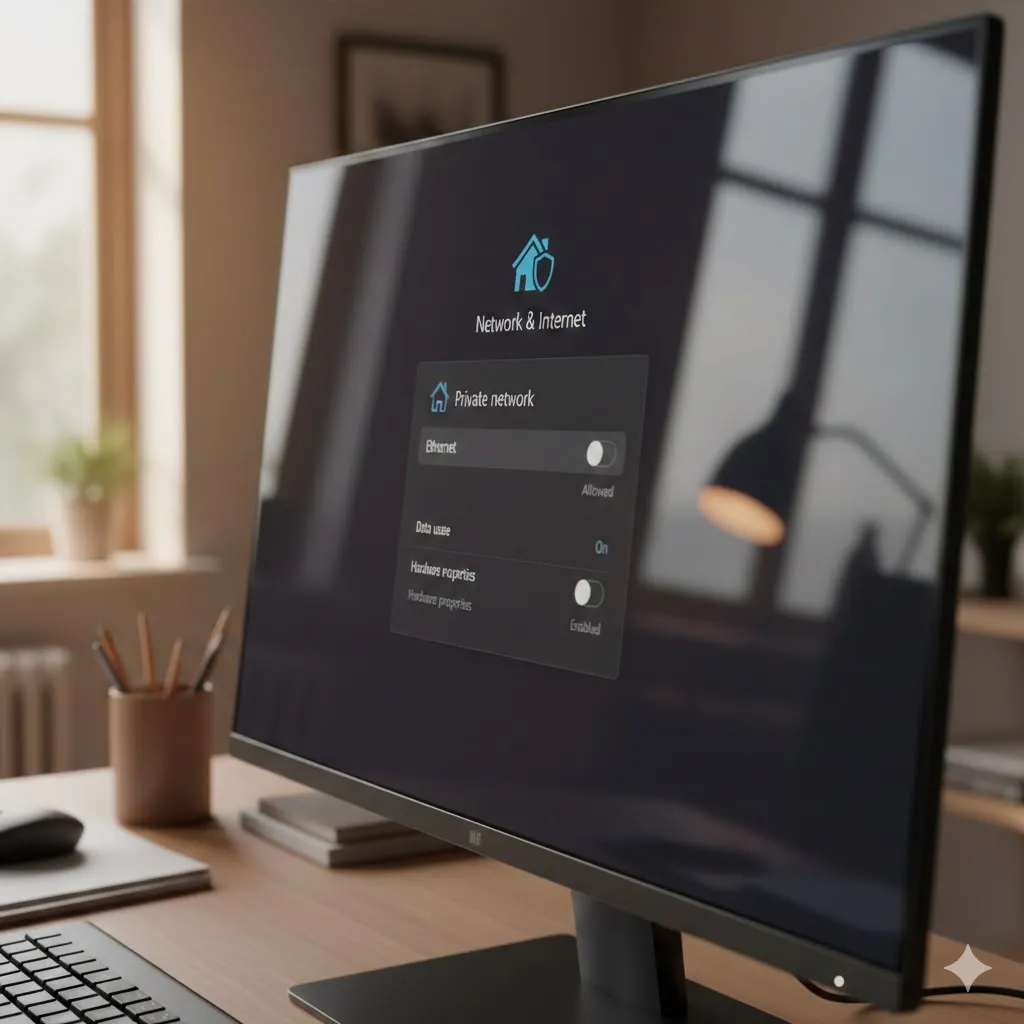
Ensure network profile is set to Private, not Public. Public networks restrict device discovery by design.
A small office in New York restored printer detection across multiple PCs simply by correcting the network profile setting.
FAQs
Why does Windows say no printers are found?
Usually because of stopped services, driver issues, or network visibility problems.
Can a Windows update cause printer detection issues?
Yes. Updates can reset services or break older drivers.
Does reinstalling Windows fix printer problems?
Almost never. Printer issues are typically driver or service related.
Are wireless printers harder to detect than USB printers?
They can be, especially if network settings change or routers reset.
Should I use Windows generic printer drivers?
Only as a temporary test. Manufacturer drivers are more reliable.
Conclusion
Fixing printer not detected in Windows usually comes down to connections, services, and drivers—not faulty hardware. By working step by step and targeting the real cause, printers often reappear within minutes, not hours.
Trusted U.S. Resources
- Microsoft Support – Printer Troubleshooting: https://support.microsoft.com
- Microsoft Learn – Windows Devices: https://learn.microsoft.com
- CISA Cyber Safety Guidance: https://www.cisa.gov