
How to fix “This App Can’t Run on Your PC” is one of the most frustrating Windows questions—especially when the program should work. In 2026, this error still appears on Windows 10 and Windows 11, often without a clear explanation. The good news is that it’s usually fixable once you know what Windows is actually blocking.
This article is for general informational purposes only. It does not provide legal, security, or professional IT advice. Results may vary depending on your Windows version, hardware, and system configuration.
Why this error suddenly appears
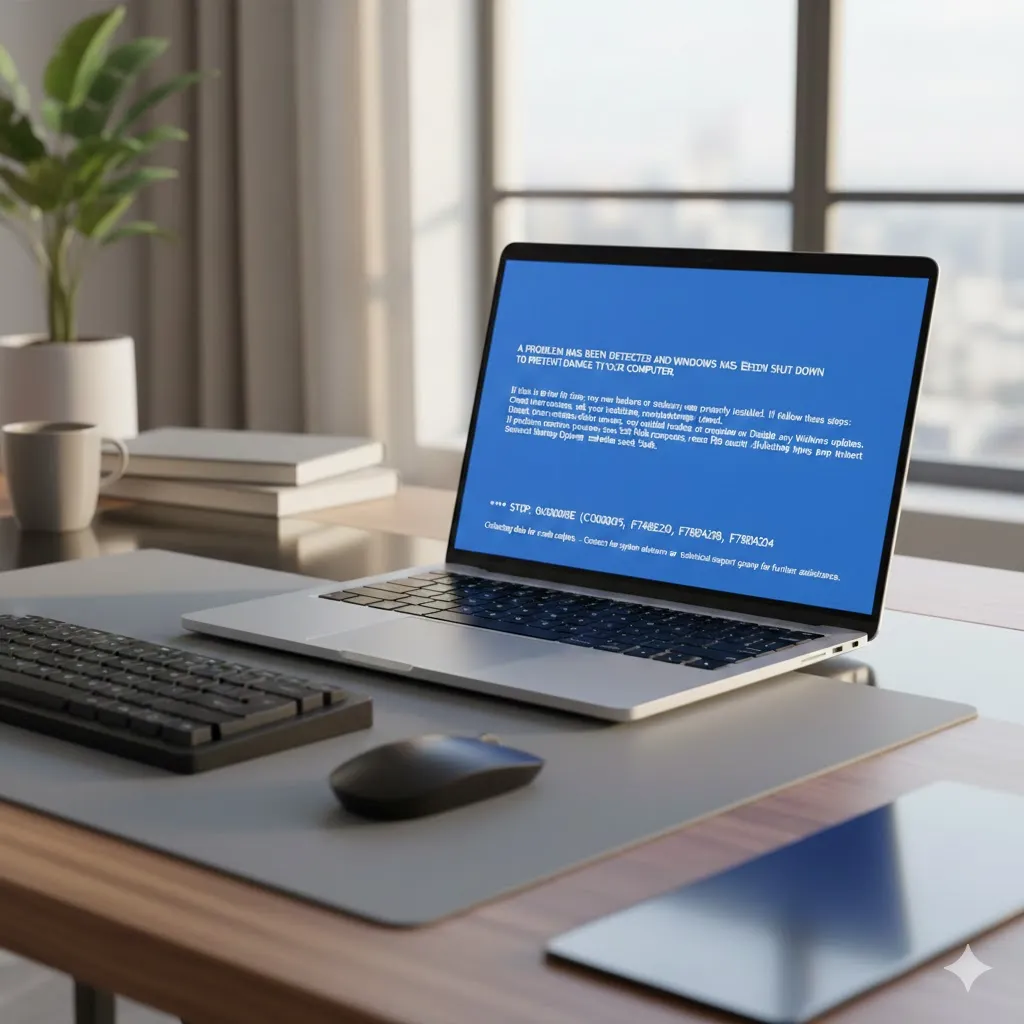
Windows displays this message when it detects a compatibility, security, or architecture mismatch. It’s not always about the app being broken—often, Windows is protecting itself or enforcing modern standards.
For example, a small business owner in California tried installing an older accounting tool that worked perfectly on a previous laptop. On a newer Windows 11 system, the app failed instantly with this message. The issue wasn’t corruption—it was architecture mismatch.
Check system compatibility first
Before changing settings, confirm that the app matches your system.
32-bit vs 64-bit mismatch
Many older apps are 32-bit only. If you’re running Windows on ARM or a restricted 64-bit environment, Windows may block execution entirely.
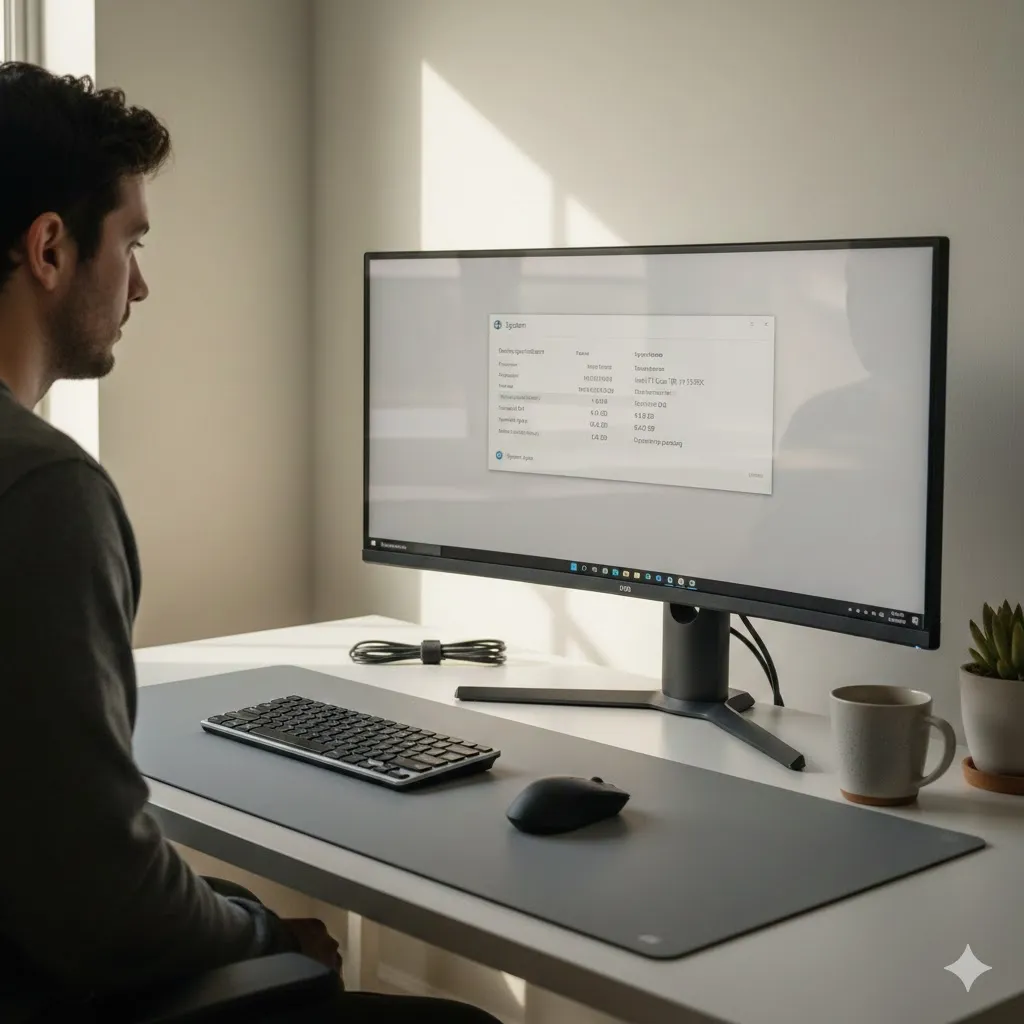
You can confirm your system type by checking System Information, a step already covered in your internal Windows diagnostics guide.
Unsupported Windows version
Some apps are built only for older Windows releases. Running them on modern systems without compatibility adjustments can trigger this error immediately.
Use compatibility mode the right way
Compatibility mode still works in 2026—when used correctly.
Right-click the app file, open Properties, and test compatibility for:
- Windows 8
- Windows 7
- Windows Vista (only for very old tools)
A nonprofit administrator in Washington resolved this error by enabling Windows 8 compatibility and running the app as administrator—no reinstall required.
Compare the most effective fixes
Not all fixes work equally. This table shows what typically resolves the issue fastest.
| Fix Method | When It Works Best | Difficulty | Risk |
|---|---|---|---|
| Compatibility mode | Older software | Easy | Low |
| Running as administrator | Permission blocks | Easy | Low |
| Re-downloading installer | Corrupt files | Easy | Low |
| Disabling SmartScreen (temporary) | Trusted legacy apps | Medium | Medium |
Pro Insight
This error often appears after Windows feature updates. Even unchanged apps may be blocked because Windows silently updates security policies in the background.
Quick Tip
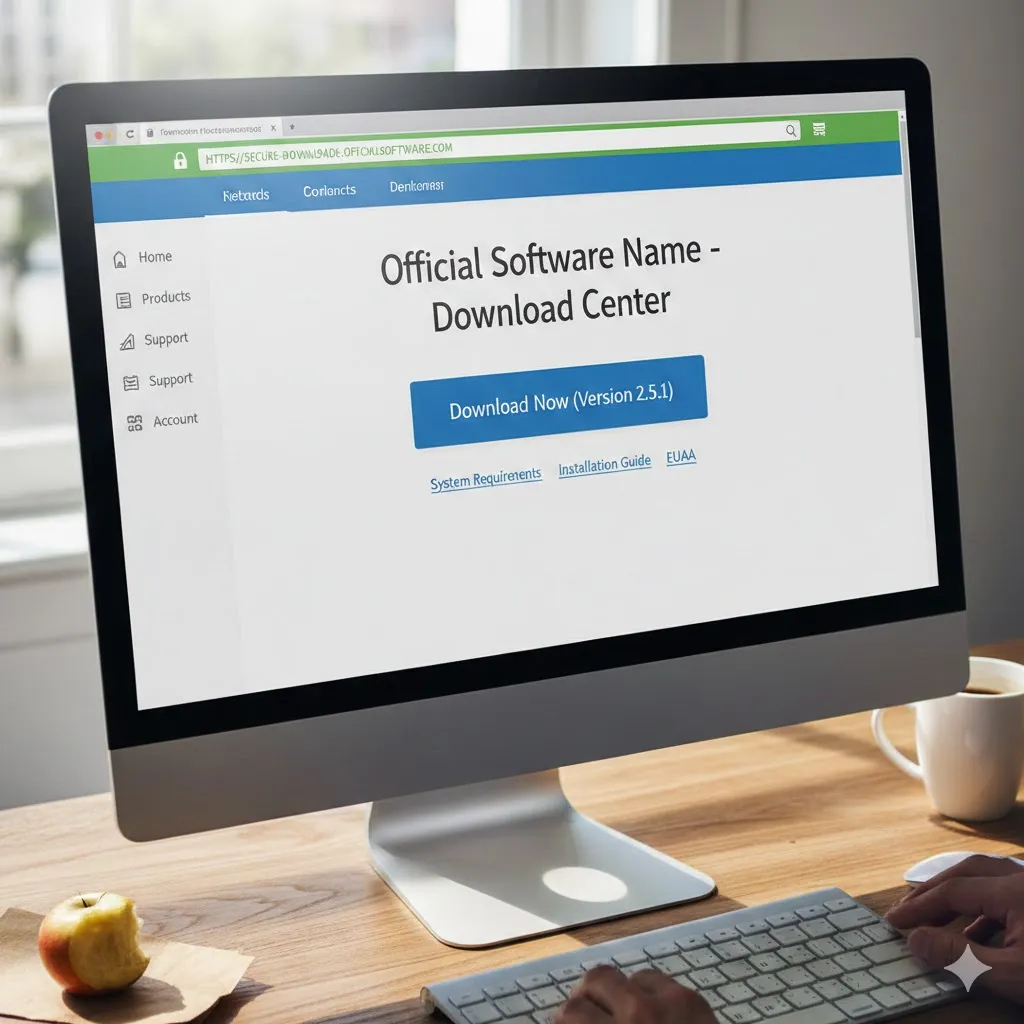
Always download installers directly from the official developer site. Third-party mirrors frequently alter app signatures, triggering Windows blocks even on safe software.
When Windows security is the blocker
Windows Defender SmartScreen may stop apps it doesn’t recognize—even if they’re safe.
You can temporarily bypass it by:
- Right-clicking the file
- Selecting Properties
- Checking Unblock (if visible)
Avoid disabling SmartScreen system-wide unless absolutely necessary. Your internal Windows security settings article explains safer alternatives in detail.
Reinstall with the correct installer
If nothing works, the installer itself may be wrong.
Common mistakes include:
- Using ARM installers on x64 systems
- Downloading enterprise versions on home editions
- Installing outdated builds no longer supported
A student in New York fixed the issue instantly by switching from a generic installer to the official Windows 11 x64 version.
Conclusion
Learning how to fix “This App Can’t Run on Your PC” comes down to understanding why Windows is blocking it. Compatibility, architecture, and security checks—not random errors—are usually responsible. Once those align, the app often runs without further issues.
FAQs
Why does Windows say this app can’t run?
Windows detects a compatibility, architecture, or security conflict with the application.
Can this error damage my PC?
No. It’s a protective block, not a system failure.
Does running as administrator always fix it?
No, but it helps when permissions are the issue.
Is it safe to disable SmartScreen?
Only temporarily and only for trusted software.
Will reinstalling Windows fix this error?
Almost never. The issue is app-specific, not system-wide.
Trusted U.S. Resources
- Microsoft Support: https://support.microsoft.com
- Microsoft Learn (Windows Apps): https://learn.microsoft.com
- CISA Cyber Safety Guidance: https://www.cisa.gov