
Learn how to speed up Windows 10/11 startup using built-in tools, safe settings, and proven performance tweaks.
A slow boot can ruin the first minutes of your day. If Windows 10 or 11 takes too long to start, the cause is usually not your hardware—it’s background apps, startup services, and system settings loading more than necessary.
The good news? You can significantly speed up startup using built-in Windows features, without reinstalling the system or using third-party tools.
Why Windows Startup Becomes Slow Over Time
Windows loads essential services first, then launches startup apps, background tasks, and system features. Over time, more software adds itself to startup—often without asking.
A real-life scenario: you install a few apps for work, cloud sync tools, messaging apps, and drivers. Each one adds a small delay. Combined, they can turn a 15-second boot into a 2-minute wait.
Startup slowness is usually cumulative, not sudden.
Disable Unnecessary Startup Apps
Startup apps are the number one cause of slow boot times.
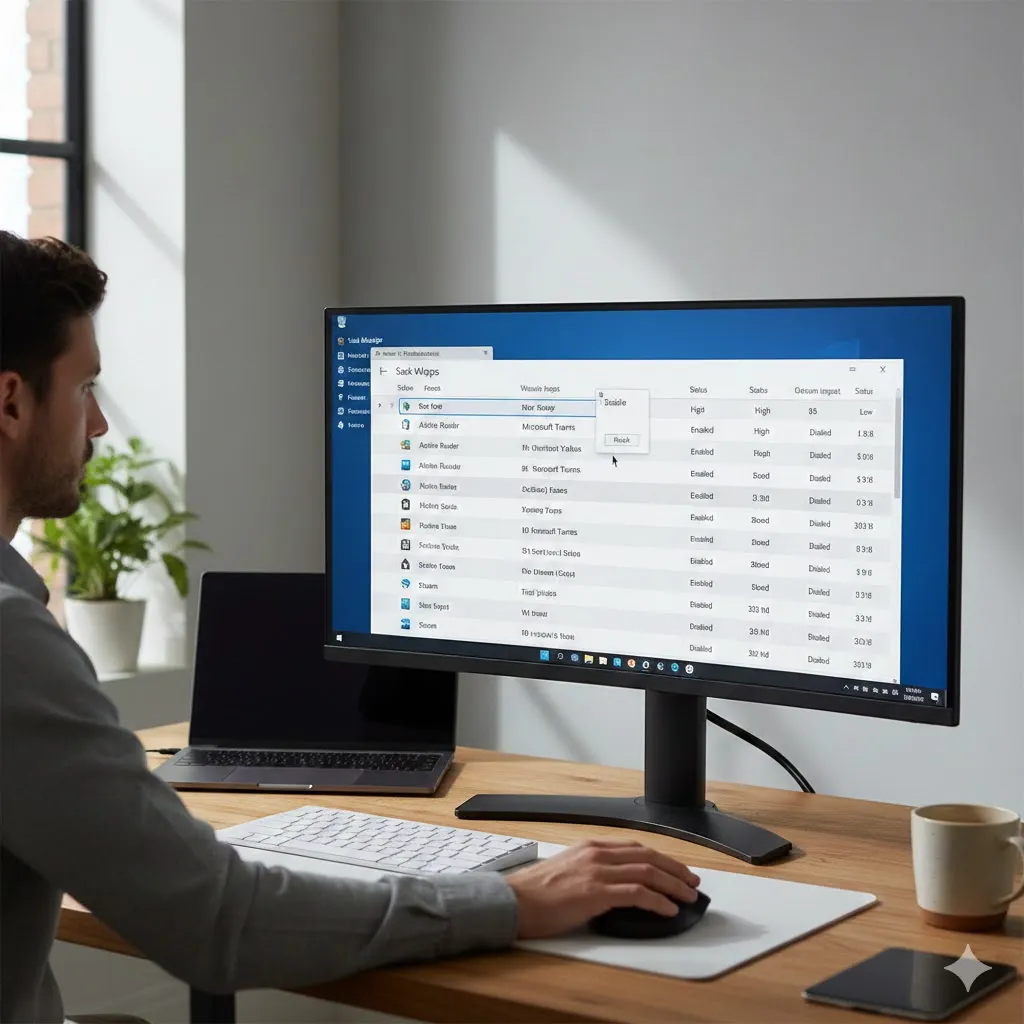
Using Task Manager, you can see which apps launch at startup and how much impact they have. Many apps don’t need to start immediately—cloud tools, game launchers, and update checkers can wait.
Disabling non-essential startup apps often delivers an instant improvement after the next restart.
Turn On Fast Startup (If Supported)
Fast Startup is a Windows feature that saves part of the system state during shutdown, allowing Windows to boot faster next time.
On supported systems, enabling Fast Startup can noticeably reduce boot time. However, it may not appear on all PCs, especially those using certain disk encryption or firmware settings.
When available, it’s one of the easiest performance wins.
Reduce Background Services and Visual Load
Windows runs many background services by default to support features you may never use.
Disabling unnecessary background app permissions, limiting live tiles, and reducing visual effects lowers the workload during startup—especially on systems with limited RAM or older CPUs.
These changes don’t remove functionality; they simply reduce startup pressure.
Compare the Most Effective Startup Speed Fixes
| Method | What It Improves | Difficulty | Impact |
|---|---|---|---|
| Disable startup apps | App loading time | Easy | High |
| Enable Fast Startup | Boot process | Easy | Medium |
| Reduce background apps | Memory & CPU load | Easy | Medium |
| Update Windows & drivers | System efficiency | Medium | Medium |
| Upgrade to SSD | Disk access speed | Hard | Very High |
This comparison helps you choose the fastest wins before considering hardware upgrades.
Keep Windows and Drivers Updated
Outdated drivers and system files can slow startup due to compatibility checks and background retries.
Keeping Windows, chipset drivers, and storage drivers updated ensures the system boots using optimized routines. Updates often include silent performance improvements that reduce startup delays.
Check Disk Health and Storage Type
Startup speed is heavily influenced by storage performance.
If Windows is installed on an HDD, startup will almost always be slower compared to an SSD. On older PCs, moving Windows to an SSD is often the single most impactful upgrade.
Disk errors can also slow startup, as Windows repeatedly checks problematic sectors during boot.

Disclaimer
This article is for general informational purposes only. It does not provide professional technical or IT advice. Always back up important data before changing system settings.
Pro Insight
If startup is slow but performance is fine after boot, startup apps—not hardware—are usually the real problem.
Quick Tip
Restart your PC instead of shutting it down occasionally—some updates and optimizations only apply after a restart.
Frequently Asked Questions
Why is Windows 10/11 slow only during startup?
Because startup apps and services load all at once, creating temporary system overload.
Is it safe to disable startup apps?
Yes, as long as you keep essential system and security apps enabled.
Does Fast Startup affect system stability?
Generally no, but some dual-boot or encrypted systems may disable it automatically.
Will adding more RAM speed up startup?
It can help, but storage speed and startup apps usually matter more.
How long should Windows startup take?
On an SSD, typically 10–30 seconds; on an HDD, longer is common.
Conclusion
Knowing how to speed up Windows 10/11 startup gives you back time every single day. By disabling unnecessary startup apps, enabling Fast Startup, reducing background load, and keeping your system healthy, you can restore fast, smooth boot times—often in minutes.
Small changes add up, and startup speed is one of the easiest performance wins available.
Trusted U.S. Resources
Microsoft Support — Improve PC Performance
https://support.microsoft.com
Microsoft Learn — Windows Startup Optimization
https://learn.microsoft.com
CISA — System Performance Best Practices
https://www.cisa.gov