
Learn how to clean junk files on Windows without installing apps, using safe built-in tools to free up storage.
Over time, Windows quietly collects junk files that slow performance and eat up storage. The good news is you don’t need third-party software to fix it. Knowing how to clean junk files on Windows without apps helps you reclaim space safely using tools already built into the system.
This approach is ideal if you want better performance without risking unwanted software, ads, or system changes.
Why Windows Accumulates Junk Files
Windows constantly creates temporary files to speed up tasks, store update data, and log system activity. When these files are no longer needed, they’re often left behind.
A common scenario is after a major Windows update. The system keeps old installation files in case you want to roll back. Weeks later, those files still sit there—taking up gigabytes of space with no benefit.
Clean Temporary Files Using Windows Settings
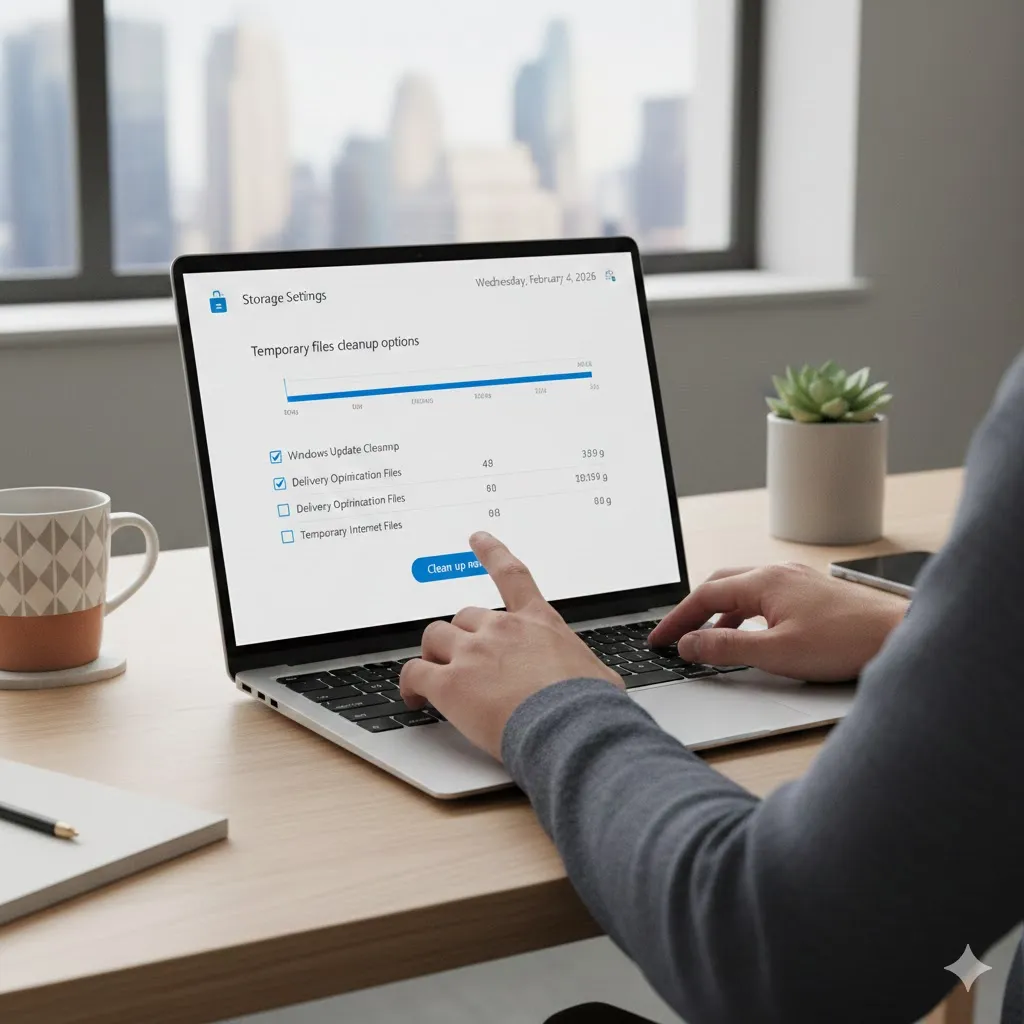
One of the safest ways to remove junk files is through Windows’ built-in storage tools.
By opening Storage settings, you can review temporary files such as cache data, update leftovers, thumbnails, and error logs. These files are designed to be deleted and won’t affect your personal documents.
Many users are surprised how much space this step alone can recover.
Use Disk Cleanup for Deeper Cleaning
Disk Cleanup is a classic Windows utility that still works extremely well.
It can remove system files like old Windows update data, delivery optimization files, and temporary system logs. When run with system file options enabled, it often frees up far more space than basic cleanup.
This is especially useful on older laptops or PCs with limited SSD storage.
Manually Clear Temp and Cache Folders
Windows stores temporary data in specific folders that can be cleaned manually.
Opening the Temp folder allows you to delete leftover files from applications and background processes. These files are safe to remove as long as programs are closed.
Another overlooked area is the Recycle Bin. Large deleted files may still be occupying space until it’s emptied.
Compare Built-In Windows Cleanup Methods
| Cleanup Method | What It Removes | Difficulty | Risk Level |
|---|---|---|---|
| Storage Settings | Temp files & cache | Easy | Low |
| Disk Cleanup | System & update files | Easy | Low |
| Temp folder cleanup | App leftovers | Medium | Low |
| Recycle Bin | Deleted files | Easy | Low |
| System Restore cleanup | Old restore points | Medium | Medium |
Using a combination of these methods delivers the best results without installing anything extra.
Use Storage Sense for Automatic Cleanup
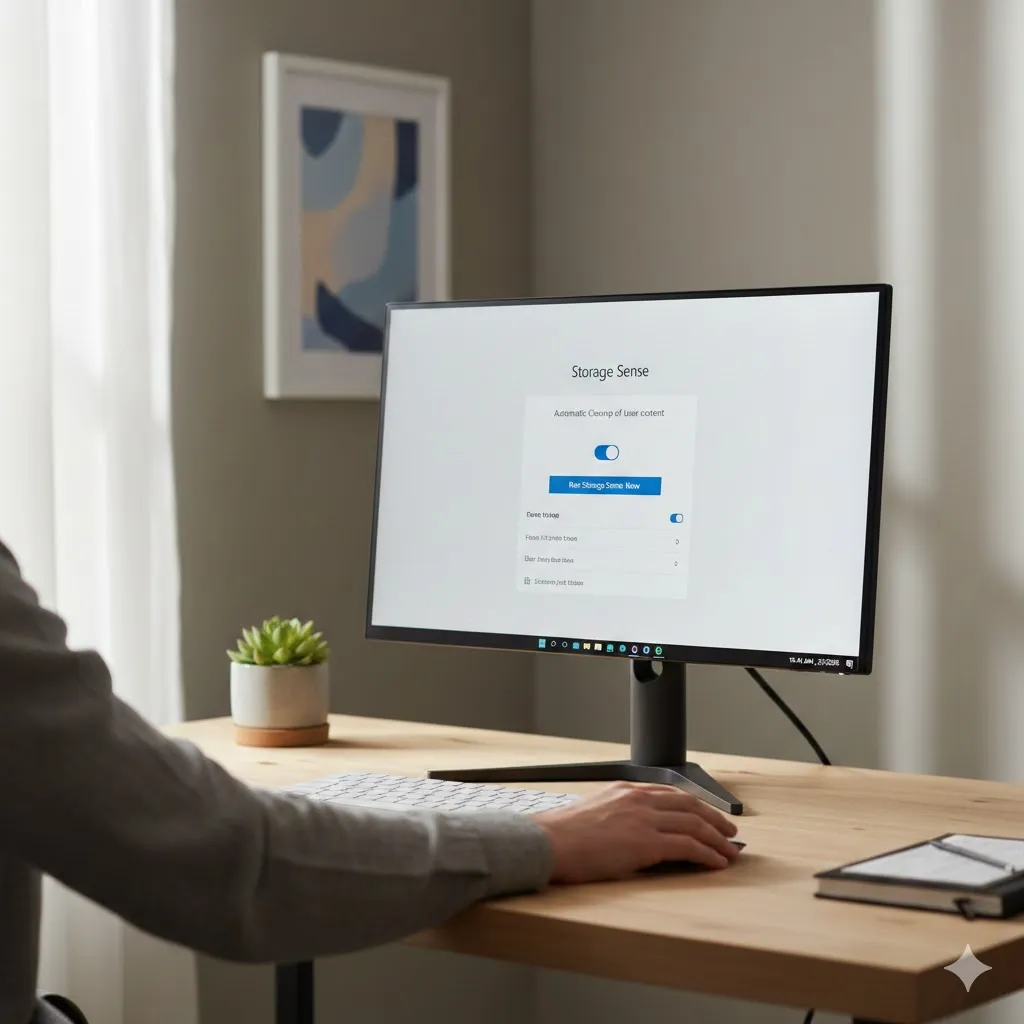
Storage Sense is a built-in feature that automatically deletes temporary files and clears the Recycle Bin on a schedule.
Once enabled, it prevents junk files from building up again. This is ideal for users who don’t want to manually clean their system every month.
Disclaimer
This article is for general informational purposes only. It does not provide professional technical or IT advice. Always review files carefully before deleting system data.
Pro Insight
Most junk file growth happens after updates. Cleaning shortly after successful updates prevents long-term storage drain.
Quick Tip
Restart your PC before cleaning—this unlocks temporary files that Windows was still using.
Frequently Asked Questions
Is it safe to delete junk files without apps?
Yes. Windows’ built-in tools are designed for safe cleanup.
Will cleaning junk files delete my documents?
No. These methods do not touch personal files like photos or videos.
How often should I clean junk files?
Once a month is enough for most users.
Can junk files slow down Windows?
Yes. They can reduce available storage and impact performance.
Do I need third-party cleaners?
No. Windows already includes everything needed for safe cleanup.
Conclusion
Learning how to clean junk files on Windows without apps gives you control without unnecessary software. By using built-in tools like Storage Settings, Disk Cleanup, and Storage Sense, you can free space, improve performance, and keep your system healthy.
Simple habits, done regularly, prevent clutter before it becomes a problem.
Trusted U.S. Resources
Microsoft Support — Free Up Drive Space
https://support.microsoft.com
Microsoft Learn — Windows Storage Management
https://learn.microsoft.com
CISA — System Maintenance Best Practices
https://www.cisa.gov