
Learn how to fix the “Preparing Automatic Repair” loop in Windows with safe, proven steps that restore normal booting.
Seeing “Preparing Automatic Repair” stuck endlessly on your screen can feel alarming. Your computer looks like it’s trying to fix itself, yet it never actually starts Windows. This issue often appears after failed updates, sudden shutdowns, or disk-related errors.
Still, this loop is usually recoverable. With the right sequence of steps, many users are able to regain access without reinstalling Windows or losing personal files.
Why Windows Gets Stuck on Preparing Automatic Repair
Windows triggers Automatic Repair when it detects startup problems. However, if the repair process itself encounters corrupted system files, damaged boot records, or disk errors, it can fall into a continuous loop.
A common real-life scenario involves a laptop shutting down due to low battery during an update. On the next boot, Windows repeatedly attempts repair but never completes it.
Try Basic Recovery Steps First
Before diving into advanced fixes, start with simple actions that often resolve the loop.
Disconnect all external devices such as USB drives, printers, and external hard disks. Then perform a full shutdown by holding the power button for several seconds before restarting.
If the loop continues, access Windows Recovery Environment by interrupting the boot process two or three times until recovery options appear.

Use Startup Repair and Safe Mode
From recovery options, Startup Repair is designed to fix corrupted boot files automatically. While it doesn’t always succeed, it’s a low-risk step worth trying.
If Startup Repair fails, booting into Safe Mode can help confirm whether the issue is driver-related. Once inside Safe Mode, uninstall recently added drivers or updates that may have triggered the problem.
For many users, a faulty display or storage driver is the hidden cause behind the endless repair cycle.
Check Disk and System File Integrity
Disk errors are a frequent reason why Automatic Repair fails repeatedly. Running disk and system scans from recovery tools can restore stability.
Using Command Prompt, Windows can scan for file system errors and corrupted system files that prevent startup from completing successfully. This step is especially effective on systems that experienced improper shutdowns or aging storage drives.

Compare the Most Effective Fix Methods
| Fix Method | Best For | Difficulty | Data Risk |
|---|---|---|---|
| Startup Repair | Minor boot corruption | Easy | Low |
| Safe Mode cleanup | Driver or update issues | Easy | Low |
| Disk error scan | File system damage | Medium | Low |
| System file repair | Corrupted Windows files | Medium | Low |
| Reset Windows | Severe system failure | Hard | Medium |
This comparison helps determine which step to try first without unnecessary data loss.
Reset Windows Only If Necessary
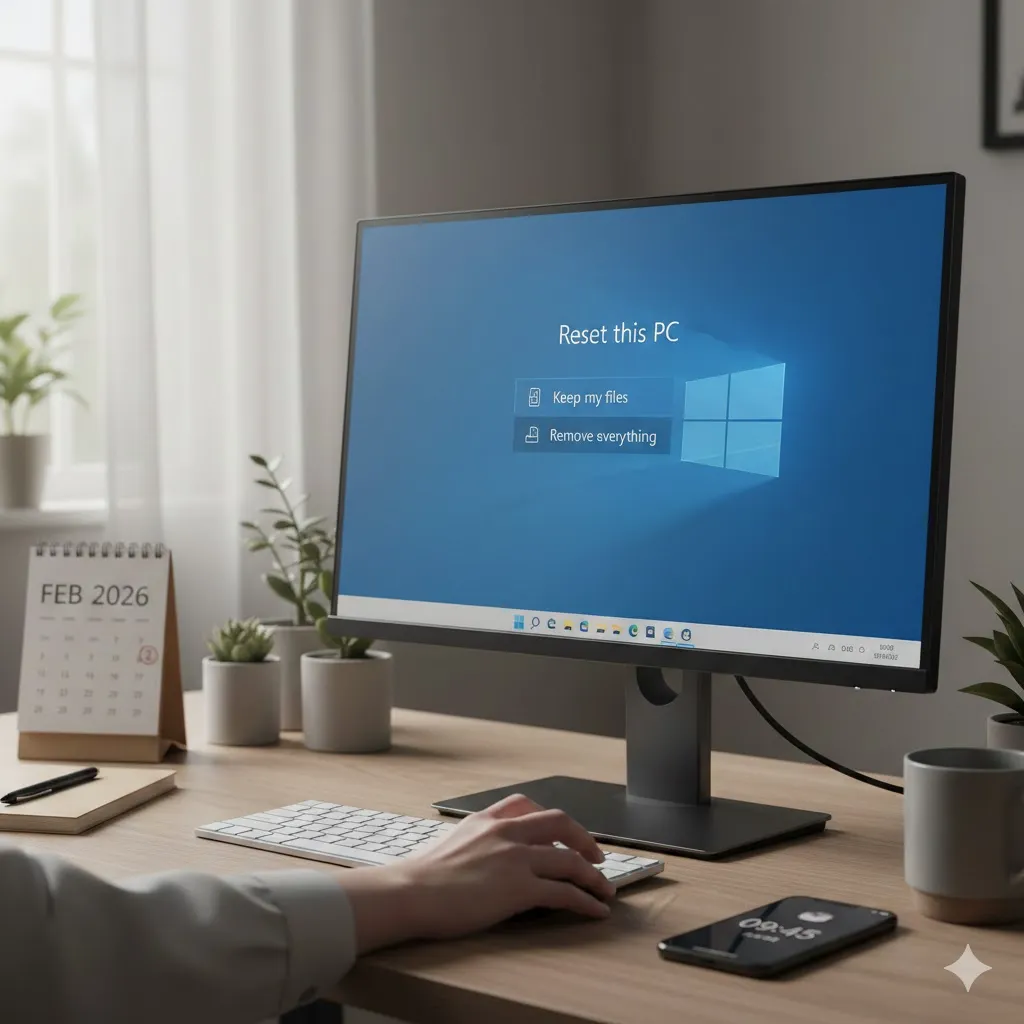
If all repair attempts fail, resetting Windows may be the final solution. Modern reset options allow you to keep personal files while reinstalling core system components.
This step is often successful after repeated failed updates or widespread system corruption. However, it should only be used after other recovery methods are exhausted.
Disclaimer
This article is for general informational purposes only. It does not provide professional technical repair advice. Always back up important data before making system changes.
Pro Insight
Automatic Repair loops often trace back to disk health issues. Running periodic disk checks can prevent future boot failures.
Quick Tip
If your device recently updated, uninstalling the latest update from recovery options can immediately break the loop.
Frequently Asked Questions
Why does Preparing Automatic Repair keep repeating?
Windows detects a startup issue but fails to repair it due to corrupted files or disk errors.
Will this problem delete my files?
Not usually. Most repair steps do not affect personal data.
Can I fix this without reinstalling Windows?
Yes. Many cases are resolved through Safe Mode or disk repair tools.
Is this caused by hardware failure?
Sometimes, but most cases are software-related unless the drive is failing.
How long should Automatic Repair take?
If it runs longer than 15–20 minutes without progress, it’s likely stuck.
Conclusion
An endless “Preparing Automatic Repair” screen can be stressful, but it’s rarely the end of your system. By moving step by step—from simple recovery actions to deeper repair tools—you can often restore Windows without drastic measures.
Patience and the right approach turn a boot loop into a solvable problem.
Trusted U.S. Resources
Microsoft Support — Windows Startup and Repair Issues
https://support.microsoft.com
Microsoft Learn — Windows Recovery Environment
https://learn.microsoft.com
CISA — System Recovery and Resilience
https://www.cisa.gov