
Learn how to fix Windows stuck on the logo screen during booting with proven, safe methods that work on modern Windows systems.
If your PC freezes at the Windows logo during startup, you’re not alone. Windows stuck on logo during booting is one of the most common — and frustrating — startup issues. One moment everything feels normal, the next your screen refuses to move forward.
However, this problem is often fixable without reinstalling Windows or losing your files. The key is understanding why it happens and choosing the right solution in the right order.
Why Windows Gets Stuck on the Logo Screen
During booting, Windows loads core drivers, system services, and hardware instructions. When one of those steps fails, the system can stall silently at the logo.
A familiar real-life scenario goes like this: your laptop installs updates overnight, power cuts out unexpectedly, and the next morning the system never gets past the logo. In many cases, the issue starts long before you even touch the keyboard.
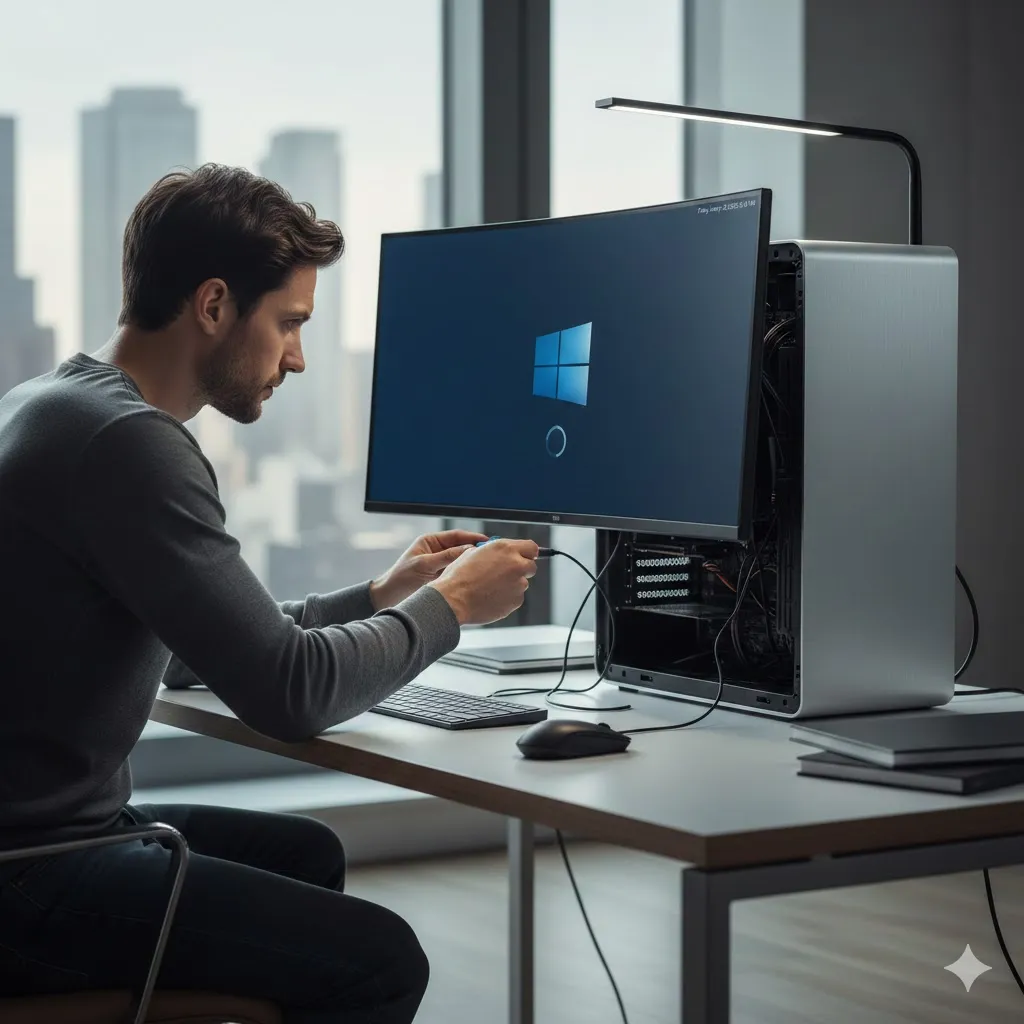
Start With Safe Mode to Isolate the Problem
Safe Mode launches Windows with only essential drivers. If your PC boots here, you’ve confirmed the issue is software-related rather than a hardware failure.
Once inside Safe Mode, uninstall recently added drivers, roll back updates, or disable startup programs. Display drivers are frequent offenders, especially after automatic updates.
Use Startup Repair and System Restore
When Safe Mode doesn’t work, Windows recovery tools become critical. Startup Repair automatically scans system files needed for booting and attempts to fix corrupted components without touching personal data.
System Restore is especially useful when the issue appeared after a known change. Rolling Windows back to a stable restore point can immediately resolve the logo freeze without additional configuration.
Disable Fast Startup and Check Disk Errors
Fast Startup blends shutdown and hibernation to reduce boot time, but when corrupted, it can trap Windows in a loading loop.
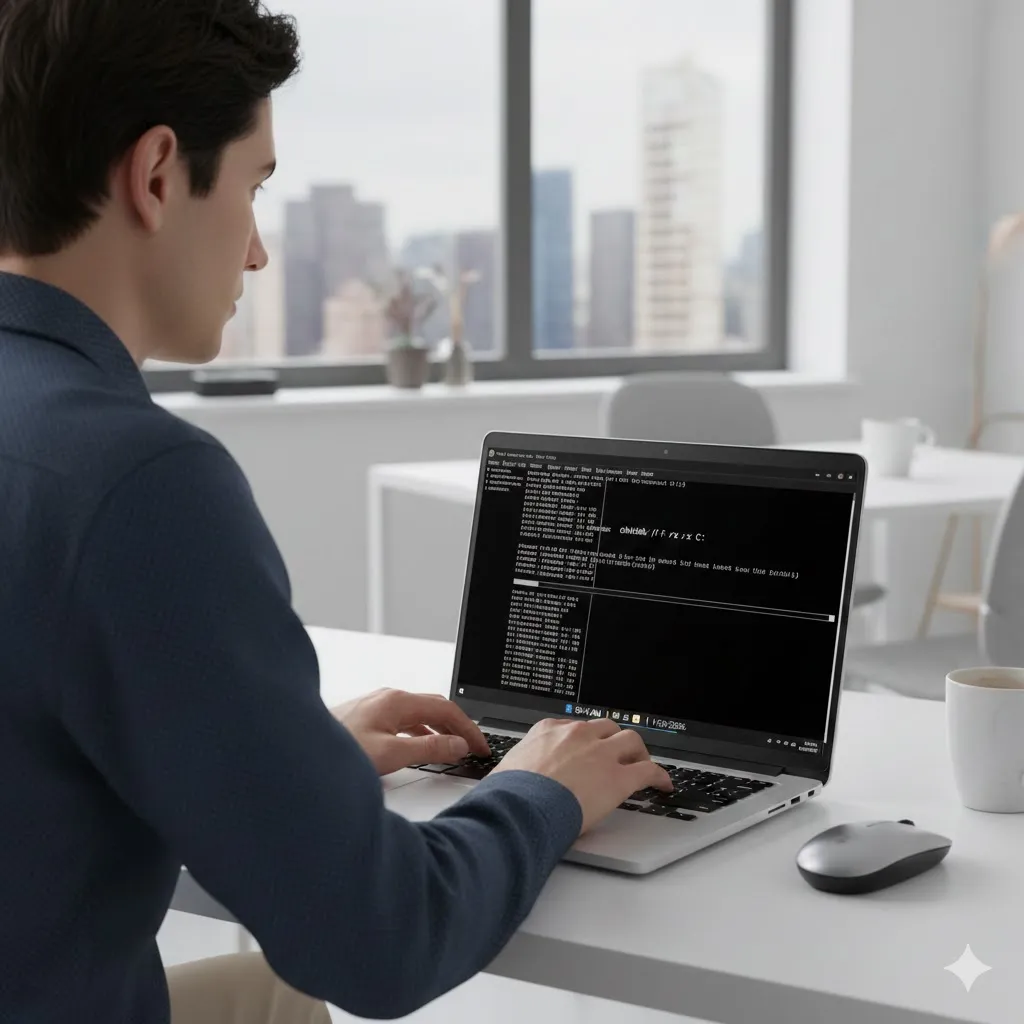
Disabling Fast Startup forces a clean boot, while disk checking tools scan for file system errors that block startup. This combination is highly effective on systems that experienced improper shutdowns or storage hiccups.
Compare the Most Effective Fixes
| Fix Method | Best For | Difficulty | Risk Level |
|---|---|---|---|
| Safe Mode cleanup | Driver or app conflicts | Easy | Low |
| Startup Repair | Boot file corruption | Easy | Low |
| System Restore | Recent updates | Medium | Low |
| Disk error checking | Storage-related issues | Medium | Low |
| Reset Windows | Severe system damage | Hard | Medium |
Understanding which method fits your situation prevents unnecessary data loss and saves hours of frustration.
When Resetting Windows Becomes Necessary
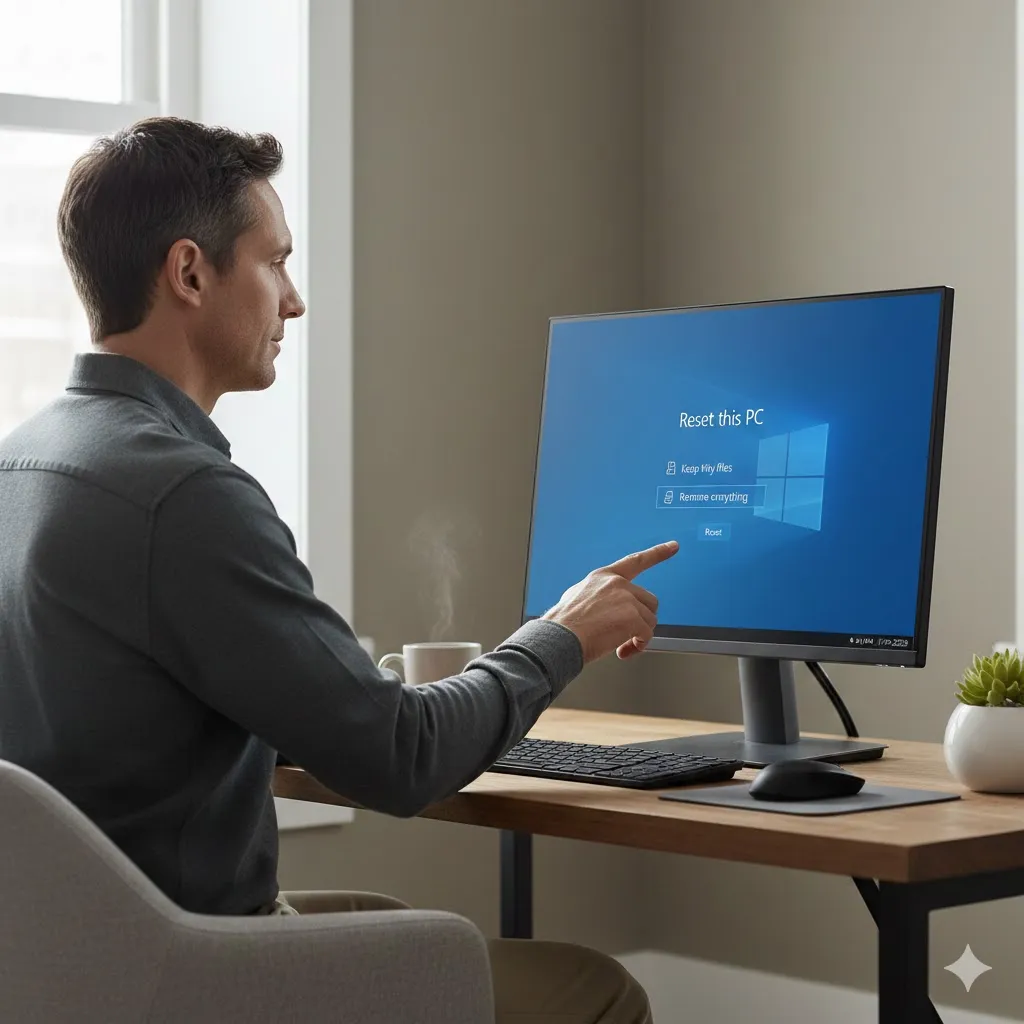
If Windows still refuses to move past the logo, resetting the system may be unavoidable. Modern reset options allow you to keep personal files while reinstalling core Windows components.
This step is most effective when repeated update failures or deep system corruption are involved. While it sounds extreme, it’s often safer than forcing repairs repeatedly.
Disclaimer
This article is for general informational purposes only. It does not provide professional technical repair advice. Always back up important data before making system changes.
Pro Insight
Persistent logo freezes are often caused by outdated chipset or storage drivers rather than Windows itself. Updating firmware from the device manufacturer can permanently resolve the issue.
Quick Tip
Disconnect all external devices before booting — even USB drives and hubs can prevent Windows from loading correctly.
Frequently Asked Questions
Why does Windows freeze at the logo instead of restarting?
Windows may be stuck loading a service or driver that fails silently without triggering a reboot.
Can Windows updates cause boot logo problems?
Yes. Interrupted or incompatible updates are among the most common causes.
Will Safe Mode remove my files?
No. Safe Mode only limits loaded drivers and services.
Is this always a software issue?
Most cases are software-related unless the system fails to power on at all.
How long should I wait at the logo screen?
If there’s no activity after 10–15 minutes, it’s likely frozen.
Conclusion
A Windows stuck on logo during booting situation can feel alarming, but it’s rarely permanent. By moving step by step — from Safe Mode to recovery tools and only resetting when necessary — most systems can be restored without data loss.
Patience and the right fix at the right moment make all the difference.
Trusted U.S. Resources
Microsoft Support – Windows startup issues
https://support.microsoft.com
Microsoft Learn – Windows Recovery Environment
https://learn.microsoft.com
CISA – Securing and recovering Windows systems
https://www.cisa.gov