
Learn why a laptop touchpad stops working and how to fix it with practical steps that still work in 2026.
A laptop touchpad not working can instantly slow everything down. Scrolling becomes impossible, clicks don’t respond, and productivity drops fast—especially if you don’t have a mouse nearby.
The good news is that most touchpad problems are software-related, not permanent hardware damage. With the right checks, many issues can be fixed in minutes.
Why a Laptop Touchpad Suddenly Stops Working
Touchpad issues often appear without warning. One moment it works fine, the next it’s completely unresponsive.
Common causes include disabled settings, driver conflicts, system updates, or accidental key combinations. In some cases, dirt or internal connection issues may also play a role.
For example, after a system update, a laptop may default to external-mouse settings, silently disabling the touchpad.
Understanding the cause helps you fix the issue without unnecessary repairs.
Check These Basics First
Before changing advanced settings, start with simple checks that solve many touchpad problems.
Use the Touchpad Shortcut Key
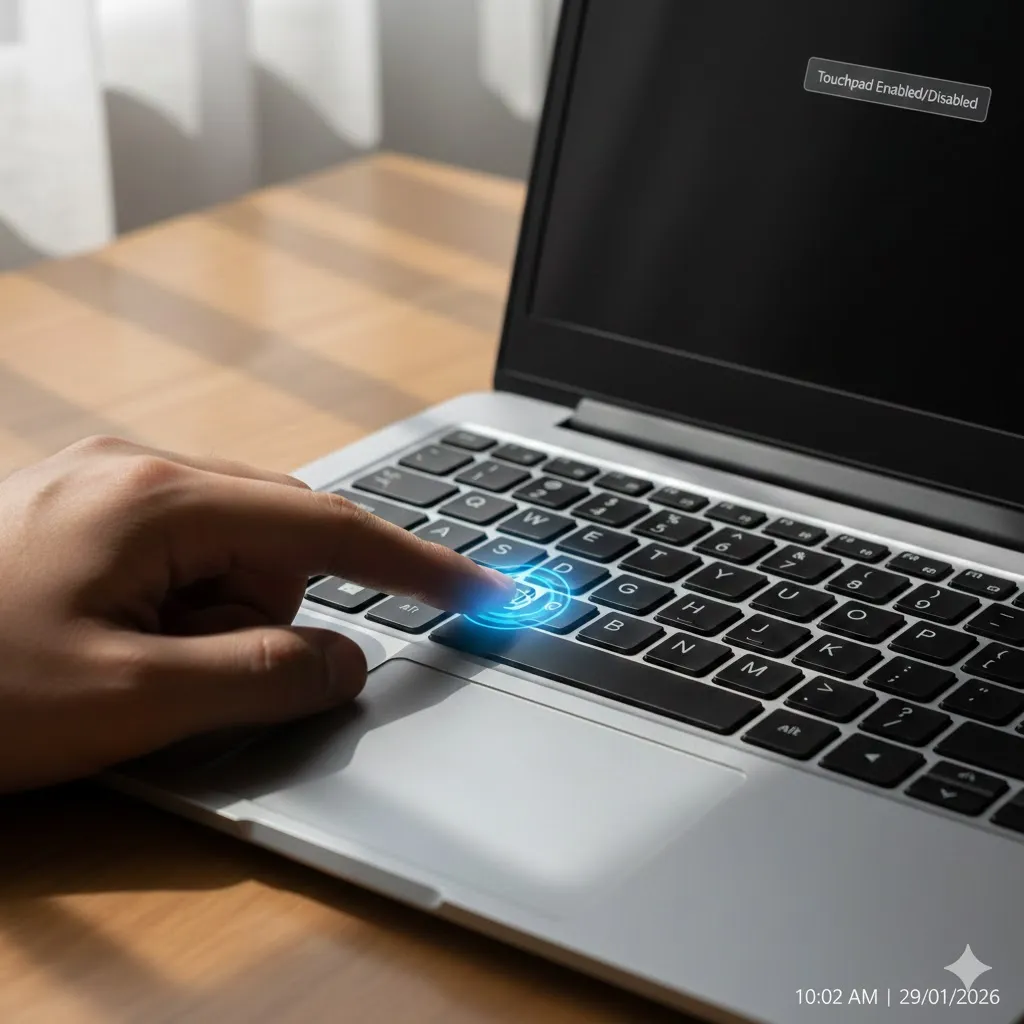
Many laptops have a function key (such as Fn + F6/F7/F9) that enables or disables the touchpad. It’s easy to press this accidentally.
Restart the Laptop
A restart clears temporary glitches and reloads drivers. This simple step often restores touchpad functionality.
Disconnect External Mouse Devices
Some laptops automatically disable the touchpad when an external mouse is connected. Unplug all USB or Bluetooth pointing devices and test again.
Software and Settings That Commonly Cause Touchpad Issues
If basic checks don’t work, the problem is usually within system settings or drivers.
Touchpad Disabled in Settings
Operating systems allow users to turn off the touchpad manually. After updates, these settings can change unexpectedly.
Check your system’s Mouse or Touchpad settings and confirm the touchpad is enabled.
Outdated or Corrupted Touchpad Drivers
Drivers allow the operating system to communicate with the touchpad. If they’re outdated or damaged, the touchpad may stop responding.
Updating or reinstalling the driver from the laptop manufacturer’s website often fixes this issue.
Conflicts After System Updates
Major updates can reset hardware configurations. Touchpads may appear “missing” until drivers are refreshed or settings are restored.
Touchpad Issue vs Hardware Failure
| Symptom | Likely Cause | Fix Difficulty |
|---|---|---|
| Touchpad not moving at all | Disabled setting or driver | Low |
| Touchpad works intermittently | Driver or power issue | Moderate |
| Touchpad missing from settings | Driver not installed | Moderate |
| Touchpad never responds | Hardware or ribbon cable issue | Higher |
This table helps you decide whether the issue can be fixed at home or needs professional attention.
When Hardware Might Be the Problem
If the touchpad doesn’t work even after driver updates and settings checks, hardware may be involved.
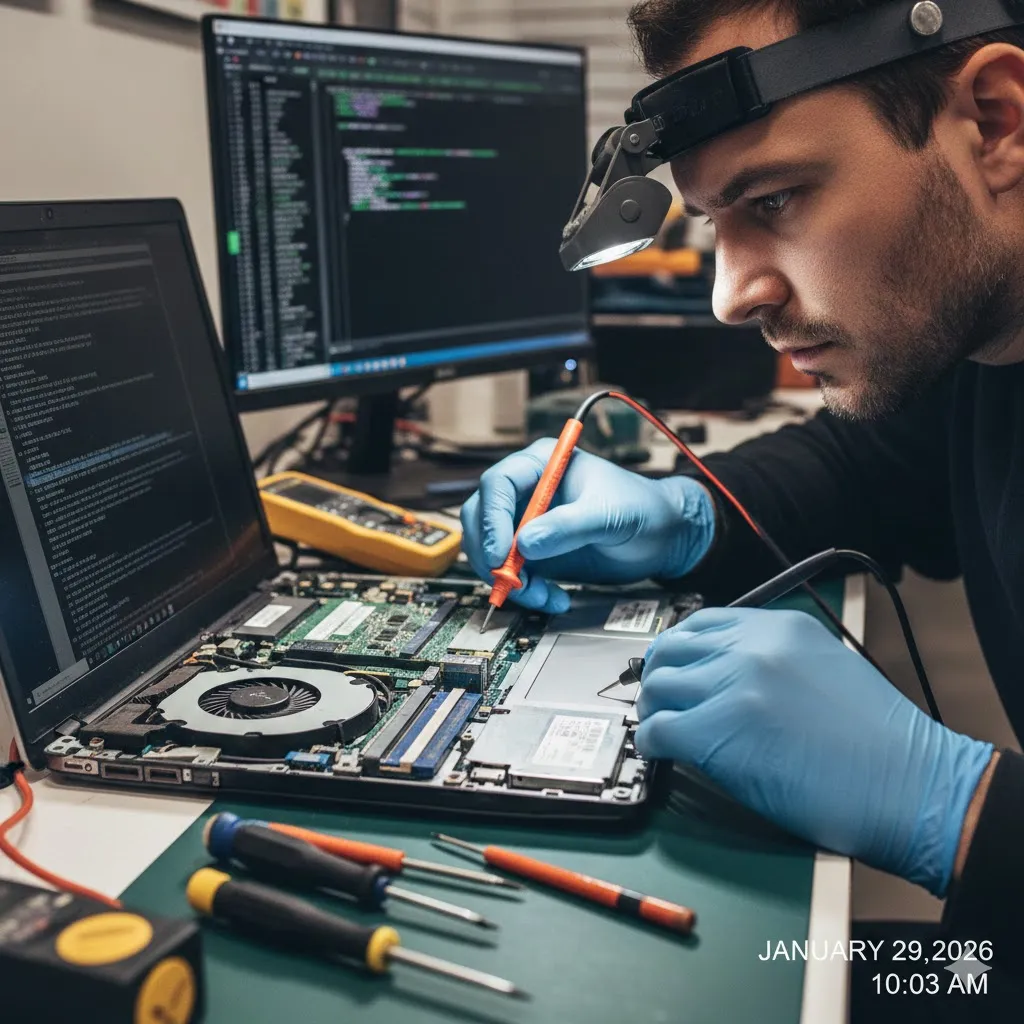
Internal ribbon cables can loosen due to drops, heat, or long-term use. Dirt or liquid spills can also damage touchpad components.
Testing with an external mouse helps confirm this. If the mouse works perfectly but the touchpad doesn’t, internal hardware is likely the issue.
Disclaimer
This article is for informational purposes only and does not constitute professional repair or technical advice. Results may vary depending on device model and configuration.
Pro Insight
Most touchpad problems are caused by settings or drivers—not broken hardware. Always check software first before considering repairs.
Quick Tip
If the touchpad stops working after an update, reinstalling the manufacturer’s driver is often faster than rolling back the entire system.
Common Mistakes That Make Touchpad Problems Worse
One common mistake is immediately assuming hardware failure and opening the laptop without testing software fixes. Another is installing third-party driver tools that introduce new conflicts.
Repeated force-clicking on a non-responsive touchpad can also worsen underlying hardware issues.
FAQs About Laptop Touchpad Problems
Why did my touchpad stop working suddenly?
Usually due to disabled settings, driver issues, or system updates.
Can I fix a touchpad without a mouse?
Yes. Keyboard shortcuts allow access to settings and restarts.
Is updating drivers safe?
Yes, when using official sources from the laptop manufacturer.
Does this mean my laptop is broken?
Not necessarily. Most touchpad issues are temporary.
When should I seek professional repair?
If the touchpad fails after all software fixes and external mouse testing.
Conclusion
A laptop touchpad not working can feel disruptive, but it’s rarely a dead end. By checking shortcuts, settings, and drivers first, most issues can be resolved quickly and calmly.
In 2026, knowing how to troubleshoot basic hardware problems like this saves time, money, and unnecessary stress—keeping you productive when it matters most.
U.S. Trusted Resources
- Microsoft Support – Touchpad Troubleshooting
https://support.microsoft.com - Apple Support – Trackpad Issues
https://support.apple.com - Consumer Reports – Laptop Maintenance Tips
https://www.consumerreports.org - Federal Communications Commission (FCC) – Device Basics
https://www.fcc.gov