
Learn why a laptop keyboard stops working partially, what causes it, and practical fixes you can try in 2026 without panic.
A laptop keyboard that only works partially can be surprisingly stressful. Some keys respond perfectly, while others suddenly stop—often at the worst possible moment. Whether you’re typing an email, entering a password, or working on a deadline, this issue quickly disrupts productivity.
The good news is that partial keyboard failure is usually fixable. In many cases, the cause is not permanent hardware damage but something much simpler.
What “Partially Not Working” Really Means
When a keyboard fails partially, it doesn’t stop completely. Instead, certain keys, rows, or sections become unresponsive. Sometimes letters work but numbers don’t. Other times, the keyboard works fine—until it doesn’t.
For example, a student may notice that the “A, S, D” keys stop responding, while the rest of the keyboard functions normally. This pattern often points to a specific underlying issue rather than total failure.
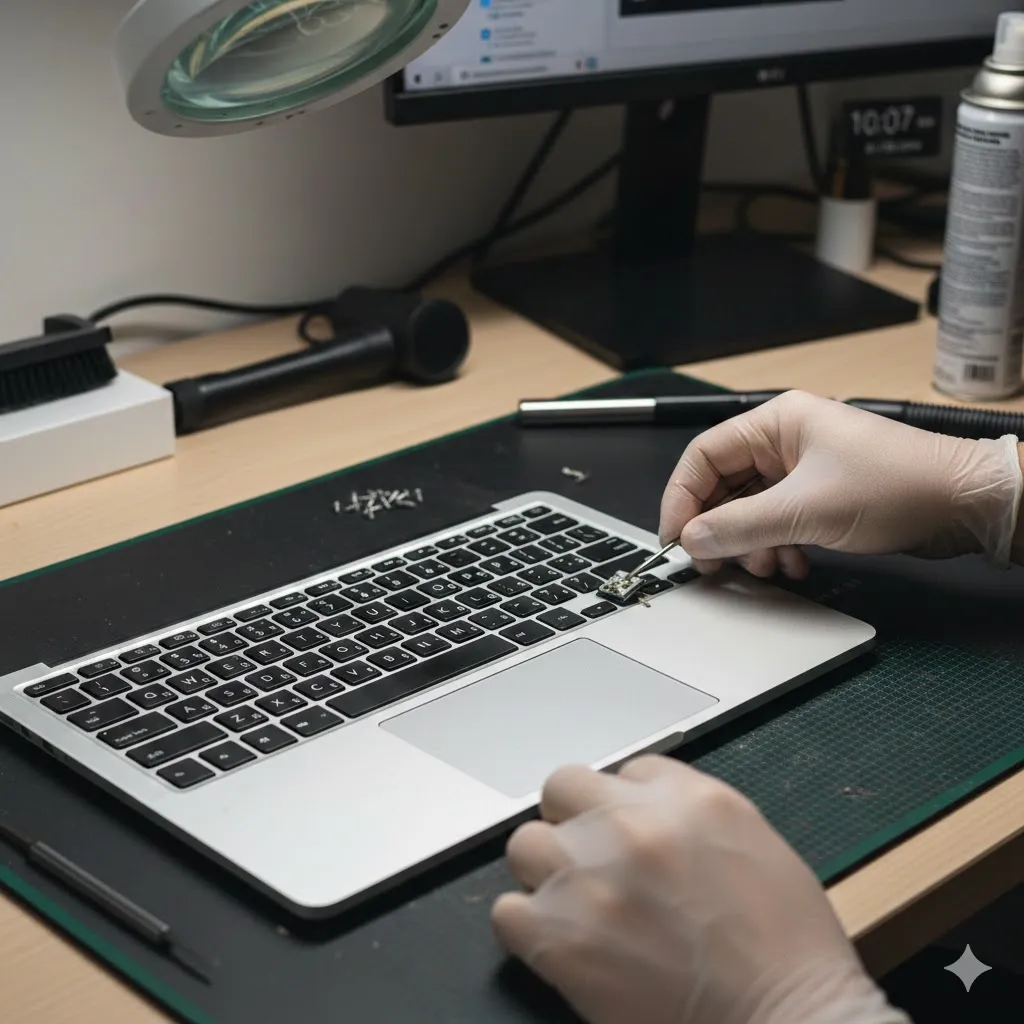
Understanding the pattern of failure is the first step toward identifying the real cause.
Common Causes of Partial Laptop Keyboard Failure
Several factors can cause only part of a laptop keyboard to stop working. Most fall into software, debris, or hardware categories.
Dirt, Dust, or Liquid Residue
Keys that stop responding often do so because something is physically blocking them. Crumbs, dust, or dried liquid residue can interfere with key switches—even if the spill happened weeks ago.
Software or Driver Issues
Keyboard drivers allow the operating system to interpret key input. If drivers are outdated, corrupted, or conflicted after a system update, certain keys may stop responding correctly.
Language or Input Settings
Sometimes the keyboard works, but input settings change. This can cause certain keys to behave differently or appear non-functional, especially after OS updates.
When the Problem Is Software-Related
Software issues are more common than most people expect.
Operating system updates can reset keyboard drivers or disable certain features. In other cases, background applications or accessibility settings interfere with normal typing behavior.
A real-life scenario: after an update, a remote worker notices number keys no longer respond unless combined with another key. The issue turns out to be a changed keyboard layout—not broken hardware.
Resetting keyboard settings or reinstalling drivers often resolves this type of issue quickly.
Partial Keyboard Failure vs Full Hardware Damage
| Symptom | Likely Cause | Difficulty Level |
|---|---|---|
| Some keys not responding | Dirt or software conflict | Low to moderate |
| Entire row or column dead | Internal keyboard ribbon issue | Moderate |
| Keyboard works externally only | Internal keyboard hardware | Higher |
| Random keys fail intermittently | Driver or power issue | Moderate |
This comparison helps determine whether the issue is something you can fix yourself or something that needs professional help.
How to Test If Hardware Is the Problem
Before assuming the keyboard is damaged, test with an external USB keyboard. If all keys work perfectly externally, the issue is likely with the laptop’s internal keyboard or its connection.
In older laptops, internal ribbon cables can loosen over time, especially after drops or frequent movement.
Disclaimer
This article is for informational purposes only and does not constitute professional repair or technical advice. Results may vary depending on laptop model and usage.
Pro Insight
Most partial keyboard failures start small. Addressing them early—before keys fail completely—often prevents full keyboard replacement.
Quick Tip
If only certain keys fail, use an online keyboard tester to identify patterns before changing settings or hardware.
Mistakes That Can Make the Problem Worse
Repeatedly pressing stuck keys can damage the switch further. Using excessive liquid cleaners can also push debris deeper into the keyboard.
Another common mistake is immediately replacing the keyboard without testing software or external input devices first.
FAQs About Laptop Keyboard Issues
Why do only some keys stop working?
Usually due to debris, software conflicts, or partial hardware connection issues.
Can a driver update really fix keyboard problems?
Yes. Driver issues often affect only certain keys or functions.
Is it safe to clean my laptop keyboard myself?
Yes, if done gently using compressed air or a soft brush.
Does this mean my laptop keyboard is broken permanently?
Not always. Many partial failures are temporary or fixable.
When should I replace the keyboard?
If keys remain unresponsive after cleaning, software fixes, and external testing.
Conclusion
A laptop keyboard that partially stops working doesn’t automatically mean expensive repairs. In many cases, the cause is dirt, software changes, or minor internal issues that can be identified with calm troubleshooting.
By understanding the symptoms and testing methodically, you can often restore full keyboard function—or at least know exactly when professional repair is truly necessary.
U.S. Trusted Resources
- Microsoft Support – Keyboard Troubleshooting
https://support.microsoft.com - Apple Support – Keyboard Issues on MacBooks
https://support.apple.com - Consumer Reports – Laptop Maintenance Tips
https://www.consumerreports.org - Federal Communications Commission (FCC) – Device Basics
https://www.fcc.gov