
Fix Windows running slow after a new install with simple, proven steps for 2026—boost speed, reduce lag, and make your PC feel fast again.
Installing Windows fresh should feel like a reset button. However, many people are shocked when their PC is still slow right after reinstalling. Apps take forever to open, the system feels heavy, and even simple tasks lag.
The good news is this is usually fixable. In most cases, the problem is not Windows itself. It’s drivers, background services, wrong settings, or a hardware bottleneck. Once you identify the real cause, you can make Windows feel smooth again without doing another reinstall.
Let’s fix it step by step.
Check the Real Cause First Before You Tweak Everything
A fresh install can still be slow for a few reasons:
- Windows is still finishing updates in the background
- drivers are missing or incorrect
- the PC is running on a hard drive (HDD), not an SSD
- too many startup apps are enabled
- power settings are limiting performance
Real-life micro-scenario:
You reinstall Windows and think it’s clean. Still, Windows Update is downloading drivers, indexing files, and scanning security in the background. Your PC feels slow for hours, even though nothing is “wrong.”
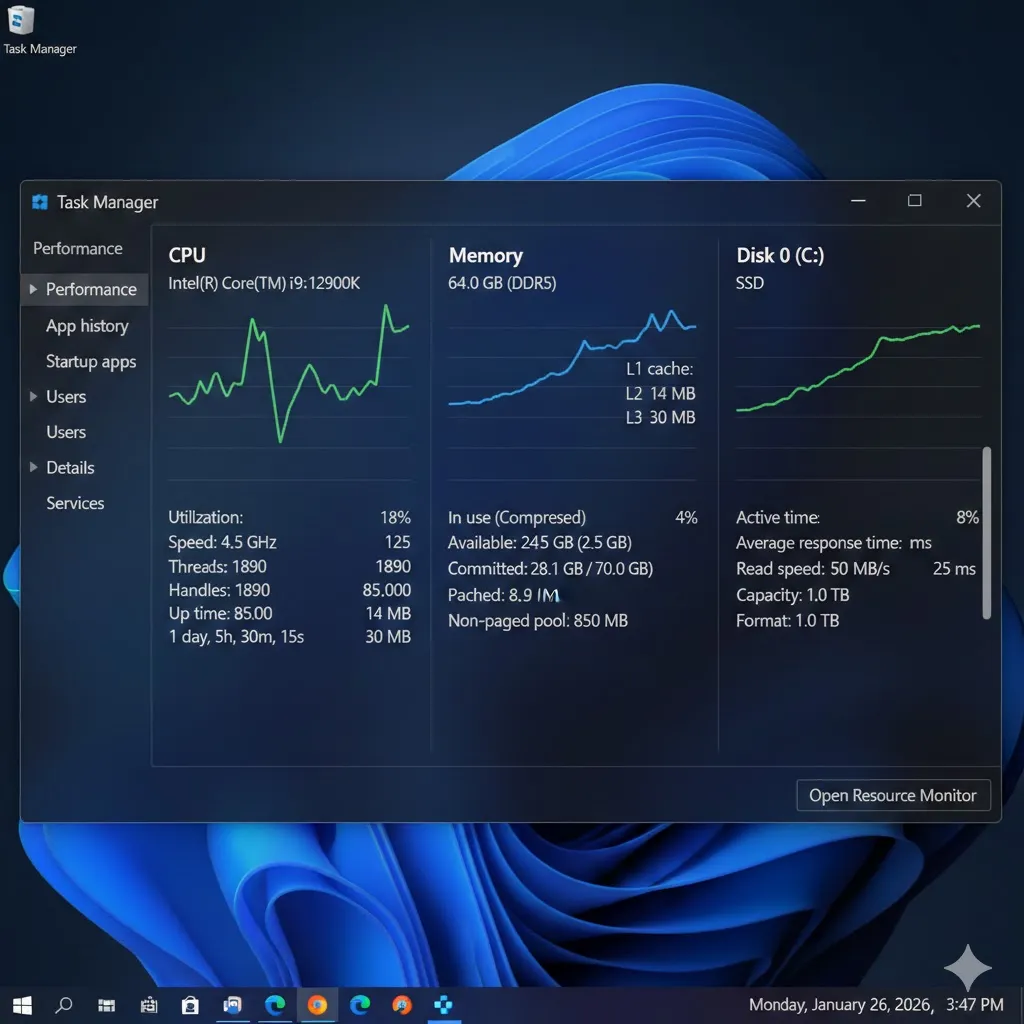
Before changing advanced settings, check what your PC is actually doing.
Update Windows and Drivers the Right Way
Even after a fresh install, Windows may not have the best drivers yet. That can cause lag, high CPU usage, or stuttering.
Update Windows fully
Go to:
Settings → Windows Update → Check for updates
Install everything, restart, and repeat until no updates remain.
Install chipset and graphics drivers
This matters a lot, especially for laptops and gaming PCs.
- For Intel drivers: https://www.intel.com/content/www/us/en/support/detect.html
- For AMD drivers: https://www.amd.com/en/support
- For NVIDIA drivers: https://www.nvidia.com/Download/index.aspx
A missing chipset driver can make your system feel sluggish even on good hardware.
Fix High Disk Usage and Slow Boot Problems
If your PC is slow “everywhere,” your disk may be the bottleneck.
Check if your drive is HDD or SSD
Open Task Manager → Performance → Disk
If it’s an HDD, Windows can feel slow even after reinstalling. Upgrading to an SSD is one of the biggest speed boosts you can make.
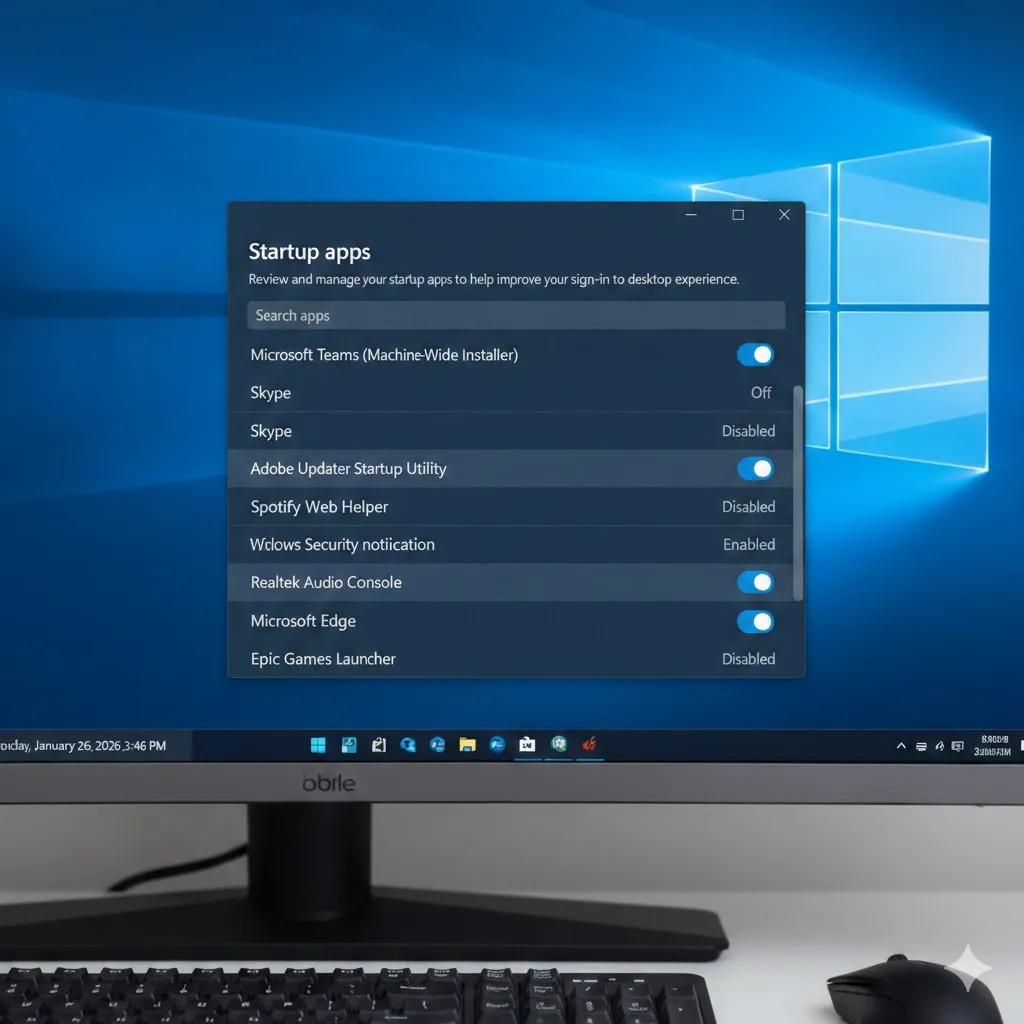
Turn off unnecessary startup apps
Go to:
Task Manager → Startup apps
Disable anything you don’t need immediately, such as:
- chat apps
- launchers
- auto-updaters
This often makes Windows feel faster instantly.
Compare the Most Common Causes of Slow Windows
| Cause | What It Looks Like | Best Fix |
|---|---|---|
| HDD storage | slow boot, lag opening apps | upgrade to SSD |
| Too little RAM | freezes with many tabs | upgrade RAM, reduce apps |
| Missing drivers | stutter, poor performance | install proper drivers |
| Too many startup apps | slow login | disable startup apps |
| Background updates | slow right after install | wait + complete updates |
This table helps you stop guessing and focus on the real issue.
Optimize Windows Settings for Better Speed
Small settings can make a big difference, especially on budget laptops.
Set power mode to Best performance
Go to:
Settings → System → Power & battery → Power mode → Best performance
Turn off heavy visual effects
Go to:
System Properties → Advanced → Performance → Settings
Select:
Adjust for best performance
Or keep a few effects on if you prefer visuals.
Reduce background apps
Go to:
Settings → Apps → Installed apps
Uninstall anything you don’t use. Fresh installs often include extra apps you don’t need.
Pro Insight
Many PCs feel slow after reinstalling Windows because they are still using generic drivers. Installing the correct chipset and graphics drivers can make the system feel like a different machine.
Scan for Malware Even on a Fresh Install
It sounds strange, but it happens—especially if:
- you installed from an unofficial ISO
- you restored files from an infected backup
- you installed cracked software
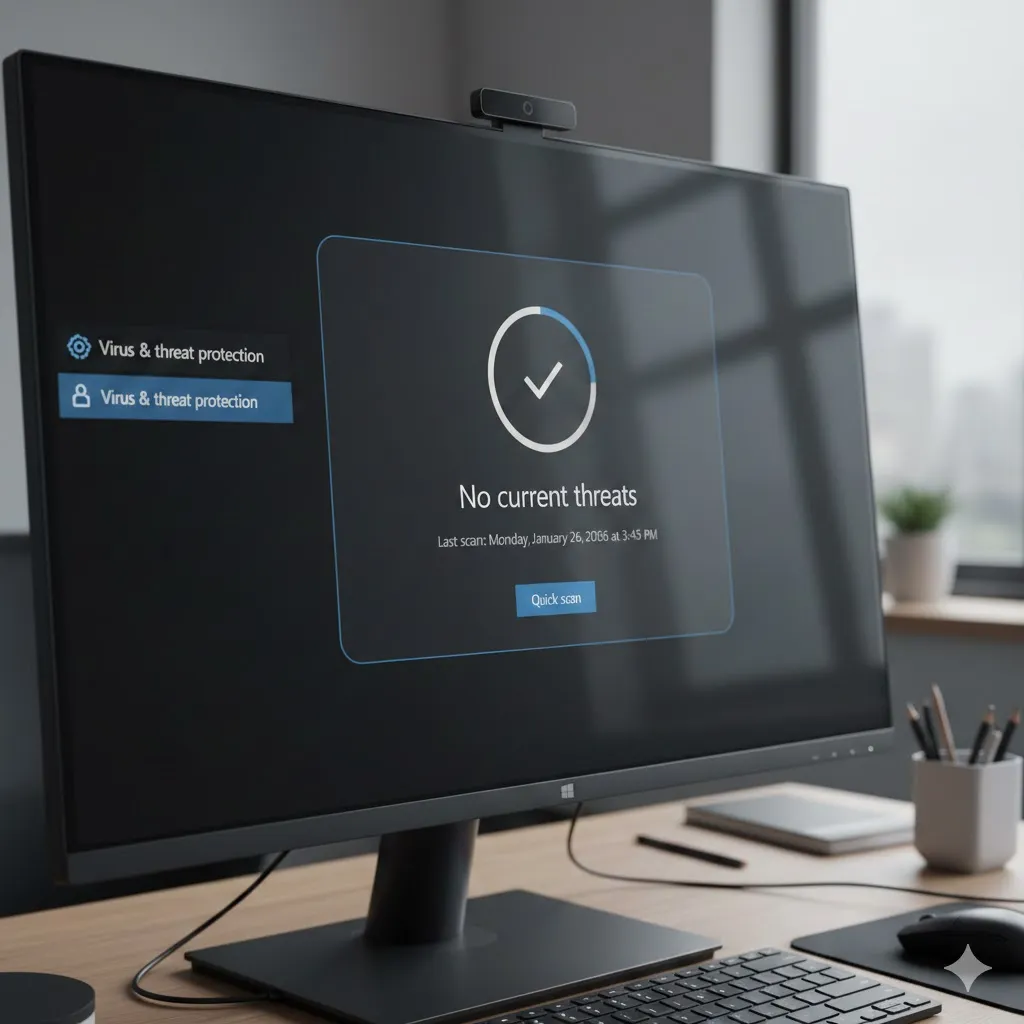
Run:
- Windows Security (built-in)
- Microsoft Safety Scanner: https://learn.microsoft.com/en-us/microsoft-365/security/intelligence/safety-scanner-download
This is quick and worth doing.
Quick Tip
If Disk usage stays at 100% in Task Manager after install, your PC is likely using an HDD. An SSD upgrade is the fastest fix.
FAQs
Why is Windows slow after a clean install?
Usually because Windows is still updating, drivers are missing, or your PC has a slow HDD.
How do I make Windows faster without upgrading hardware?
Disable startup apps, install proper drivers, finish updates, and set power mode to Best performance.
Is Windows 11 slower than Windows 10?
Not always. Performance depends more on your hardware, drivers, and settings than the version.
How do I know if my SSD is working properly?
Check Task Manager Disk type, run Windows drive optimization, and confirm the SSD is not almost full.
What’s the best upgrade for a slow PC?
An SSD upgrade is usually the biggest improvement, followed by adding more RAM.
Disclaimer
This article is for general informational purposes only. Results may vary depending on your device model, hardware condition, and installed software.