
Introduction
You move your mouse to the bottom of the screen to click the Start button, but nothing happens. The icons are frozen, the clock is stuck, or worse—the entire taskbar has vanished completely.
“Where did my buttons go?”
The Taskbar is the control center of Windows. When it breaks, you can’t switch apps, check the time, or even shut down your PC properly.
Usually, this isn’t a virus; it’s just the “Windows Explorer” process crashing. In this guide, I will show you how to bring your taskbar back to life without losing your open work.
Method 1: Restart Windows Explorer (The Quickest Fix)
You don’t need to restart the whole computer. You just need to restart the interface.
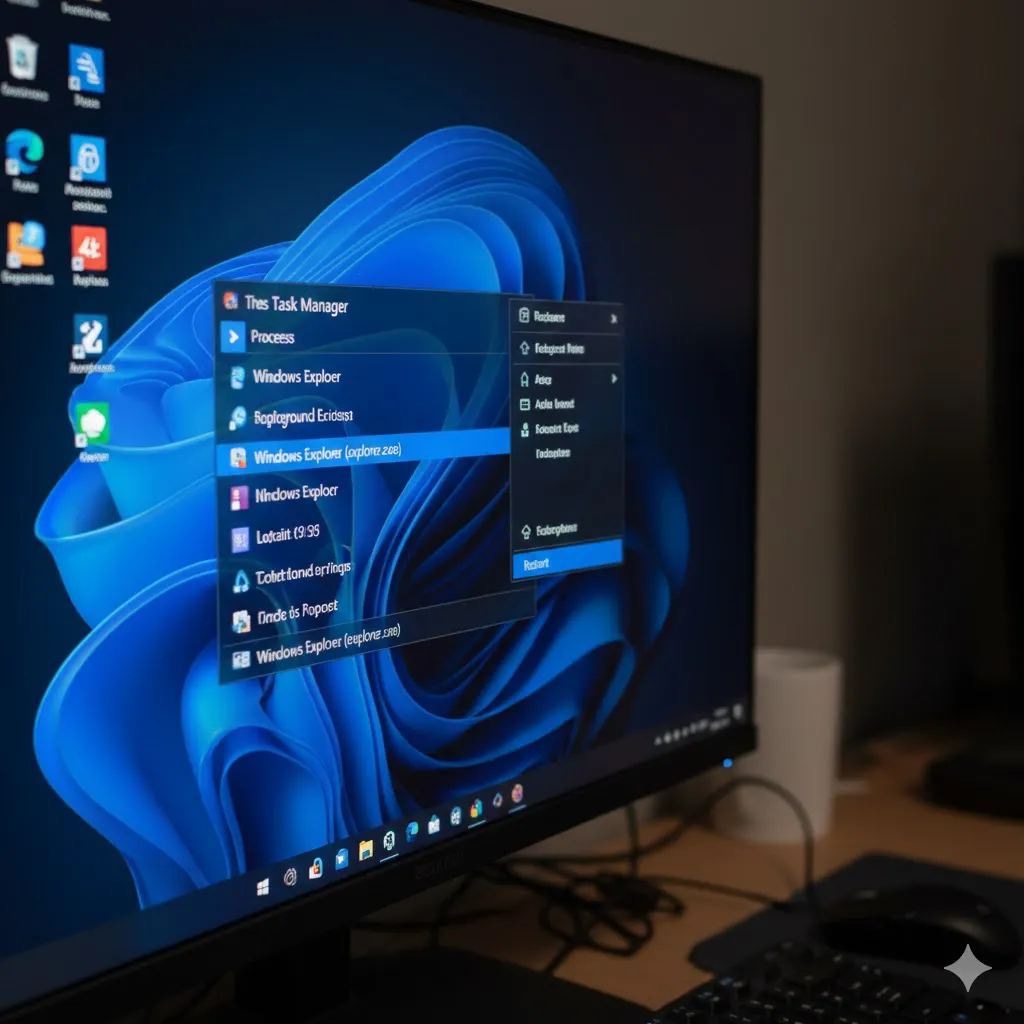
- Press Ctrl + Shift + Esc to open Task Manager.
- In the “Processes” tab, scroll down to find Windows Explorer (it looks like a yellow folder icon).
- Right-click it and select Restart.
- Your screen and taskbar will flash for a second. The taskbar should reappear and work normally.
Method 2: The “Taskbar Auto-Hide” Glitch
Sometimes, the taskbar is just hiding, not broken.
- Move your mouse to the very bottom edge of the screen. Does it pop up?
- If yes, right-click the taskbar and select Taskbar settings.
- Look for “Automatically hide the taskbar”.
- Turn it OFF (or uncheck it) to keep it visible correctly.
Method 3: Re-Register the Taskbar (PowerShell Fix)
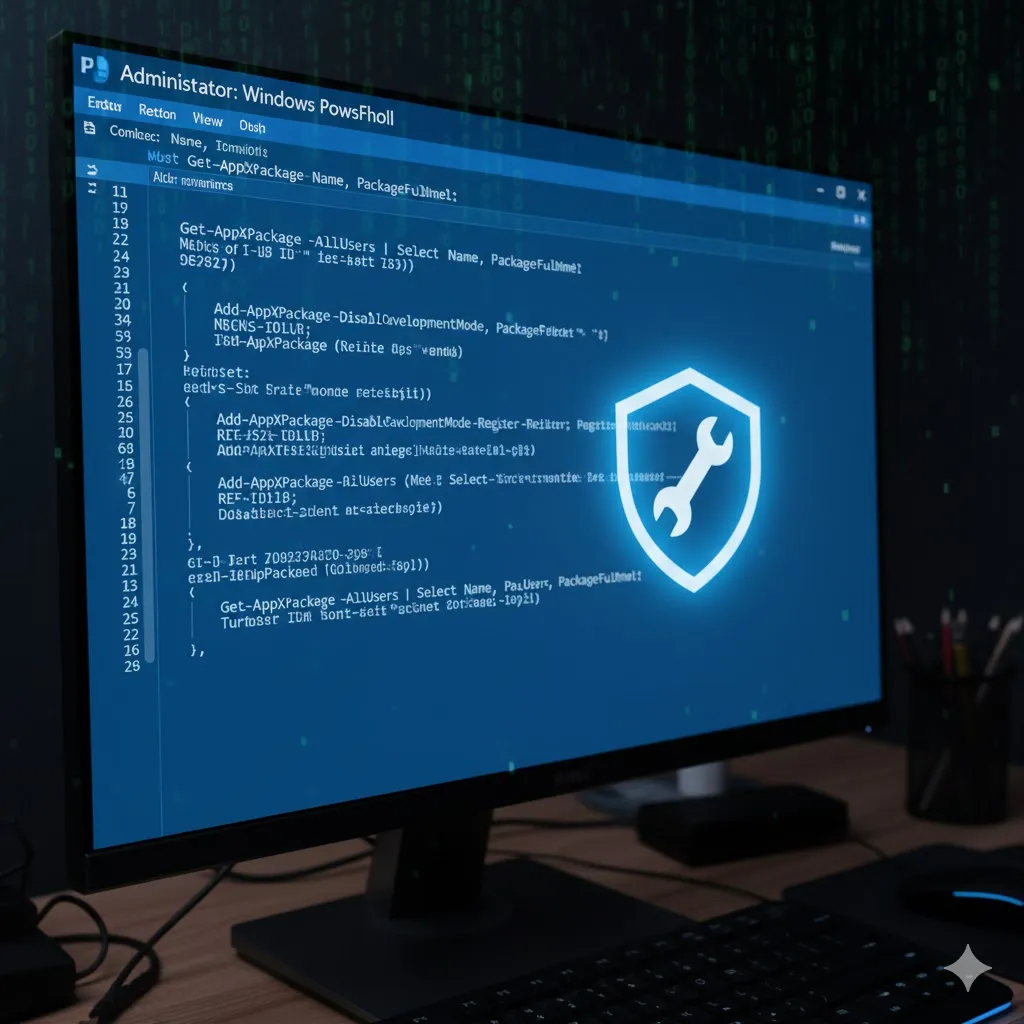
If restarting Explorer didn’t work, the taskbar’s system files might be corrupted. We can reset them using a command.
- Press Ctrl + Shift + Esc to open Task Manager.
- Click File > Run new task.
- Type
powershelland check the box “Create this task with administrative privileges”. Click OK. - Paste this command and hit Enter:
Get-AppXPackage -AllUsers | Foreach {Add-AppxPackage -DisableDevelopmentMode -Register "$($_.InstallLocation)\AppXManifest.xml"} - Ignore the red error text. Once it stops, restart your PC.
Method 4: Check for Windows Updates
A known bug in Windows 11 caused the taskbar to vanish for millions of users. Microsoft released a patch to fix it.
- Press Windows Key + I to open Settings (if the Start menu doesn’t work).
- Go to Windows Update.
- Click Check for updates.
- Install any “Cumulative Updates” available.
Method 5: Create a New User Account
If your user profile is corrupted, the taskbar might never work correctly on your current account.
- Go to Settings > Accounts > Other users.
- Click Add account.
- Create a local account and log in.
- If the taskbar works perfectly there, your original profile is damaged. You should move your files to the new account.
Frequently Asked Questions (FAQ)
Q: How do I shut down if the Start button doesn’t work?
A: You can still shut down! Press Ctrl + Alt + Delete, look for the Power icon in the bottom right corner of the blue screen, and select Shut down.
Q: Why does my taskbar freeze after sleeping?
A: This is often a graphics driver issue. Try updating your GPU drivers (NVIDIA/AMD) or disable “Fast Startup” in Power Options.
Q: Does this happen on Windows 11 more than Windows 10?
A: Yes. The Windows 11 taskbar was completely rewritten, so it is still a bit buggy compared to the stable Windows 10 version.
Conclusion
A frozen taskbar makes your PC feel broken, but it’s usually just a glitch in the Windows Explorer process. Restarting it via Task Manager (Method 1) solves the problem for 90% of users.
Don’t let a missing button stop your workflow—fix it in seconds!
Did the PowerShell command work for you? Share your results in the comments!