
Introduction
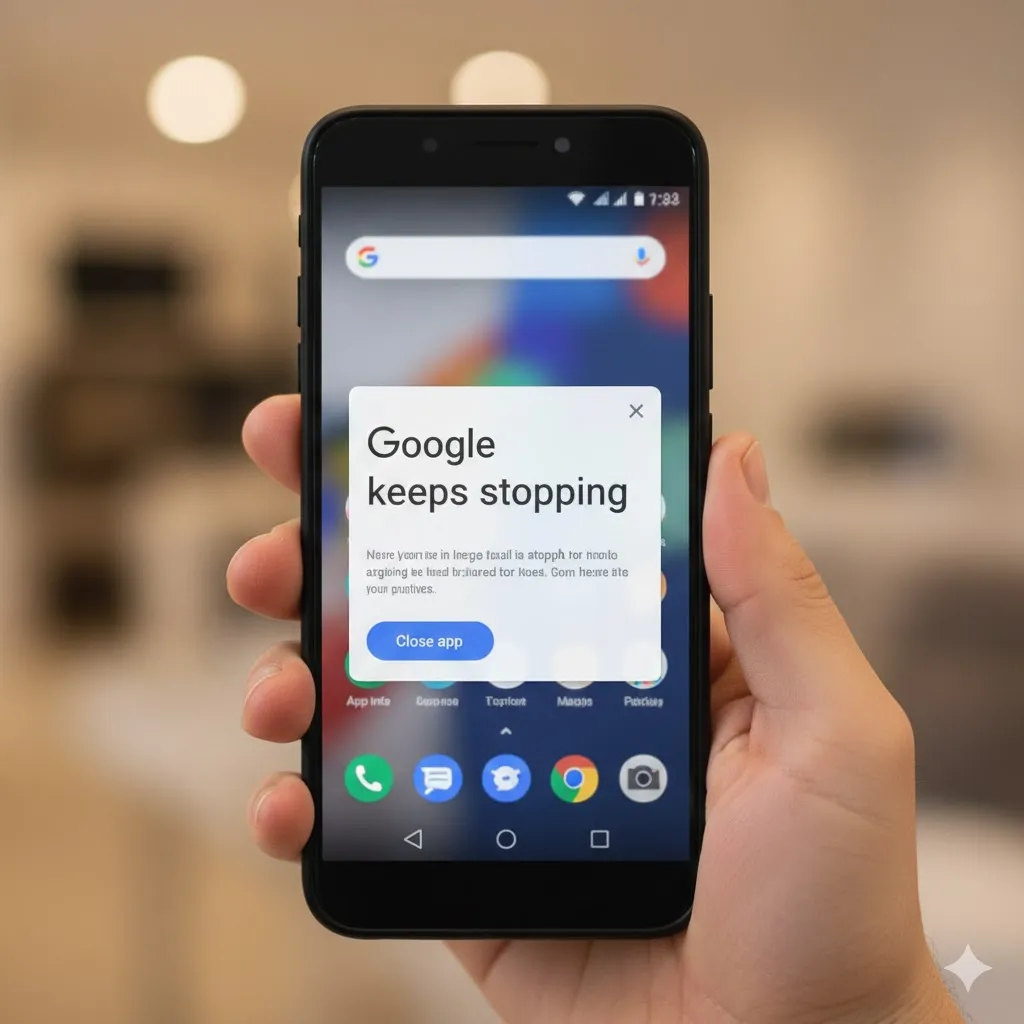
You are using your phone peacefully, and suddenly a popup appears:
“Google keeps stopping.”
You tap “Close app,” but it pops up again 2 seconds later. And again. And again. Your phone becomes unusable because this error message blocks everything you try to do.
“Help! My phone is possessed!”
Don’t smash your phone against the wall. This is a very common bug caused by a corrupted update to the main “Google” app or the “Android System WebView”.
In this guide, I will show you how to break the loop and silence that annoying popup for good.
Method 1: Uninstall Updates for “Google” App (The #1 Fix)
Since the error is usually caused by the latest version of the Google app being buggy, reverting to the factory version fixes it instantly.
- Go to Settings > Apps.
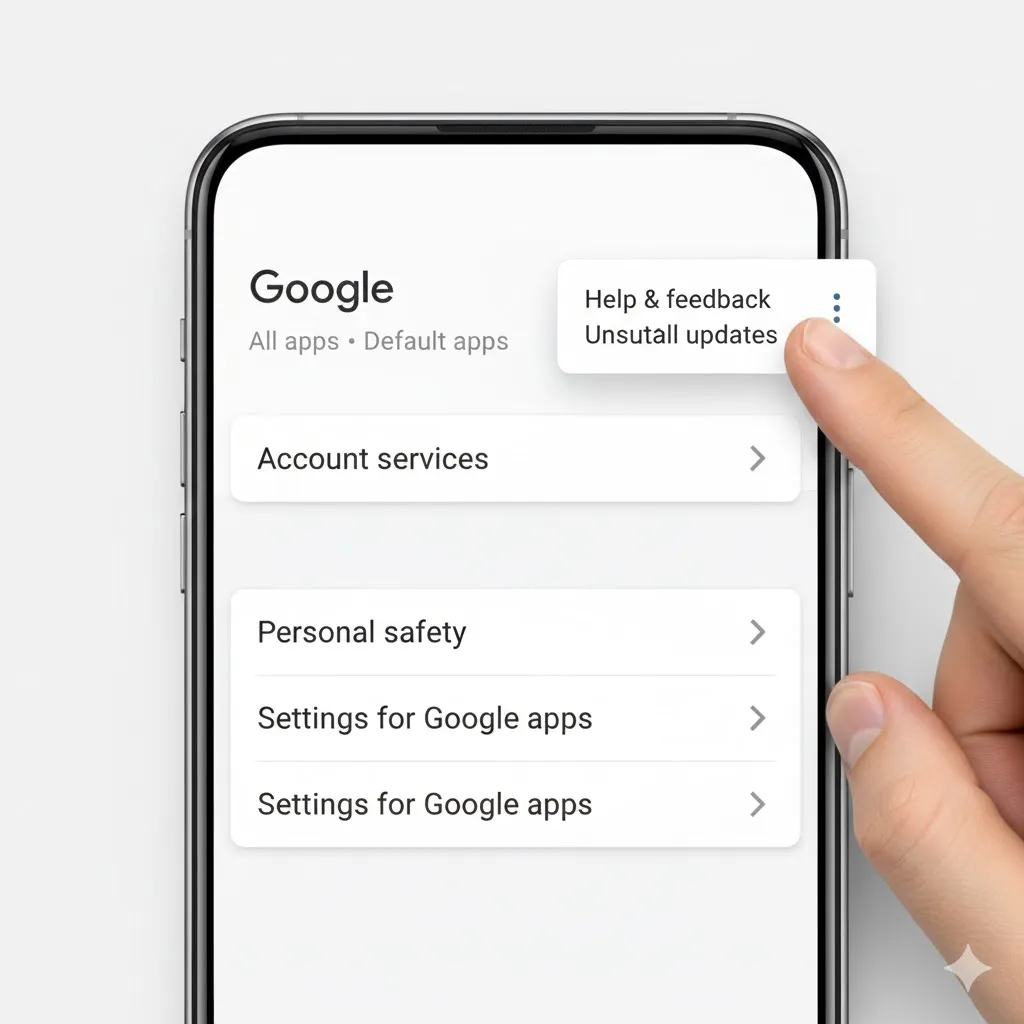
- Scroll down and find Google (the one with the “G” logo).
- Tap the three dots in the top right corner.
- Select Uninstall updates.
- Tap OK.
- The error popup should vanish immediately. (You can update it again later when Google releases a patch).
Method 2: Clear Cache & Data for Google App
If Method 1 didn’t work, maybe the app’s database is just corrupted.
- Go to Settings > Apps > Google.
- Tap Storage.
- Tap Clear Cache.
- Tap Manage Storage (or Clear Data) > Clear All Data.
- Note: This will reset your Google Search history/preferences on the device, but your account is safe.
Method 3: Update (or Uninstall) Android System WebView
This hidden system component controls how apps display web content. If it bugs out, many apps (including Google and Gmail) will crash constantly.
- Open the Play Store.
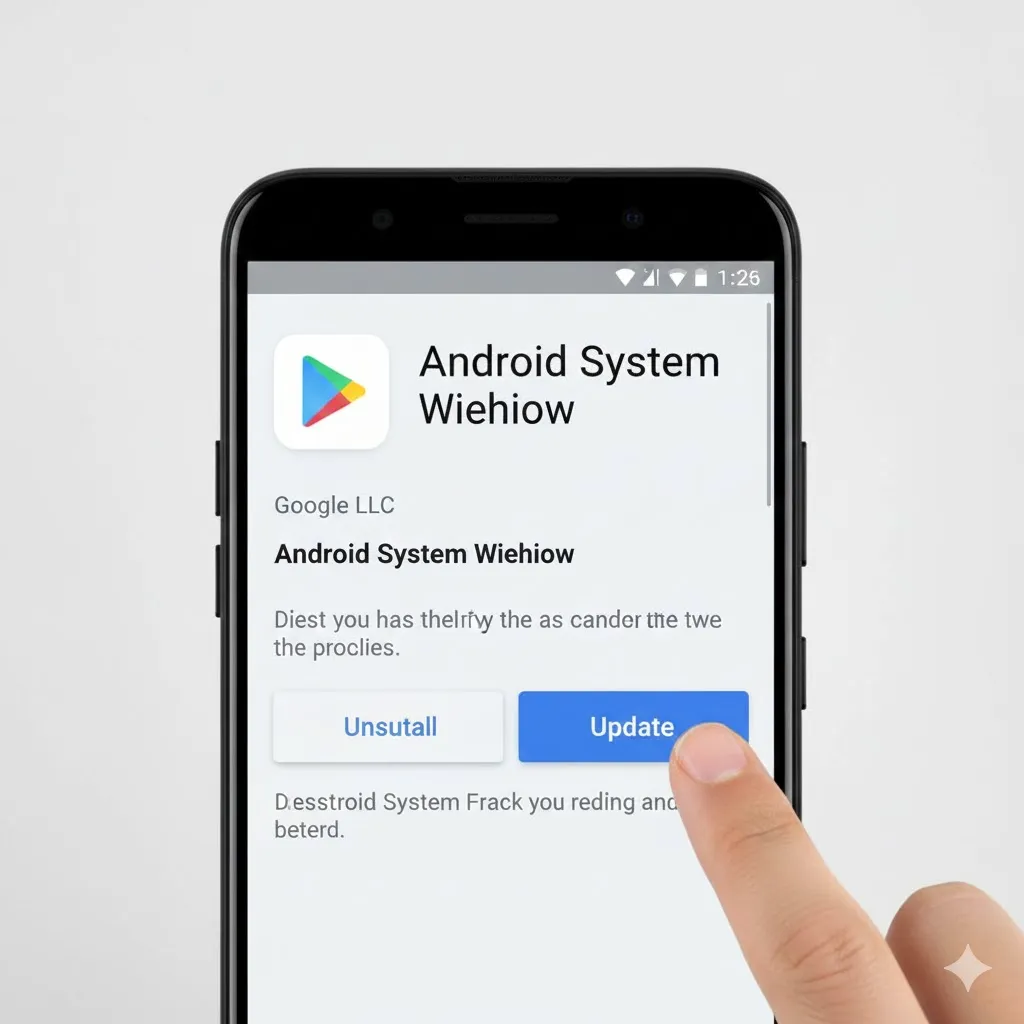
- Search for Android System WebView.
- If you see an Update button, tap it.
- If it’s already updated, tap Uninstall to remove the buggy update.
- Restart your phone.
Method 4: Restart Your Phone (Soft Reset)
Sometimes the OS just needs a refresh to clear the stuck process.
- Press and hold the Power button (or Side Key + Volume Down).
- Tap Restart.
- Wait for the phone to boot up and see if the popup returns.
Method 5: Wipe Cache Partition
If this happens after a major Android update (like One UI 6 or 7), old system files might be conflicting with the new ones.
- Turn off your phone.
- Connect to a PC via USB.
- Hold Volume Up + Power to enter Recovery Mode.
- Select Wipe cache partition.
- Select Yes > Reboot system now.
Frequently Asked Questions (FAQ)
Q: Will uninstalling updates delete my Google account?
A: No. It simply reverts the app code to the version that came with your phone. Your account, emails, and photos are completely safe.
Q: Why does this keep happening to Samsung phones?
A: It’s not just Samsung; it happens to Pixel and Motorola too. It usually occurs when Google pushes a server-side update that isn’t fully tested on all devices.
Q: Can I disable the Google app permanently?
A: You can, but voice search and the “Discover” feed won’t work. It’s better to just uninstall the updates (Method 1) and turn off auto-updates for a few days.
Conclusion
The “Google keeps stopping” loop is terrifying because it paralyzes your phone. But remember: it’s just a bad app update. By Uninstalling Updates (Method 1), you can kill the bug instantly.
Enjoy your peaceful, popup-free phone!
Did uninstalling updates stop the popup for you? Let me know in the comments below!