
Introduction
You are trying to click a button or aim in a video game. You move your hand smoothly across the mousepad, but on the screen, the cursor is acting crazy. It freezes for a second, jumps to the other side, or moves in choppy steps.
“Is my mouse broken?”
Mouse stuttering (or lagging) makes your powerful PC feel like a dinosaur. While it could be a dying battery, more often than not, it is a Windows setting conflict or a USB power saving feature gone wrong.
In this guide, I will show you how to smooth out your cursor movement and get back to pixel-perfect precision.
Method 1: Reinstall Mouse Drivers (The Basic Reset)
Just like the keyboard, the mouse driver can get corrupted. Let’s force Windows to refresh it.
- Right-click the Start button > Device Manager.
- Expand Mice and other pointing devices.
- Right-click your mouse (usually “HID-compliant mouse”) > Uninstall device.
- Restart your PC.
- Windows will reinstall the driver automatically upon boot. Move your mouse to test.
Method 2: Disable “Scroll Inactive Windows”
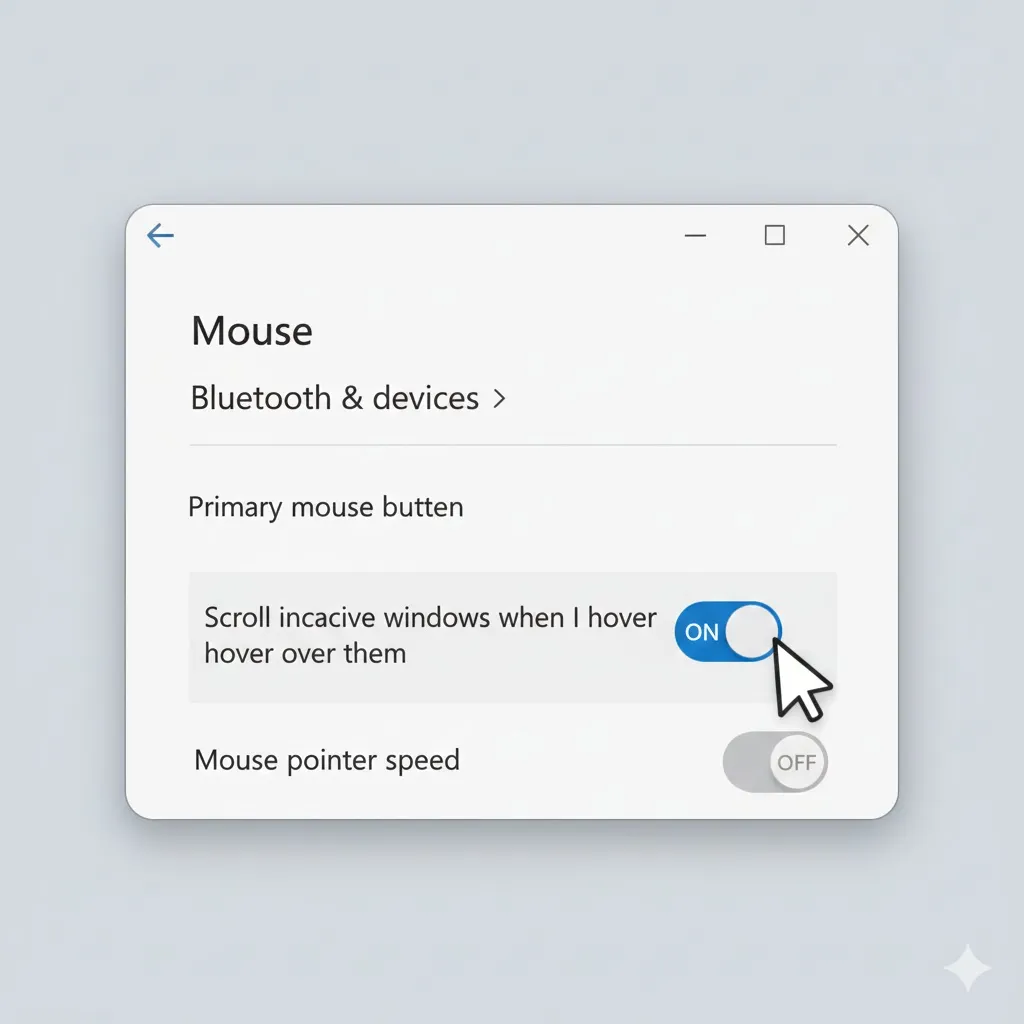
This is a helpful feature in Windows 10/11, but for some reason, it causes massive lag for many users. Turning it off is a known miracle fix.
- Go to Settings > Bluetooth & devices (or Devices).
- Click on Mouse.
- Find the switch “Scroll inactive windows when I hover over them”.
- Turn it OFF.
- Check if the stuttering stops.
Method 3: Change USB Power Management
Windows likes to cut power to USB ports to save energy, which can cause the mouse to “sleep” for a split second while you are using it.
- Open Device Manager again.
- Expand Universal Serial Bus controllers.
- Right-click USB Root Hub > Properties.
- Go to the Power Management tab.
- Uncheck the box: “Allow the computer to turn off this device to save power”.
- Click OK. (Repeat this for all “USB Root Hub” items in the list).
Method 4: Update Graphics Drivers
Wait, graphics? Yes. The mouse cursor is drawn by your graphics card. If your NVIDIA or AMD driver is outdated, the cursor can lag even if the mouse is fine.
- Right-click Start > Device Manager.
- Expand Display adapters.
- Right-click your GPU > Update driver > Search automatically.
- Pro Tip: For gamers, use “GeForce Experience” or “AMD Adrenalin” software to get the latest game-ready drivers.
Method 5: Check for Physical Interference (Wireless Mice)
If you use a wireless mouse (Logitech, Razer), radio interference is a huge factor.
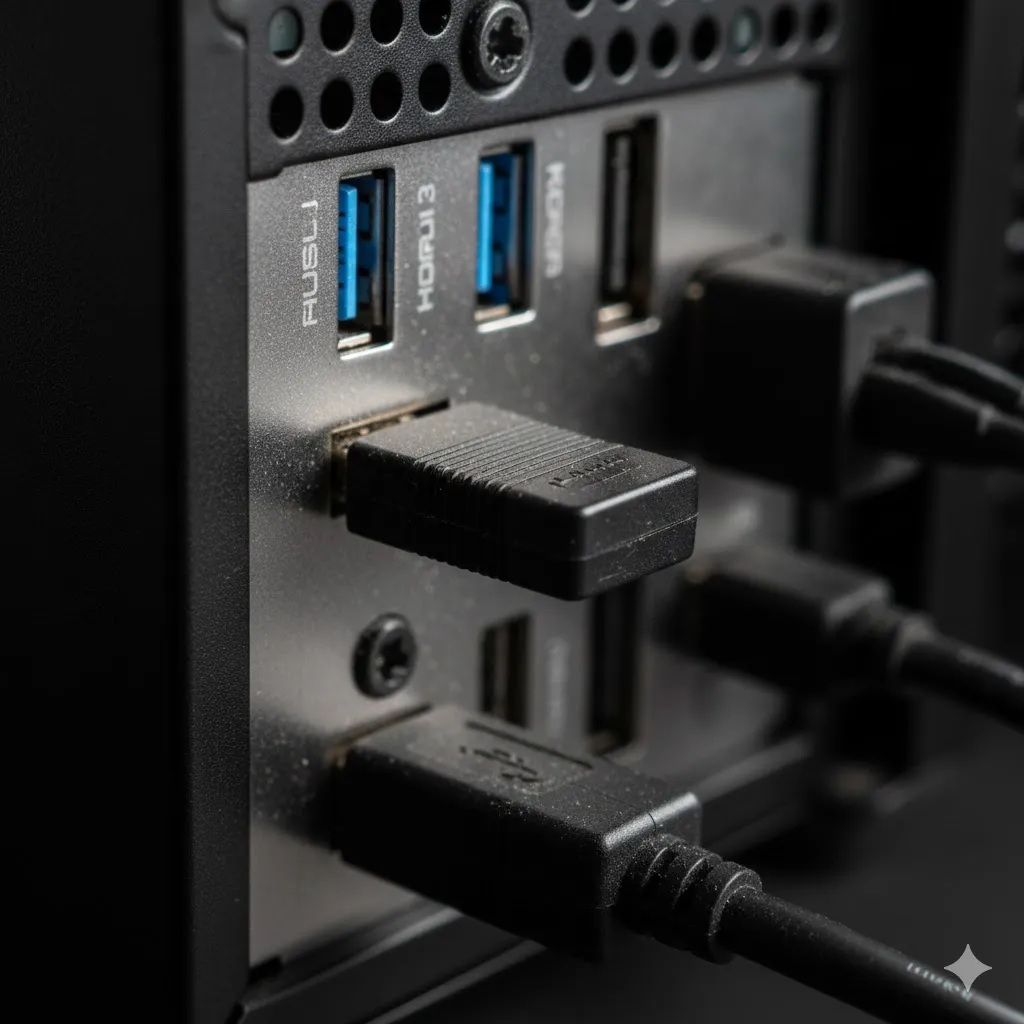
- USB 3.0 Interference: USB 3.0 ports emit a signal that interferes with 2.4GHz wireless dongles. Do not plug your mouse receiver next to a USB 3.0 hard drive. Use an extension cable to move the receiver away from the PC tower.
- Surface: Is your mousepad shiny or glass? Optical sensors hate reflective surfaces. Try a piece of paper or a cloth mousepad.
Frequently Asked Questions (FAQ)
Q: Why does my mouse lag only in games?
A: This is usually “High Polling Rate” CPU usage. If your CPU is at 100%, it can’t process mouse movements fast enough. Try lowering your game’s graphics settings or closing background apps.
Q: Should I turn off “Enhance pointer precision”?
A: For gaming? Yes. For stuttering? Maybe. Go to Mouse Settings > Additional mouse options > Pointer options and uncheck it to see if it helps. It disables mouse acceleration, making movement more consistent.
Q: Is my mouse battery low?
A: Low voltage causes the sensor to skip. Even if the light is on, try a fresh pair of AA batteries just to rule it out.
Conclusion
A stuttering mouse ruins the Windows experience. In most cases, disabling “Scroll Inactive Windows” (Method 2) or fixing the USB Power Management (Method 3) solves the lag instantly.
Don’t tolerate the chop—fix your smooth glide today!
Did disabling the scroll setting work for you? Let me know in the comments below!