
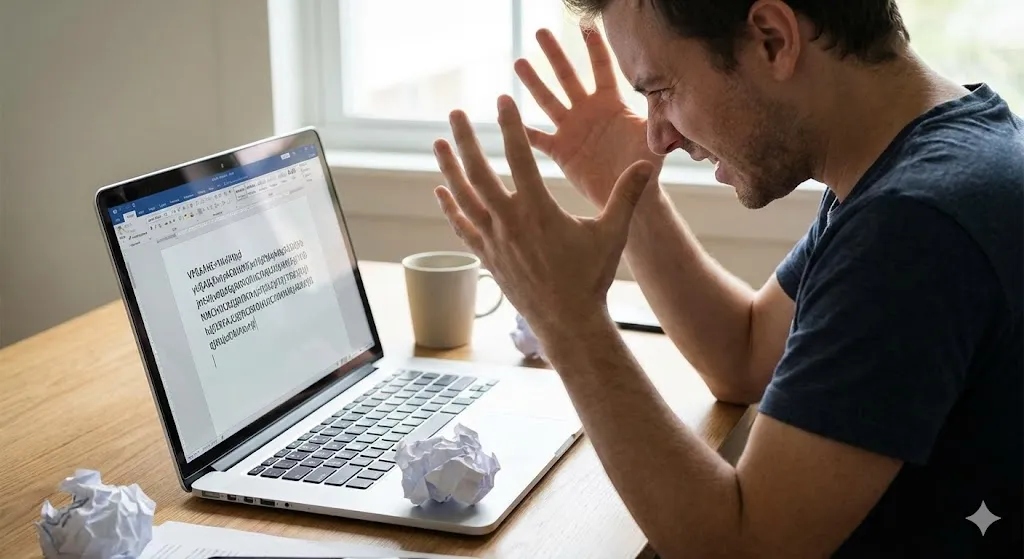
You open your laptop to finish an urgent report or chat with a friend. You start typing, but the screen stays blank. You hit the keys harder, but still nothing.
Or maybe you press “A” and it types “Aaaaaa,” or press the Spacebar and nothing happens.
“Did I break my keyboard?”
Before you panic and think you need to replace the entire laptop, take a breath. In many cases, the keyboard hardware is fine. The issue is often a corrupted driver, a hidden Windows setting called “Filter Keys,” or just some dust stuck underneath.
In this guide, I will show you how to diagnose and fix your laptop keyboard in minutes.
Method 1: Reinstall the Keyboard Driver (The Best Fix)
Drivers tell Windows how to talk to your hardware. If the keyboard driver freezes, your keys stop working.
- Right-click the Start button and select Device Manager.
- Expand the Keyboards section.
- Right-click Standard PS/2 Keyboard (or HID Keyboard Device).
- Select Uninstall device.
- Restart your laptop.
- Don’t worry: Windows will automatically detect the keyboard and reinstall a fresh, working driver when it boots up.
Method 2: Turn Off “Filter Keys”
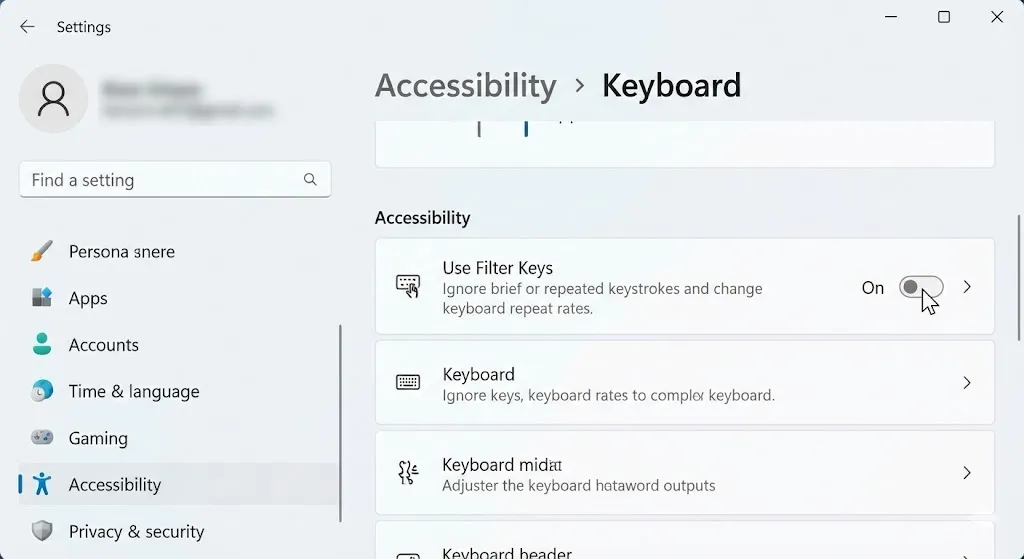
This is a notorious Windows feature. It ignores brief or repeated keystrokes to help people with hand tremors. But if you enabled it by accident (by holding the Right Shift key for 8 seconds), your keyboard will feel broken or incredibly slow.
- Go to Settings > Accessibility > Keyboard.
- Look for Filter Keys.
- Make sure the toggle is turned OFF.
- Also, uncheck “Allow the shortcut key to start Filter Keys” so you don’t turn it on by accident again.
Method 3: Run the Keyboard Troubleshooter
Windows 10 and 11 have a built-in mechanic that can find and fix keyboard glitches.
- Go to Settings > System > Troubleshoot.
- Click Other troubleshooters.
- Find Keyboard and click Run.
- Follow the instructions. If Windows finds a software conflict, it will fix it automatically.
Method 4: Clean Under the Keys (Hardware Fix)
If only some keys are not working (like just the ‘E’ and ‘R’ keys), you probably have crumbs or dust blocking the sensor.
- Shut down your laptop completely.
- Turn the laptop upside down and give it a gentle shake to dislodge crumbs.
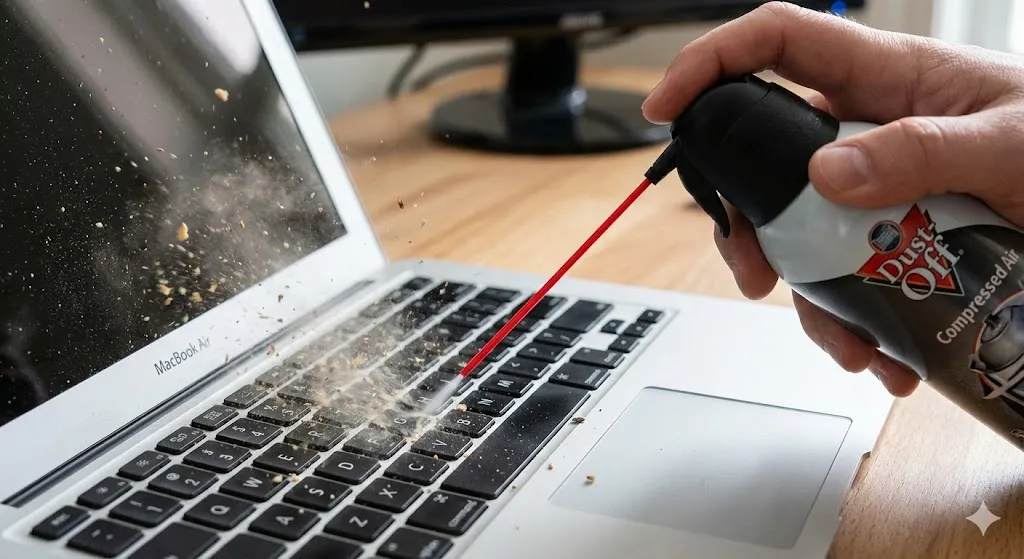
- Use a can of compressed air to blow dust out from under the stuck keys.
- Tip: Spray at a 45-degree angle while tapping the key.
Method 5: Check for Regional Language Settings
If your keyboard works, but types the wrong characters (e.g., you press @ but get "), your language layout is wrong.
- Go to Settings > Time & Language > Language & region.
- Under Preferred languages, make sure the correct one (e.g., English US) is at the top.
- Click the three dots next to your language > Language options.
- Under Keyboards, ensure it says US QWERTY (or your local standard). If it says “UK” or another layout, remove it.
Frequently Asked Questions (FAQ)
Q: Can I use an external keyboard if this doesn’t work? A: Yes! If your laptop keyboard is physically dead (maybe from a liquid spill), plugging in a cheap USB keyboard is a perfect temporary solution to keep working.
Q: Why does my keyboard type numbers instead of letters? A: You likely turned on NumLock on a compact laptop. Look for a Fn key and a key with NumLk written on it. Press Fn + NumLk to switch back to normal typing.
Q: How much does it cost to replace a laptop keyboard? A: If it’s a hardware failure, replacing a laptop keyboard usually costs between $50 and $100 at a repair shop.
Conclusion
A broken keyboard is paralyzing, but don’t rush to the repair shop yet. Reinstalling the driver (Method 1) or disabling Filter Keys (Method 2) fixes the problem for most users.
If all software fixes fail, grab a can of compressed air—it might just be a stubborn crumb!
Did turning off Filter Keys solve your problem? Let me know in the comments below!