
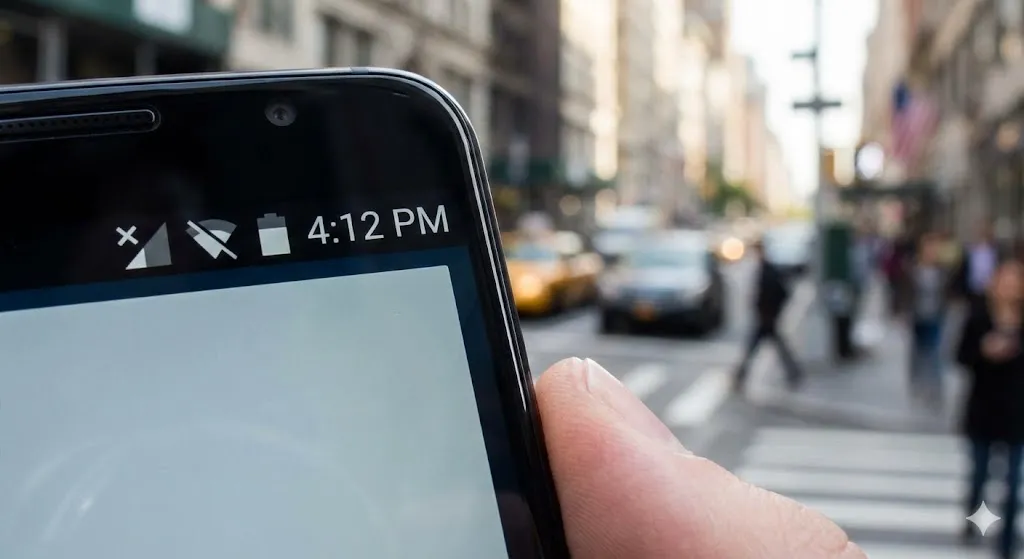
You pick up your phone to make a call or check a text, and you notice something terrifying. Instead of your usual signal bars, there is a circle with a line through it, or a message saying:
“No SIM card inserted” or “No Service.”
You didn’t drop your phone, and you didn’t touch the SIM tray. So why is your phone suddenly disconnected from the world?
This is a common issue on Android phones (Samsung, Pixel, Motorola). Usually, the SIM card has shifted slightly, the contacts are dirty, or a software glitch is blocking the signal. In this guide, I will help you get back online in minutes.
Method 1: The “Airplane Mode” Toggle
Before we open the phone, let’s try to force the antenna to reconnect to the cell tower.
- Swipe down to open the Quick Panel.
- Tap Airplane Mode to turn it ON.
- Wait for 30 seconds. (This ensures the radio fully shuts down).
- Tap it again to turn it OFF.
- Watch the signal bars. Does it say “4G/5G” or still “No Service”?
Method 2: Re-seat and Clean the SIM Card (Physical Fix)
This is the most common fix. If you dropped your phone recently, the SIM might have wiggled loose.
- Power off your phone completely.
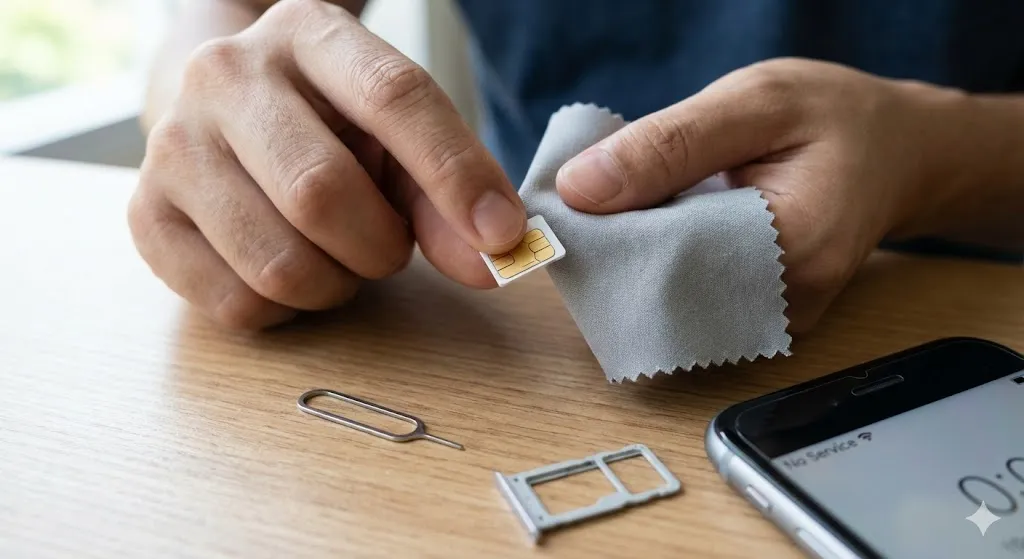
- Use the SIM ejector tool (or a paperclip) to pop out the SIM tray.
- Take the SIM card out.
- Clean the gold contacts gently with a soft cloth or a clean pencil eraser. (Dust or oil can block the connection).
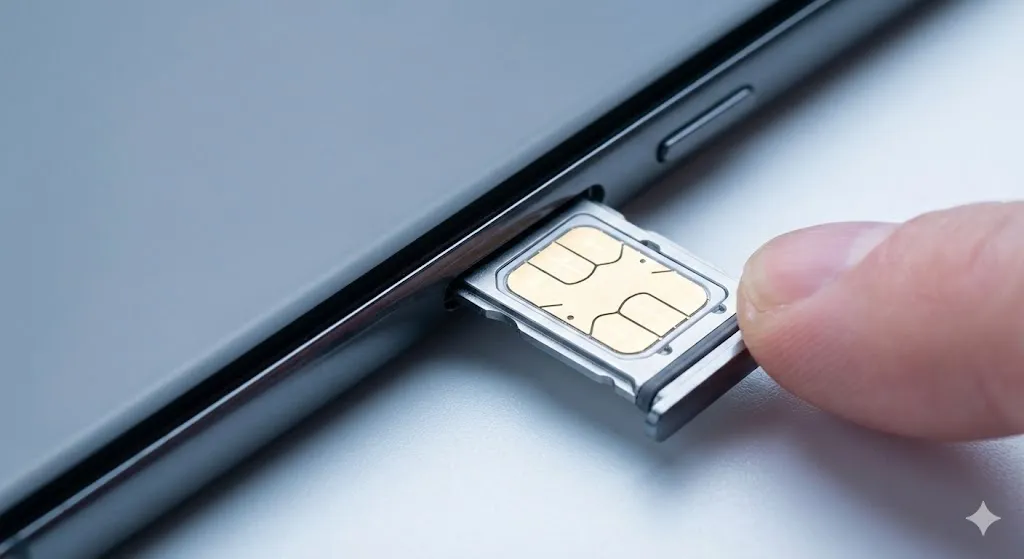
- Place it back in the tray properly and insert it.
- Turn the phone on.
Method 3: Reset Network Settings
If the physical card is fine, your phone’s software configuration for the carrier might be corrupted.
- Go to Settings > General management (or System).
- Tap Reset > Reset network settings.
- Tap Reset settings.
- This will wipe your Wi-Fi passwords and Bluetooth pairings, but it will also refresh your cellular connection to the factory default.
- Restart your phone.
Method 4: Check “SIM Card Manager”
Make sure you didn’t accidentally disable the SIM in the settings (common on dual-SIM phones).
- Go to Settings > Connections.
- Tap SIM card manager.
- Make sure the toggle switch next to your SIM (SIM 1) is turned ON.
Method 5: Test with Another Phone
If nothing works, we need to know: Is the phone broken, or is the SIM card dead?
- Borrow a phone from a friend or family member.
- Put your SIM card into their phone.
- Scenario A: If your SIM works in their phone -> Your phone’s SIM slot is broken.
- Scenario B: If your SIM doesn’t work in their phone -> Your SIM card is dead. Go to your carrier store (Verizon, T-Mobile, AT&T) for a replacement.
Frequently Asked Questions (FAQ)
Q: Can a SIM card just “go bad”? A: Yes. SIM cards are small chips. Over years of heat and usage, they can wear out or get fried by static electricity. Replacements are usually free or very cheap.
Q: Will resetting network settings delete my contacts? A: No. It only resets Wi-Fi, Bluetooth, and Mobile Data settings. Your photos, apps, and contacts are 100% safe.
Q: What if I have an eSIM? A: If your eSIM says “No Service,” do not delete it! Try Method 1 and 3. If that fails, contact your carrier support to reactivate the profile.
Conclusion
Seeing “No Service” is stressful, but 90% of the time, it’s just a dirty contact or a software hiccup. A quick SIM cleaning (Method 2) or Network Reset (Method 3) usually solves it.
If you tried everything and it still fails, visit your carrier store for a new SIM card.
Did cleaning the SIM card work for you? Let me know in the comments below!