
Introduction
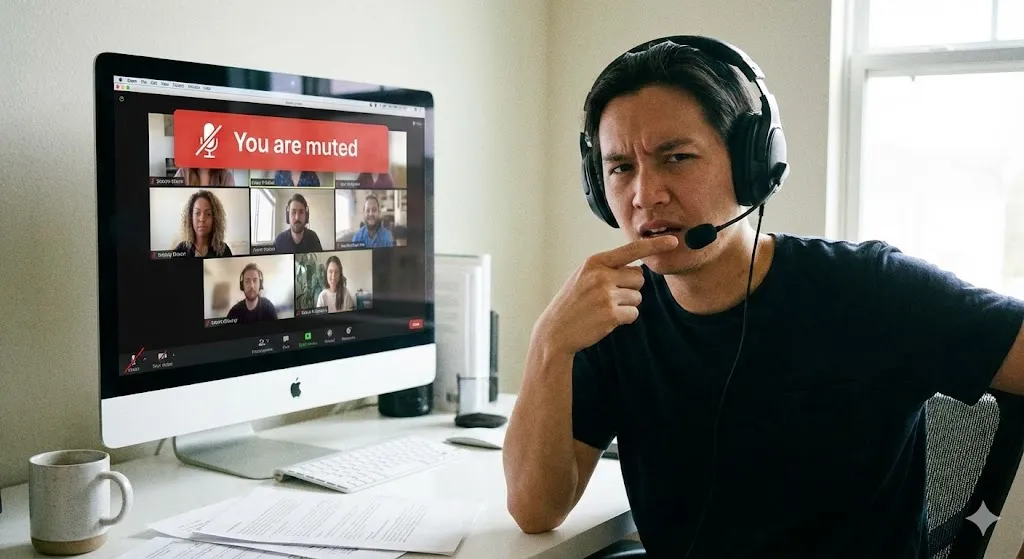
You join an important Zoom meeting or a Discord channel with friends. You start talking, but everyone keeps saying:
“We can’t hear you. Are you muted?”
You check your headset—the mute button is off. You shout into the mic—still nothing. The green bar in the sound settings isn’t moving at all.
This is a classic Windows headache. Usually, your microphone isn’t broken; Windows is simply blocking apps from using it for “privacy” reasons, or the input volume is set to zero.
In this guide, I will show you how to unmute your system and get your voice heard again.
Method 1: Check Privacy Settings (The #1 Culprit)
In Windows 10 and 11, there is a master switch that can block the microphone for all apps. If this is off, nothing will work.
- Open Settings > Privacy & security.
- Scroll down to Microphone (under App permissions).
- Make sure “Microphone access” (or “Allow apps to access your microphone”) is turned ON.
- Scroll down further and ensure your specific app (like Zoom, Voice Recorder, or Discord) is also toggled ON.
Method 2: Set Mic as Default Device
Windows might be trying to listen to the wrong microphone (like the bad one built into your laptop instead of your headset).
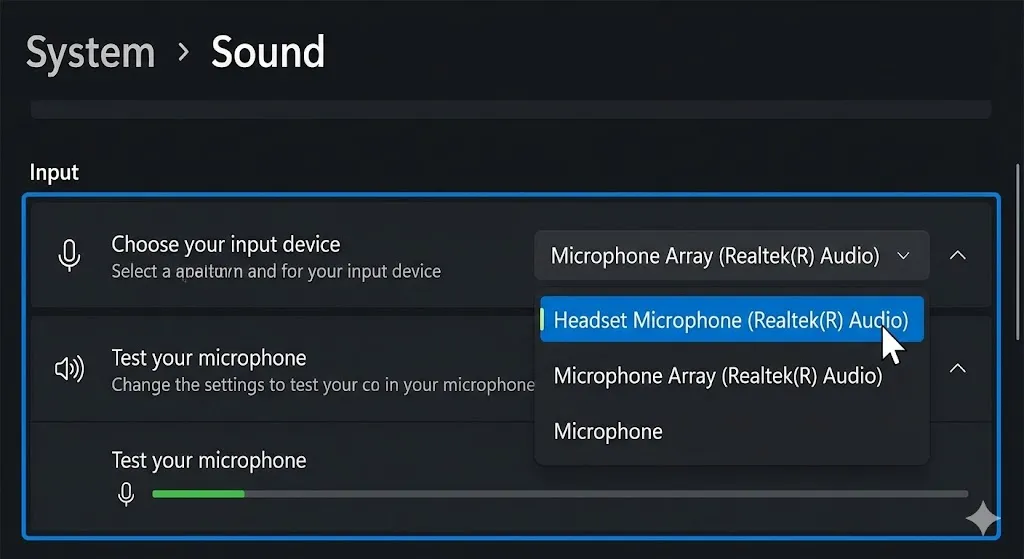
- Right-click the Sound icon in the taskbar > Sound settings.
- Under Input, look at the dropdown menu.
- Select your correct microphone (e.g., “Headset Microphone” or “Blue Yeti”).
- Talk and check if the “Volume” bar moves.
[🖼️ Insert Image 2 Here]
Method 3: Check Input Volume (Unmute in Settings)
Sometimes the microphone is selected correctly, but the volume is set to 0.
- Go to Settings > System > Sound.
- Click on your microphone to open its properties (or click “Device properties”).
- Check the Volume slider. Is it at 0? Drag it up to 100.
- Click Start test and speak to verify.
Method 4: Run the Recording Troubleshooter
Let Windows scan the audio service for glitches.
- Go to Settings > System > Troubleshoot.
- Click Other troubleshooters.
- Find Recording Audio and click Run.
- Select the microphone you are trying to fix and let Windows apply repairs.
Method 5: Update Audio Drivers
If you see a yellow warning icon in Device Manager, your driver is corrupted.
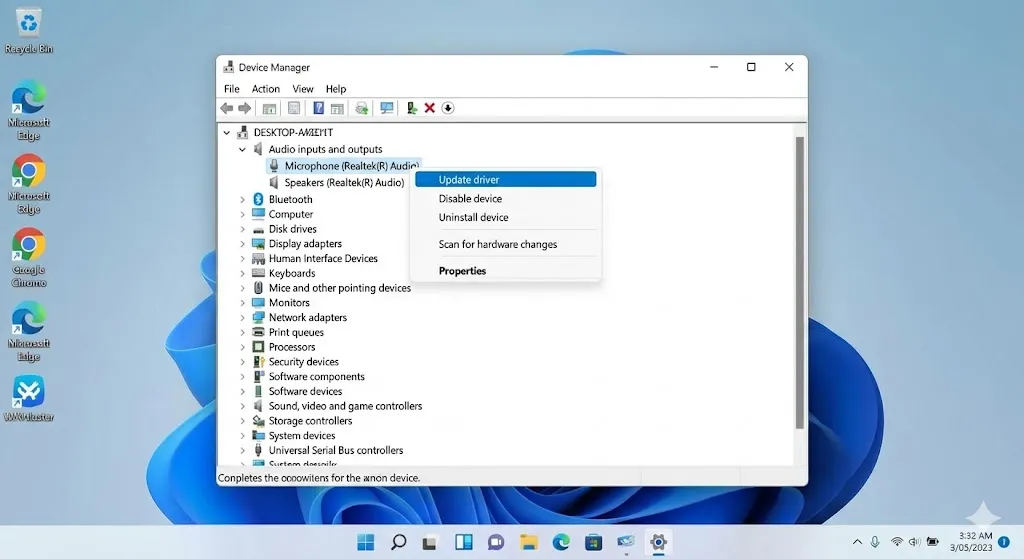
- Right-click the Start button > Device Manager.
- Expand Audio inputs and outputs.
- Right-click your microphone > Update driver.
- If that doesn’t work, right-click > Uninstall device and restart your PC. Windows will reinstall the driver automatically.
[🖼️ Insert Image 3 Here]
Frequently Asked Questions (FAQ)
Q: My mic works on my phone but not my PC. Why? A: This confirms your hardware is fine. It is definitely a Windows setting issue (usually Method 1 or 2).
Q: Why is my mic so quiet? A: You might need to boost the gain. Go to Control Panel > Sound > Recording tab > Properties > Levels tab and increase Microphone Boost.
Q: Does this fix USB microphones too? A: Yes. For USB mics, also try plugging it into a different USB port (preferably on the back of the PC).
Conclusion
When your microphone stops working, it’s usually because Windows Privacy settings are being too protective. By toggling the access switch (Method 1) and checking your input volume, you can solve 95% of these issues.
Don’t stay silent—fix your mic and join the conversation!
Did the Privacy settings fix it for you? Let me know in the comments below!