
Introduction
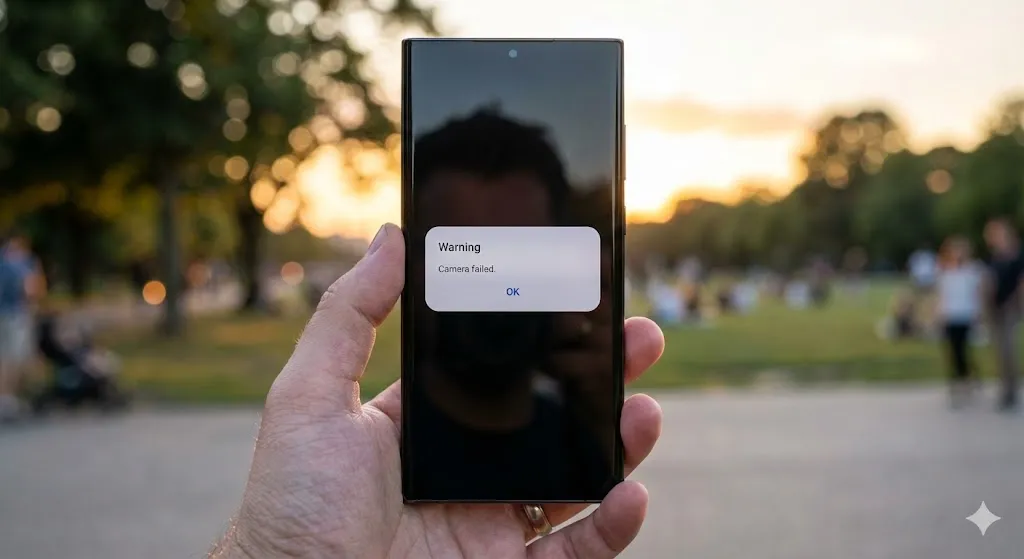
You spot a perfect photo opportunity—a beautiful sunset or your pet doing something cute. You double-tap the power button to launch the camera, but instead of the viewfinder, you get a black screen and a popup message:
“Warning: Camera failed.”
The app crashes, and you miss the moment. It is incredibly frustrating.
Does this mean your phone’s hardware is broken? Usually, no. This error is almost always caused by a software conflict or a background service crashing. In this guide, I will show you how to restart the camera system and get your Galaxy snapping photos again.
Why Does My Camera Fail?
Before you rush to a service center, understand that the “Camera” isn’t just one app. It relies on the gallery, the flash, and background processing. The error happens when:
- “Smart Stay” Conflict: A feature that keeps your screen on is fighting for camera access.
- Corrupted Cache: The camera app’s temporary files are messy.
- Third-Party App: Another app (like a flashlight or Snapchat) is holding onto the camera and won’t let go.
- System Glitch: The Android OS needs a refresh.
Method 1: Clear Camera App Data (The Best Fix)
This resets the camera app to its factory state without deleting your photos. It clears out the corrupted settings causing the crash.
- Go to Settings > Apps.
- Scroll down and find Camera.
- Tap Storage.
- Tap Clear Data (and OK).
- Note: You will need to set up your preferences (like grid lines or photo resolution) again, but your gallery is safe.
Method 2: Reset Camera Settings
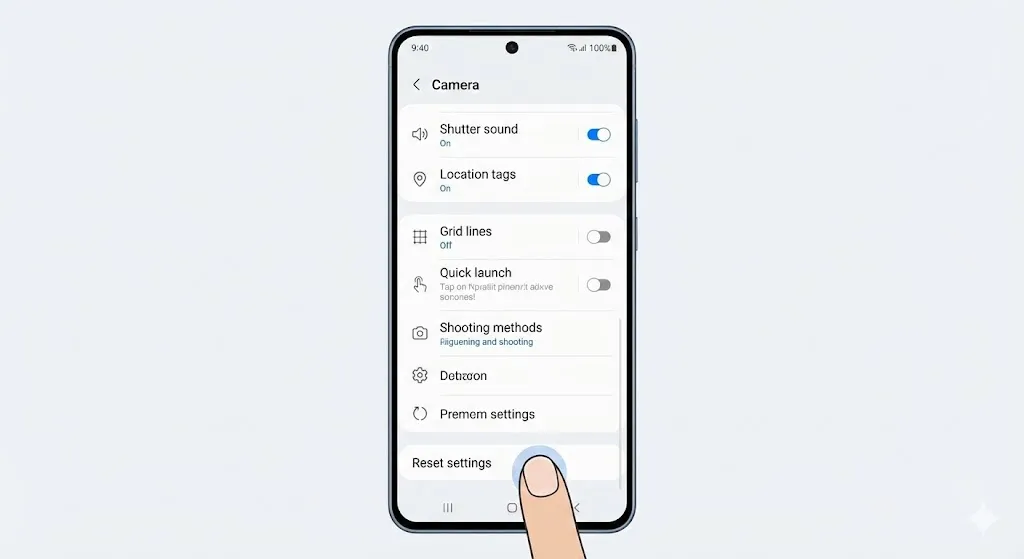
If you can open the camera for a few seconds before it crashes, try resetting it from inside the app.
- Open the Camera app.
- Tap the Settings (gear icon) in the top corner.
- Scroll to the very bottom.
- Tap Reset settings > Reset.
Method 3: Wipe Cache Partition (System-Wide Clean)
This is the magic fix for Samsung phones. It cleans up the temporary system files that often cause hardware errors after a software update.
- Turn off your phone.
- Connect your phone to a PC via USB cable (Required for Android 11+).
- Hold Volume Up + Power until the Samsung logo appears.
- In the Recovery Menu, use Volume keys to select Wipe cache partition.
- Press Power to confirm > Select Yes.
- Select Reboot system now.
Method 4: Test in Safe Mode
Is a rogue app causing the issue? Let’s find out.
- Press and hold the Power button.
- Long-press the Power off icon on the screen.
- Tap Safe Mode.
- Your phone will restart. Open the Camera.
- If it works perfectly in Safe Mode, a third-party app (maybe a flashlight app or Instagram) is the culprit. Uninstall recent apps one by one.
Method 5: Disable “Smart Stay” (Keep Screen On)
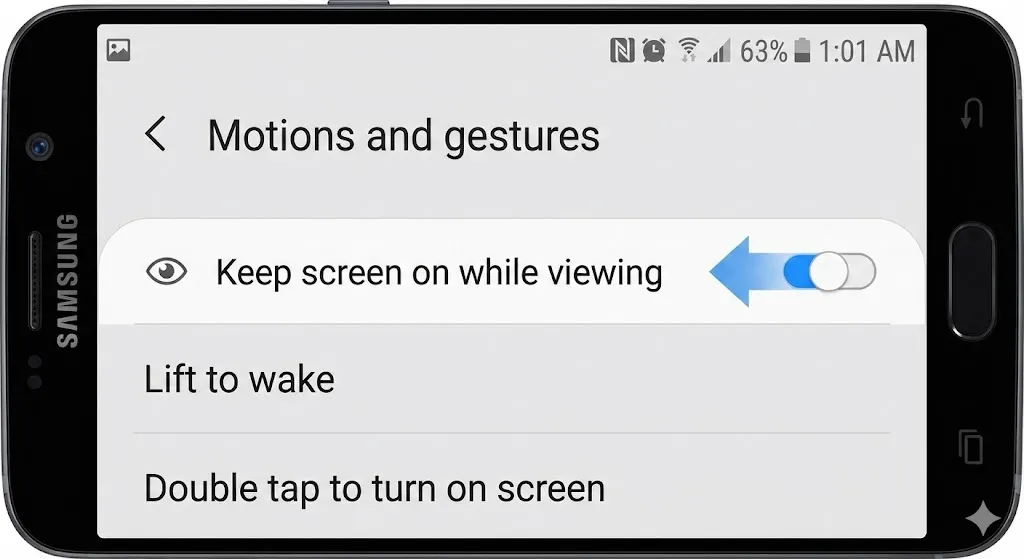
This is a hidden conflict. The feature that uses the selfie camera to keep your screen on while looking at it can crash the main camera.
- Go to Settings > Advanced features.
- Tap Motions and gestures.
- Turn OFF “Keep screen on while viewing”.
- Restart your phone and test the camera.
Frequently Asked Questions (FAQ)
Q: Will resetting the camera delete my photos? A: No. Your photos and videos are stored in the “Gallery” or “DCIM” folder. Clearing the Camera app’s data only deletes settings (like timer, flash preferences, etc.).
Q: I dropped my phone, and now it says Camera Failed. Is it broken? A: If this started immediately after a drop, the camera connector inside might have come loose. In this case, software fixes won’t work, and you need a repair shop.
Q: Does a factory reset fix this? A: Yes, it usually does. But it wipes your entire phone. Try Method 3 (Wipe Cache Partition) first—it does the same cleaning without deleting your personal data.
Conclusion
The “Warning: Camera Failed” message is scary, but don’t give up on your phone. Clearing the app data (Method 1) or wiping the cache partition (Method 3) fixes it for 90% of users.
Get your camera fixed now so you don’t miss the next memory!
Did wiping the cache partition solve it for you? Let me know in the comments!