
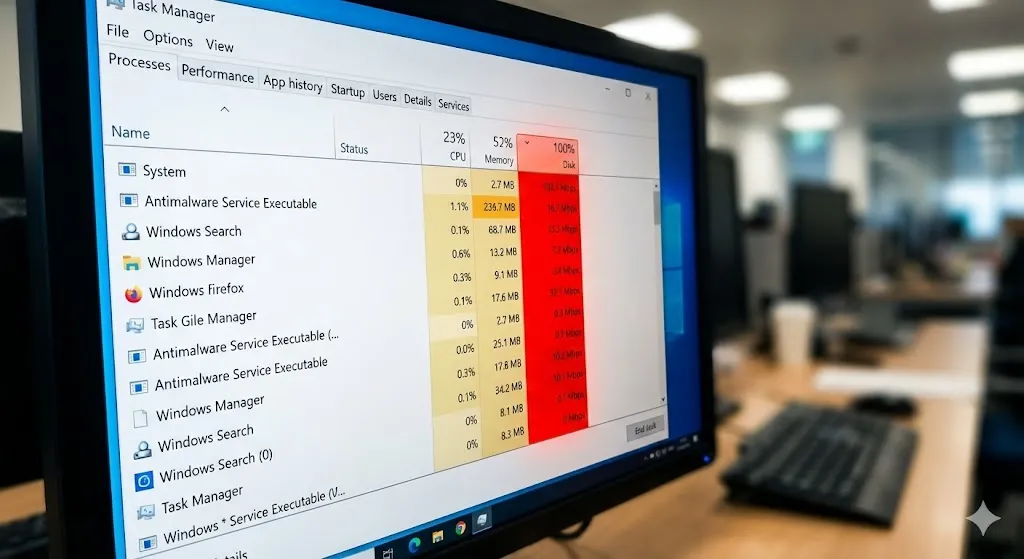
Is your computer running incredibly slow? You open Task Manager to check what’s wrong, and you see the “Disk” column highlighted in angry red, sitting at 100%.
But here’s the weird part: you aren’t even downloading anything or copying files. Your PC is doing nothing, yet the hard drive is working at maximum capacity.
“Why is my Disk Usage at 100%?”
This is a classic Windows problem. When the disk is maxed out, your computer becomes unresponsive, lags, and might even freeze completely. It’s usually caused by Windows services running wild in the background.
In this guide, I will show you how to disable the resource-hogging services and get your PC speed back to normal.
Method 1: Disable “SysMain” (Formerly Superfetch)
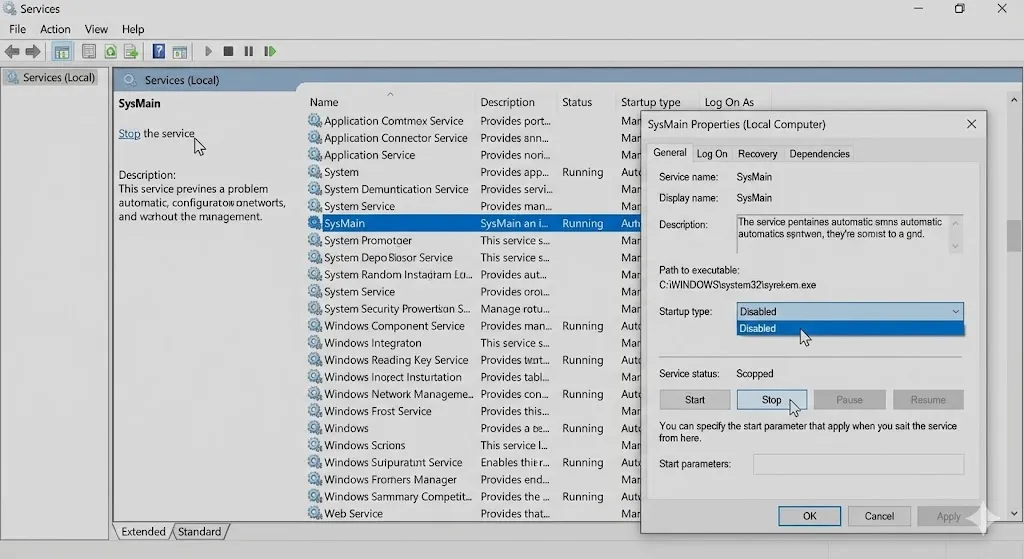
This service tries to preload apps you use often, but on older hard drives (HDD), it often causes 100% disk usage loop. Disabling it is safe and is often the only fix you need.
- Press Windows Key + R, type
services.msc, and hit Enter. - Scroll down and find SysMain (on older Windows, it’s called Superfetch).
- Double-click it.
- Change Startup type to Disabled.
- Click Stop and then OK.
- Check Task Manager. Did the disk usage drop?
Method 2: Reset Virtual Memory
Windows uses a part of your hard drive as “fake RAM” (Virtual Memory). If this file gets corrupted, the disk usage spikes.
- Press Windows Key + Pause/Break (or go to Settings > System > About).
- Click Advanced system settings.
- Under the Advanced tab, click Settings (Performance section).
- Go to the Advanced tab > Change.
- Uncheck “Automatically manage paging file size”.
- Select your C: drive > No paging file > Set.
- Restart your PC.
- Important: After restarting, repeat the steps but select System managed size to turn it back on correctly.
Method 3: Disable Windows Search Indexing
If your computer is old, constantly indexing files for search can kill the drive’s performance.
- Open Command Prompt (CMD) as Administrator.
- Type this command:
net.exe stop "Windows search" - Hit Enter.
- Check Task Manager. If usage drops to normal, you can permanently disable the “Windows Search” service in
services.msc.
Method 4: Fix StorAHCI.sys Driver (Advanced)
This is a specific bug with some SSDs and the standard Windows driver.
- Open Device Manager > IDE ATA/ATAPI controllers.
- Right-click Standard SATA AHCI Controller > Properties.
- Go to Driver > Driver Details. If you see
storahci.sys, you might be affected. - Go to the Details tab > Device instance path. Copy the value.
- You need to edit the registry (Regedit) to disable “Message Signaled Interrupts (MSI)” for this device. (Only try this if other methods fail!)
Method 5: Upgrade to an SSD (The Ultimate Solution)
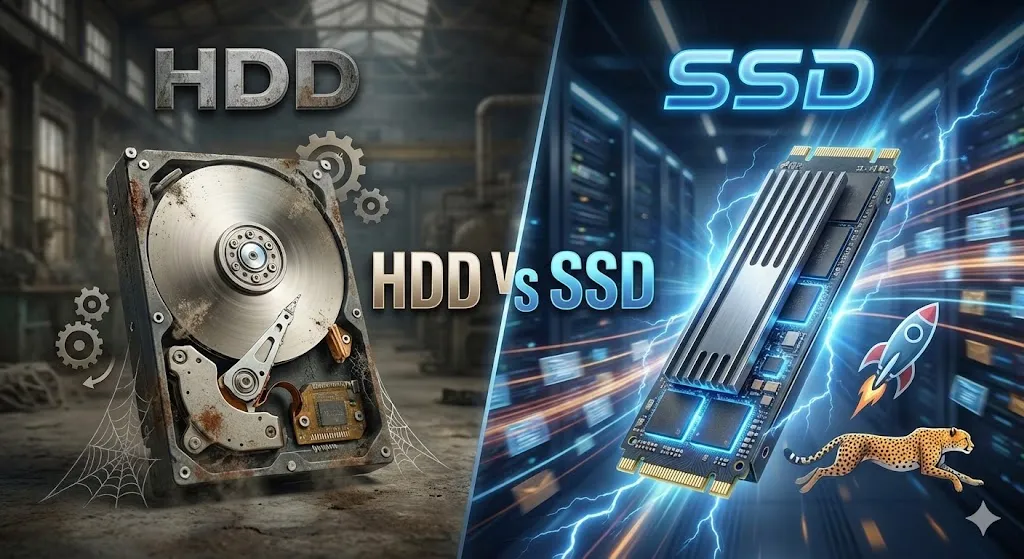
If you are still using a traditional spinning Hard Drive (HDD) as your main C: drive, this problem will never truly go away. Windows 10 and 11 are designed for SSDs.
- HDD: Slow, mechanical, prone to 100% usage.
- SSD: lightning fast, almost never hits 100%.
Replacing your old HDD with a cheap SSD (even a $30 one) will make your computer feel brand new. It is the best investment you can make.
Frequently Asked Questions (FAQ)
Q: Is 100% Disk Usage dangerous? A: It won’t explode your PC, but it puts heavy stress on your hard drive, which can lead to drive failure sooner. Plus, it makes the PC unusable.
Q: Why does Chrome cause high disk usage? A: Chrome has a “Preload pages” feature. Go to Chrome Settings > Cookies and data > Preload pages and turn it off to save disk resources.
Q: Does formatting Windows fix this? A: Yes, usually. A clean install wipes out the buggy driver or software conflict. But try disabling SysMain first!
Conclusion
Seeing “100% Disk Usage” is scary, but don’t throw your computer away. For most users, simply disabling SysMain (Method 1) solves the lag instantly.
If you are still on an old Hard Drive, seriously consider upgrading to an SSD in 2026. It’s a game-changer.
Did disabling SysMain work for you? Share your results in the comments!