
You found a new game or a useful app you want to try. You hit the green “Install” button, expecting it to start downloading immediately.
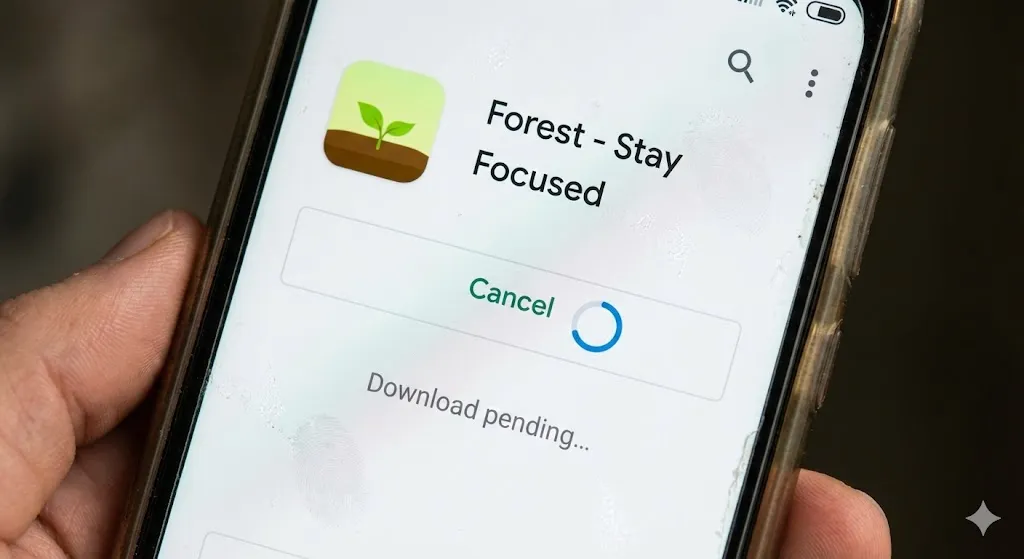
But instead, you see a spinning circle and the message:
“Download pending…”
You wait 5 minutes. Then 10 minutes. It’s still stuck. You try canceling and restarting, but nothing changes. Why is Google Play ignoring you?
This “Download Pending” error usually happens when the Play Store is confused by too many background updates or a corrupted cache file. In this guide, I will show you how to force the download to start in seconds.
Why Is It Stuck on Pending?
The Play Store is designed to download one thing at a time to save battery and data. The error happens when:
- Queue Jam: Other apps are auto-updating in the background, blocking your new download.
- Cache Glitch: The temporary data telling the Store “what to do” is corrupted.
- Storage Full: Your phone has no space left to unpack the app.
- VPN Conflict: A VPN is confusing the download server.
Method 1: Cancel All Background Updates
Often, your phone is silently updating 20 apps in the background, putting your new download at the back of the line.
- Open Google Play Store.
- Tap your Profile Picture (top right) > Manage apps & device.
- Look at the “Updates available” or “Updating apps” section.
- If you see apps updating, tap Cancel all or Stop.
- Now try installing your new app again.
Method 2: Clear Play Store Cache & Data (The Magic Fix)
If the queue was empty but it’s still stuck, the app’s brain is frozen. Let’s reset it.
- Go to Settings > Apps.
- Find Google Play Store in the list.
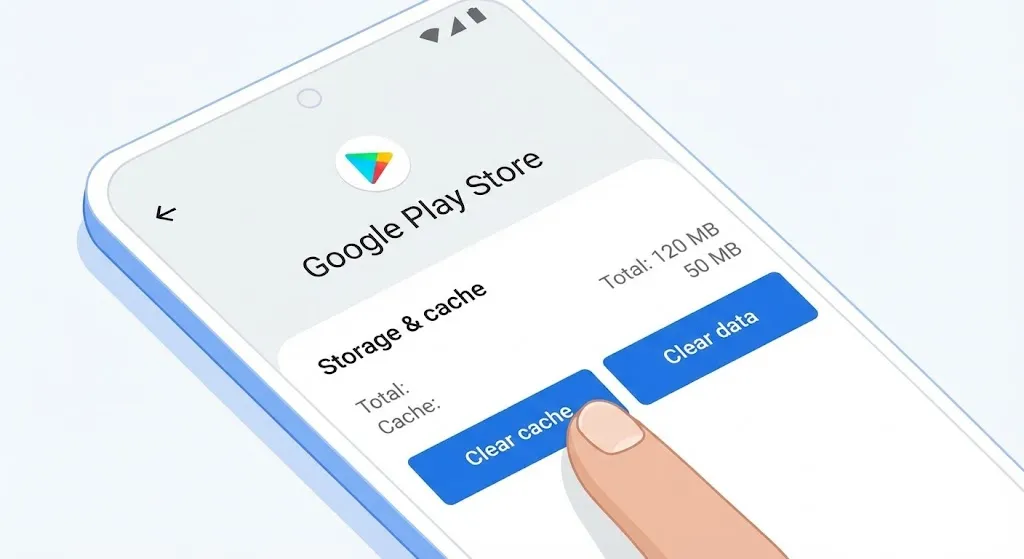
- Tap Storage.
- Tap Clear Cache.
- Tap Clear Data and confirm (Don’t worry, this won’t delete your installed apps, just the Store’s settings).
- Re-open the Play Store and try again.
Method 3: Uninstall Play Store Updates
Sometimes the latest version of the Play Store itself is buggy. We can revert it to the factory version to clear the glitch.
- Go to Settings > Apps > Google Play Store.
- Tap the three dots in the top right corner.
- Select Uninstall updates.
- The Play Store will revert to an older icon/version.
- Try downloading your app now. (The Store will silently re-update itself to the latest version later automatically).
Method 4: Check Your Storage Space
If your phone is full, Google Play often gets stuck on “Pending” instead of telling you “Storage Full.”
- Go to Settings > Device Care (or Storage).
- Check if you have at least 1GB of free space.
- If not, delete some old videos or unused apps.
[🖼️ Insert Image 3 Here]

Method 5: Toggle Airplane Mode
This resets your connection to the Google servers.
- Swipe down to open the Quick Panel.
- Tap Airplane Mode to turn it ON.
- Wait 10 seconds.
- Turn it OFF.
- Connect to Wi-Fi and retry the download.
Frequently Asked Questions (FAQ)
Q: Will clearing “Data” delete my Google account? A: No. Clearing the Play Store data just resets the app’s preferences (like auto-update settings). Your Google account and installed apps remain untouched.
Q: Why does this happen on Wi-Fi but not mobile data? A: Your router might have a firewall issue, or you have “Download over Wi-Fi only” enabled in Play Store settings. Try switching to 5G/4G to test.
Q: I have a Samsung. Should I use the Galaxy Store instead? A: If the app is available on the Galaxy Store (like Fortnite or Genshin Impact), yes! It’s a great backup when the Play Store is acting up.
Conclusion
The “Download Pending” error is usually just a traffic jam in your download queue. By canceling background updates (Method 1) or clearing the cache (Method 2), you can clear the road.
Don’t let a spinning circle stop you from gaming—fix it now!
Did clearing the cache work for you? Let me know in the comments below!