
You just bought a nice pair of headphones. You plug them into the jack on your laptop or PC case, load up Spotify or a game, and… silence.
Or worse, the sound continues to blast out of your computer speakers, annoying everyone in the room, even though the headphones are firmly plugged in.
“Why is Windows ignoring my headphones?”
This is one of the most common audio glitches in Windows 10 and 11. Usually, it’s not because your headphones are broken (especially if they work on your phone). It’s because Windows sent the audio to the wrong “Output Device.”
In this guide, I will show you how to force Windows to recognize your headphones and get the sound flowing correctly.
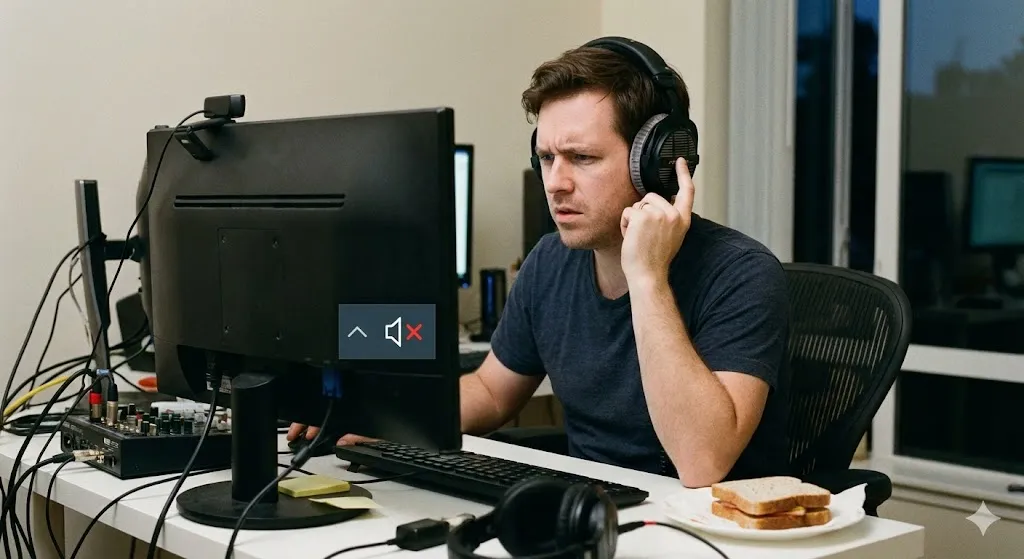
Why Is There No Sound?
Before we fix it, let’s look at why this happens:
- Wrong Output Device: Windows is still trying to play sound through “Speakers” instead of “Headphones.”
- Driver Conflict: The Realtek Audio driver is outdated or frozen.
- Hardware Dirt: Lint inside the audio jack is blocking the connection.
- Disabled Device: The headphones are disabled in the system settings.
Method 1: Select the Correct Output Device (The Fastest Fix)
Windows doesn’t always switch automatically when you plug something in. You might need to tell it manually.
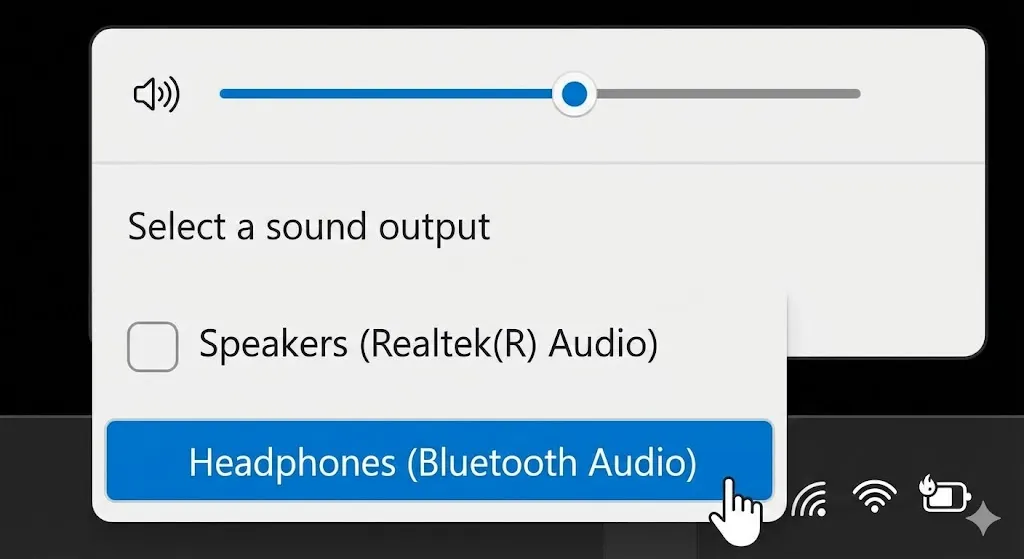
- Look at the Volume/Speaker icon in the bottom right taskbar.
- Click on it once.
- Click the Up Arrow (^) or Name of the current playback device (e.g., “Speakers”).
- A list will appear. Select Headphones or Realtek HD Audio 2nd output.
- Test the sound.
Method 2: Run the Audio Troubleshooter
If you don’t see “Headphones” in the list, let Windows find them for you.
- Right-click the Speaker icon in the taskbar.
- Select Troubleshoot sound problems.
- Follow the on-screen instructions. Windows will scan for disabled devices and try to re-enable them.
Method 3: Update or Reinstall Realtek Audio Drivers
This is the most common technical culprit. The driver that controls the headphone jack might be buggy.
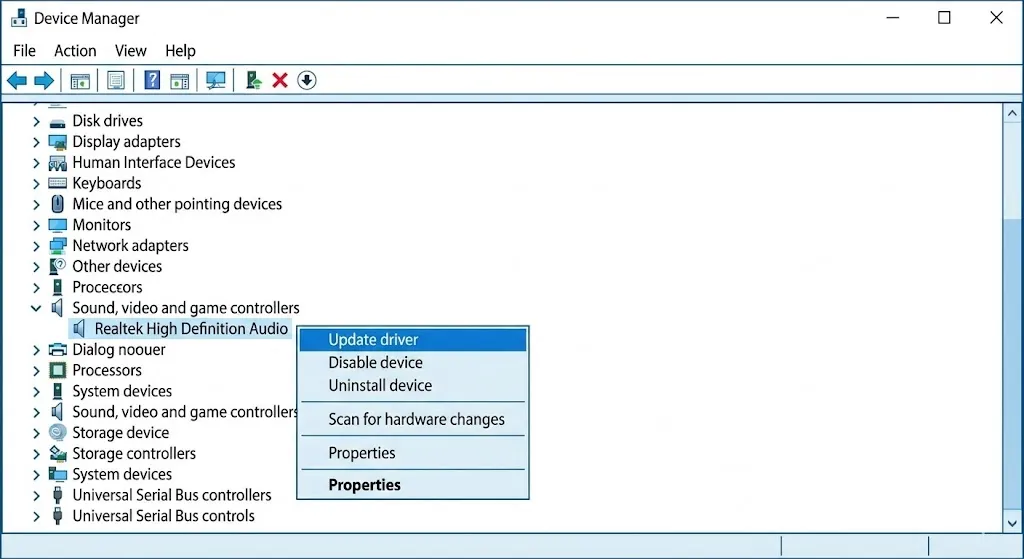
- Right-click the Start button > Device Manager.
- Expand Sound, video and game controllers.
- Right-click Realtek High Definition Audio (or similar).
- Select Update driver > Search automatically.
- Pro Tip: If updating doesn’t work, choose Uninstall device, then restart your computer. Windows will reinstall a clean version of the driver automatically upon reboot.
[🖼️ Insert Image 3 Here]
Method 4: Set Headphones as Default Device
Sometimes headphones are detected but not set as the “Default Communication Device.”
- Type “Change system sounds” in the Windows search bar and open it.
- Go to the Playback tab.
- Look for your Headphones. If they are grayed out, right-click anywhere and check Show Disabled Devices.
- Right-click your Headphones and select Enable.
- Right-click again and select Set as Default Device.
Method 5: Disable Audio Enhancements
Some “Smart Audio” software tries to improve sound quality but ends up breaking it completely.
- Go back to the Playback tab (Method 4).
- Right-click your Headphones > Properties.
- Go to the Enhancements tab (if available).
- Check the box “Disable all enhancements”.
- Click Apply and test the sound.
Frequently Asked Questions (FAQ)
Q: My headphones work on my phone but not my PC. Why? A: This confirms your headphones are fine physically. The issue is 100% a software or driver setting on your PC.
Q: I have a desktop PC. Should I plug into the front or back? A: Try the back panel (green port) directly on the motherboard. The front case ports often have loose wires or poor connections.
Q: Does this apply to Bluetooth headphones? A: No. Bluetooth headphones require pairing via the “Bluetooth & Devices” menu settings, not the audio jack drivers.
Conclusion
When your headphones are plugged in but have no sound, 9 times out of 10, it’s just Windows playing audio to the wrong place. By manually selecting the output device or refreshing your drivers, you can fix it in minutes.
Now, put those headphones on and enjoy your music!
Did changing the output device work for you? Let me know in the comments!