
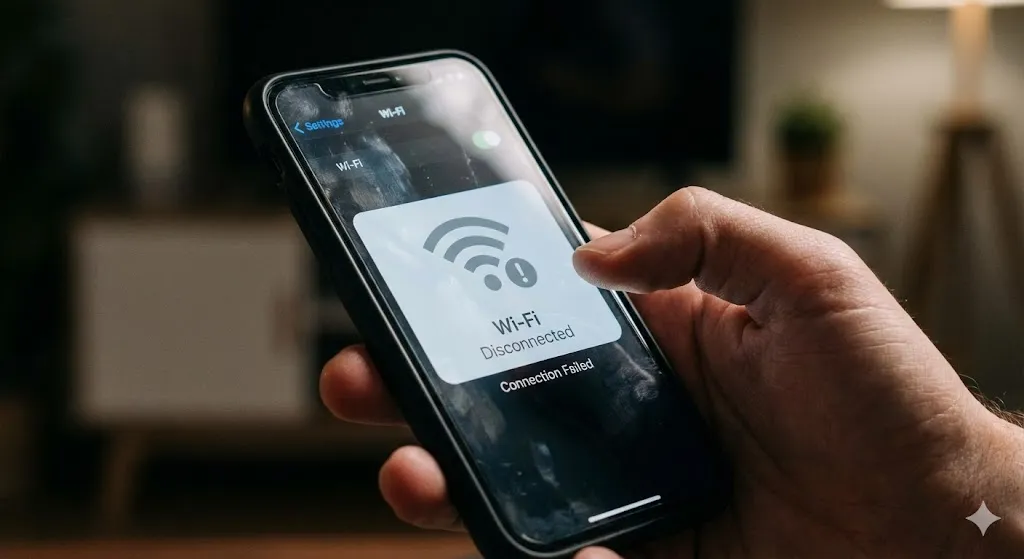
You are watching a YouTube video or playing an online game, and suddenly—buffering. You look at the status bar, and your Wi-Fi icon is gone. A few seconds later, it reconnects. Then it drops again.
“Connected… Disconnected… Connected.”
This loop is incredibly frustrating. You know your router is working because your laptop is fine. So why is your Android phone struggling to hold onto the signal?
This issue is usually caused by a software feature called “Intelligent Wi-Fi” or a conflict with your network settings. In this guide, I will show you how to stop the drops and keep your connection rock solid.
Why Is My Phone Dropping Wi-Fi?
It’s rarely a hardware failure. The most common reasons are:
- Smart Network Switch: Your phone automatically disconnects from Wi-Fi if it thinks the signal is slightly weak (even if it works fine).
- Router Glitch: The router has cached too many IP addresses.
- Bluetooth Conflict: Sometimes Bluetooth interferes with 2.4GHz Wi-Fi.
- Bad Network Settings: Old saved networks are confusing your phone.
Method 1: Forget the Network and Reconnect
This is the classic “turn it off and on again” for networks. It forces your phone to delete the old connection data and handshake with the router from scratch.
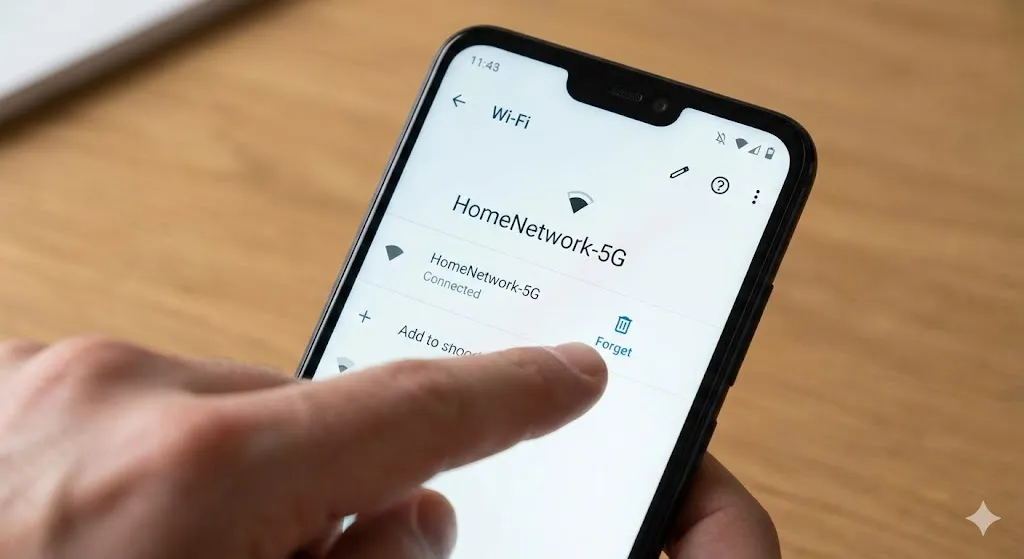
- Go to Settings > Connections > Wi-Fi.
- Tap the gear icon next to your current network.
- Tap Forget (trash can icon).
- Turn Wi-Fi off, wait 5 seconds, and turn it back on.
- Select your network and enter the password again.
Method 2: Turn Off “Switch to Mobile Data”
This is the #1 culprit on Samsung and Android phones. Your phone tries to be “smart” by switching to 4G/5G whenever Wi-Fi fluctuates, causing the drop. Let’s dumb it down.
- Go to Wi-Fi settings.
- Tap the three dots in the corner > Advanced (or Intelligent Wi-Fi).
- Turn OFF “Switch to mobile data” or “Adaptive Wi-Fi”.
- Also, turn OFF “Network power saving mode” if you see it.
Now your phone will stick to the Wi-Fi even if the signal dips a little.
Method 3: Reset Network Settings (The Nuclear Option)
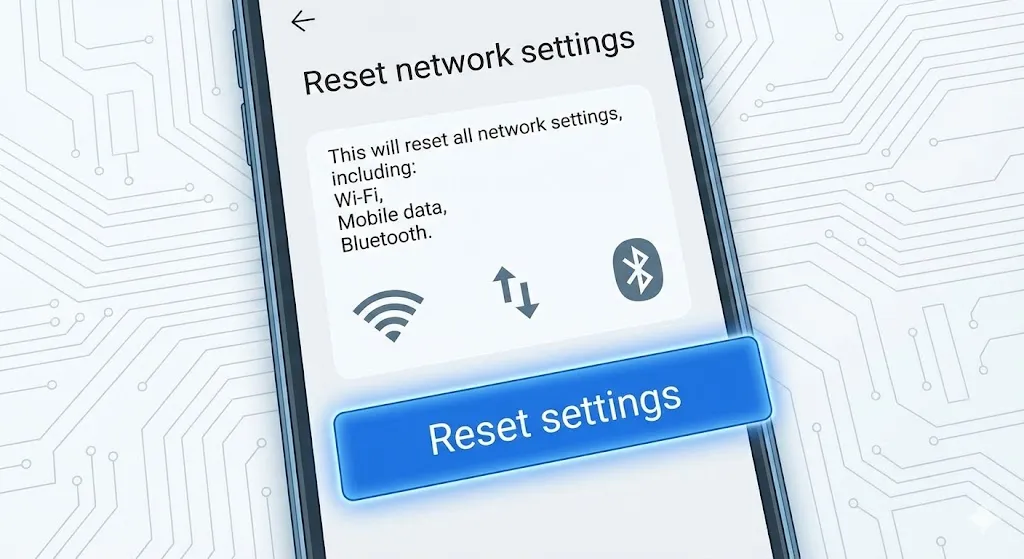
If the drops continue, your system’s network configuration might be corrupted. This resets Wi-Fi, Bluetooth, and Mobile Data settings to factory defaults (it won’t delete photos/apps).
- Go to Settings > General management.
- Tap Reset > Reset network settings.
- Tap Reset settings and enter your PIN.
- Your phone will restart. You will need to re-enter your Wi-Fi password.
Method 4: Restart Your Router
Don’t ignore the router! Even if other devices work, the router might have a specific conflict with your phone’s IP address.
- Unplug the router from the wall power.
- Wait for 30 seconds.
- Plug it back in and wait for the lights to stabilize.
Method 5: Disable Bluetooth (Temporary Fix)
On some older phones, Bluetooth and Wi-Fi share the same antenna. If you are using Bluetooth headphones, it might be choking the Wi-Fi signal.
- Turn OFF Bluetooth.
- Test your Wi-Fi speed.
- If the Wi-Fi becomes stable, you might need to switch to a 5GHz Wi-Fi network to avoid the interference.
Frequently Asked Questions (FAQ)
Q: Will resetting network settings delete my photos? A: No. It only deletes saved Wi-Fi passwords and Bluetooth pairings. Your personal data is safe.
Q: Why does this happen only at home? A: It likely means your home router’s channel is congested or your phone has a specific conflict with that router’s security settings.
Q: Does a phone case affect Wi-Fi? A: Yes, especially thick, rugged cases with metal parts. Try taking the case off and see if the signal improves.
Conclusion
A dropping Wi-Fi connection is annoying, but it’s usually a software setting trying to be too helpful. By disabling the “Auto Switch” features and resetting your network settings, you can force your Android to stay connected.
Did turning off ‘Intelligent Wi-Fi’ help you? Let me know in the comments below!