
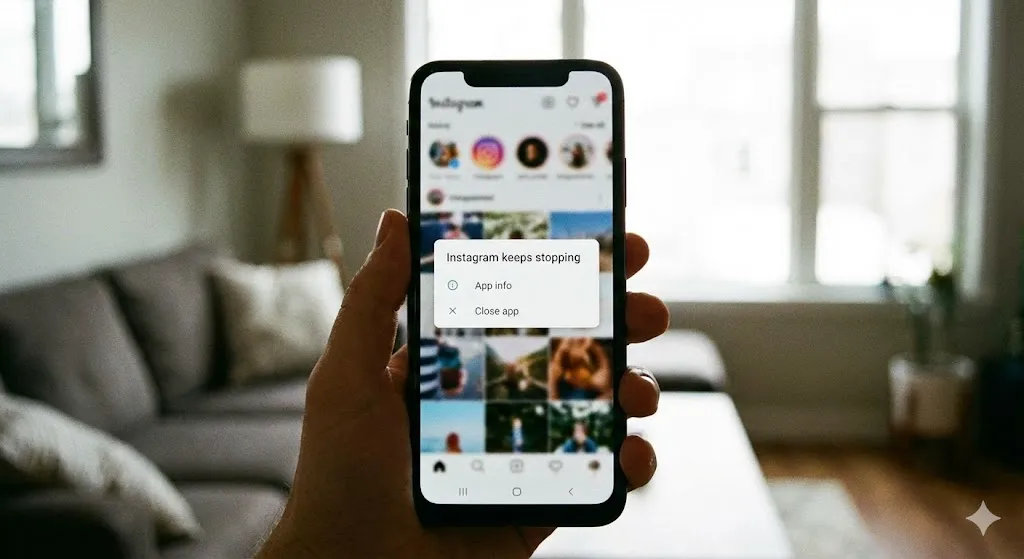
You tap on Instagram, it opens for a second, and then—poof—it closes instantly. You try Gmail, same thing. Suddenly, you see a pop-up:
“App keeps stopping.”
It is incredibly annoying. You paid good money for your smartphone, and now it can’t even run a basic app. Is it a virus? Is your phone broken?
Before you throw your phone against the wall, take a deep breath. This “crashing” issue is extremely common on Android devices (Samsung, Pixel, Motorola), and 99% of the time, it is caused by a specific system component called Android System WebView.
In this guide, I will show you exactly how to fix the crashing loop and get your apps running smoothly again.
Why Are My Apps Crashing?
When multiple apps start crashing at the same time, it is rarely the fault of the apps themselves. It is usually a system-level conflict.
- Android System WebView: This is a mini-browser that lets apps display web content. If this gets buggy (which happens often after updates), apps like Gmail and Amazon will crash instantly.
- Corrupted Cache: Old temporary files are clogging up the app’s engine.
- Low Storage: Your phone has no “breathing room” to run processes.
- Outdated Software: Your Android OS version is no longer compatible with the app.
Method 1: Update “Android System WebView” (The #1 Fix)
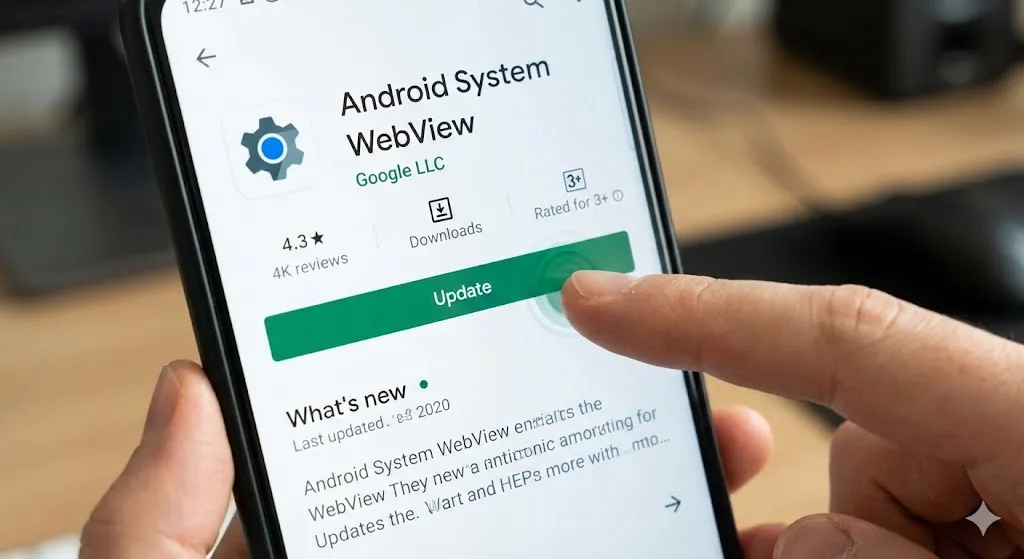
If your apps are crashing randomly, this is almost always the culprit. Google released a bad update for this in the past that caused a global crashing event. Fixing it is easy.
- Open the Google Play Store.
- Search for “Android System WebView”.
- If you see an Update button, tap it immediately.
- Also, search for “Chrome” and update that too (they are linked).
- Restart your phone.
For most people, the problem ends right here.
Method 2: Clear App Cache and Data
If only one specific app is crashing (e.g., only Facebook is acting up), you need to reset that app’s brain.
- Go to Settings > Apps.
- Find the crashing app in the list.
- Tap Storage (or Storage & cache).
- Tap Clear Cache.
- If it still crashes, come back and tap Clear Data (Note: This might log you out of the app).
Method 3: Uninstall “Android System WebView” Updates
Sometimes the new update is the problem. If updating (Method 1) didn’t work, try rolling it back.
- Go to Settings > Apps.
- Search for Android System WebView.
- Tap the three dots in the top right corner.
- Select Uninstall updates.
- Reboot your phone and test the apps.
Method 4: Check Your Storage Space
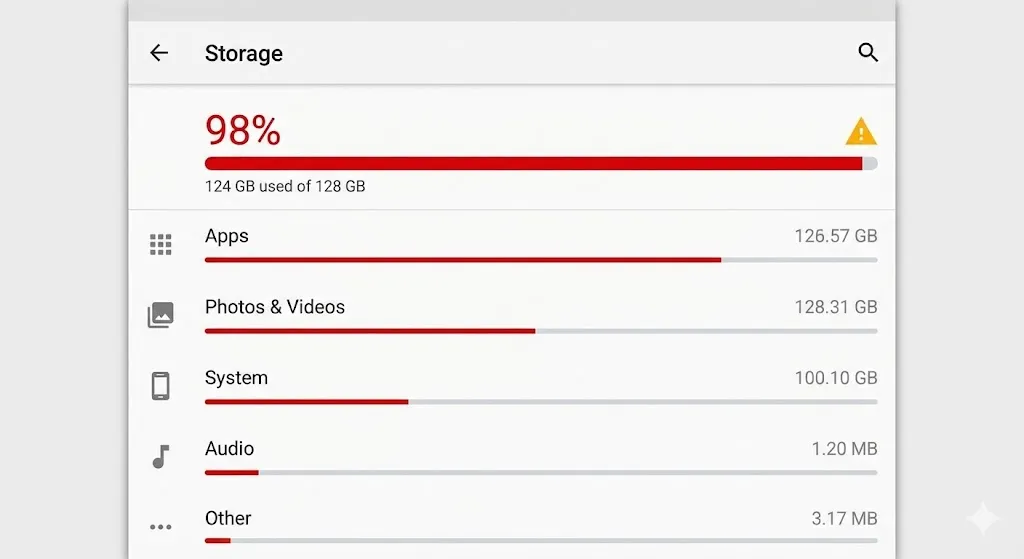
Apps need temporary space to run. If your phone is completely full (e.g., 127GB used out of 128GB), apps will crash because they can’t write data.
- Go to Settings > Battery and device care > Storage.
- Delete old videos, unused apps, or move photos to the cloud.
- Aim to have at least 5GB of free space.
Method 5: Wipe Cache Partition (Samsung Only)
If nothing else works, we can clean the entire system’s temporary files without deleting your personal data.
- Turn off your phone.
- Connect it to a PC via USB cable (required for Android 11+).
- Hold Volume Up + Power button until the Samsung logo appears.
- In the Recovery Menu, use Volume keys to select Wipe cache partition and press Power to confirm.
- Select Yes.
- Select Reboot system now.
Frequently Asked Questions (FAQ)
Q: Will clearing data delete my photos? A: No. Clearing an app’s “Cache” or “Data” only resets the app’s settings and login info. Your photos and files saved on the phone are safe.
Q: Why does it say “WebView” is disabled? A: On some newer Android versions, WebView is handled directly by the Chrome browser. If WebView is disabled, update Google Chrome instead.
Q: Do I need to factory reset? A: Only as a last resort. Try all the steps above first. A factory reset wipes everything, so back up your data first!
Conclusion
Apps crashing can make your smart phone feel like a dumb phone. But remember, it’s usually just a glitchy WebView update or a full storage drive.
Keep your system components updated, clear your junk files, and your Android will run as fast as the day you bought it.
Which app was crashing for you? Was it Gmail or TikTok? Let us know in the comments if this fix worked!