
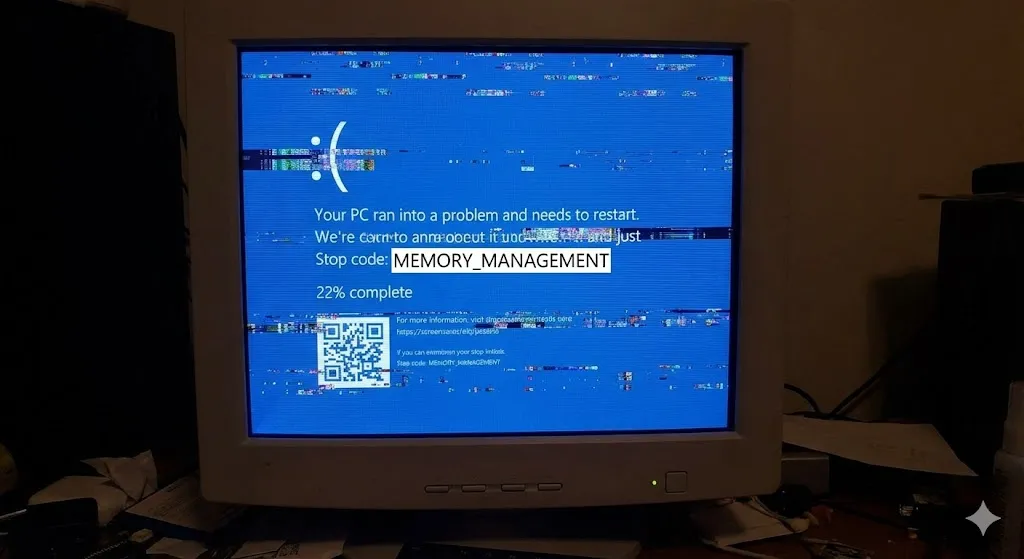
Is your computer restarting randomly? Does the dreaded Blue Screen of Death (BSOD) appear with the error code MEMORY_MANAGEMENT?
It’s incredibly frustrating. One minute you are browsing the web, and the next, your PC reboots, causing you to lose your open tabs and unsaved work.
The “Memory Management” error indicates that your computer’s brain—the RAM (Random Access Memory)—is having trouble handling data. It’s like trying to juggle too many balls at once; eventually, one drops. The good news is that this doesn’t always mean your hardware is broken. It is often a software glitch that you can fix at home.
In this guide, I will show you how to diagnose your RAM and fix this error step-by-step.
What Causes “Memory Management” Errors?
Before we fix it, let’s identify the suspects. This error usually points to:
- Faulty RAM Sticks: Your physical memory hardware might be failing or loose.
- Corrupted Drivers: Outdated video card drivers are a common cause.
- Software Conflict: New software is clashing with Windows memory usage.
- Corrupted System Files: Windows itself has a bruise in its code.
Method 1: Run the Windows Memory Diagnostic Tool
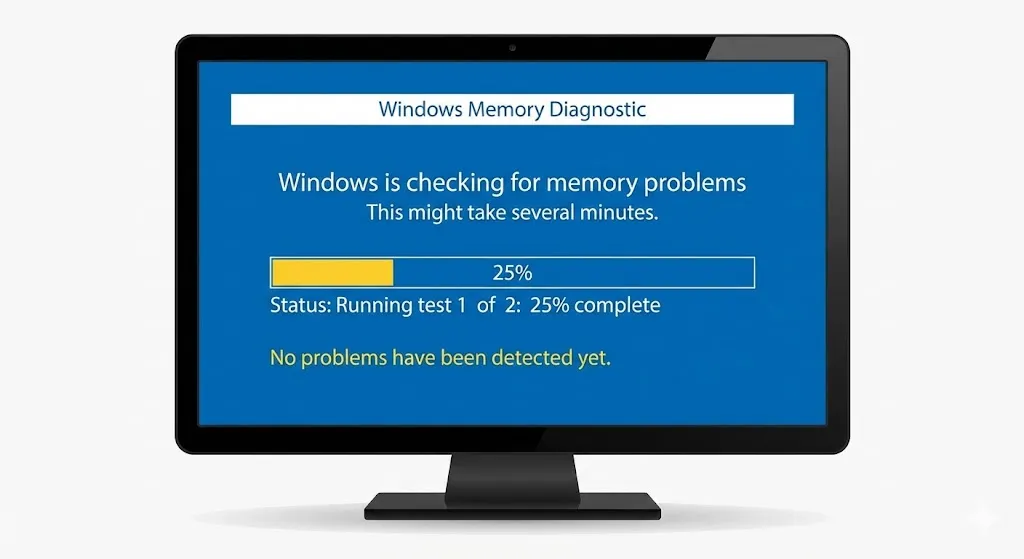
Windows has a brilliant built-in tool that checks your RAM for physical defects. It’s free and easy to use.
- Press the Windows Key + R, type
mdsched.exe, and hit Enter. - Select “Restart now and check for problems”.
- Your PC will restart and boot into a blue screen with a progress bar.
- Wait. This can take 10-15 minutes.
When Windows restarts again, it will show you the results. If it says “Hardware problems were detected,” you might need to replace your RAM stick. If not, it’s a software issue—proceed to Method 2.
Method 2: Update Graphics Drivers
Surprisingly, outdated GPU drivers (NVIDIA, AMD, Intel) are often responsible for memory mismanagement.
- Right-click the Start button > Device Manager.
- Expand Display adapters.
- Right-click your graphics card and select Update driver.
- Choose Search automatically for drivers.
Tip: For the best results, visit the manufacturer’s website (like NVIDIA GeForce Experience) to get the specific driver for your card.
Method 3: Run the SFC Scanner
Just like the “Critical Process Died” error, corrupted system files can mess up memory management.
- Type “cmd” in the search bar.
- Right-click Command Prompt and choose Run as administrator.
- Type
sfc /scannowand press Enter. - Let it run to 100% and repair any found violations.
Method 4: Check for Disk Errors (CHKDSK)
Sometimes the issue isn’t the RAM itself, but the hard drive where the memory is being swapped.
- Open Command Prompt as administrator (same as Method 3).
- Type
chkdsk /f /rand hit Enter. - It will ask if you want to schedule the scan for the next restart. Type Y and hit Enter.
- Restart your computer. This scan can take 1 to 2 hours, so do this when you don’t need the PC immediately.
Method 5: Reseat Your RAM (Hardware Fix)
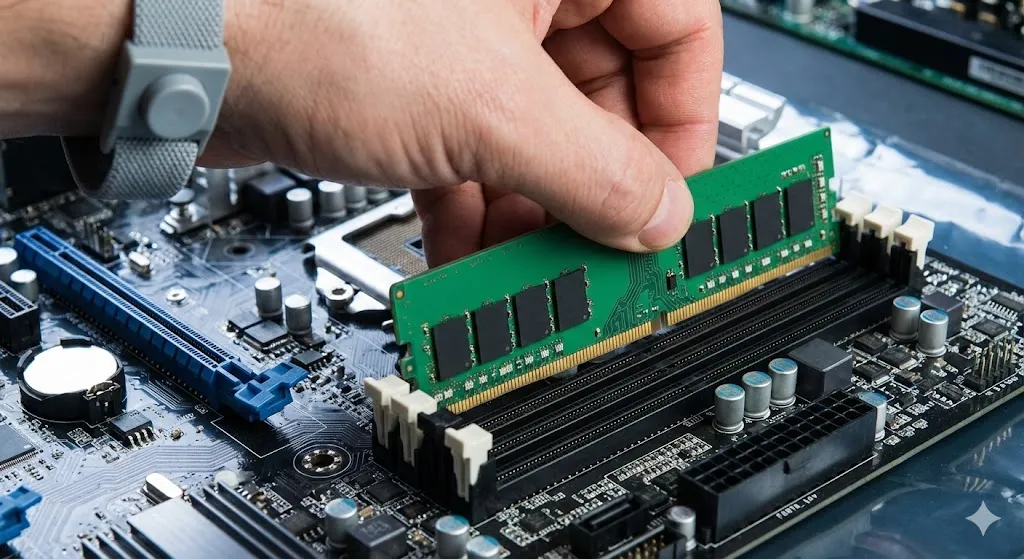
If software fixes didn’t work, your RAM stick might simply be loose inside the case.
- For Desktops: Turn off the PC, open the side panel, unplug the RAM sticks, blow out any dust, and click them back in firmly until you hear a “click.”
- For Laptops: Only do this if your laptop has an accessible RAM door.
Frequently Asked Questions (FAQ)
Q: Does this error mean I need to buy new RAM? A: Not necessarily. In about 60% of cases, it’s a driver or software issue. Only buy new RAM if the “Windows Memory Diagnostic” tool (Method 1) specifically tells you there is a hardware failure.
Q: Can I use my PC while the Memory Diagnostic is running? A: No. The test runs outside of Windows. You have to wait until it finishes and reboots.
Q: Why does this happen when I play games? A: Games use a lot of RAM. If your memory is slightly unstable, the heavy load from gaming will trigger the crash faster than just browsing the web.
Conclusion
The “Memory Management” BSOD is a warning sign that your PC needs a check-up. Start with the Memory Diagnostic Tool—it’s the most definitive test. If your hardware passes, update your drivers and scan your disk.
With a little patience, you can stop the loops and get back to a stable system.
Did the Diagnostic Tool find any errors? Share your results in the comments below!