
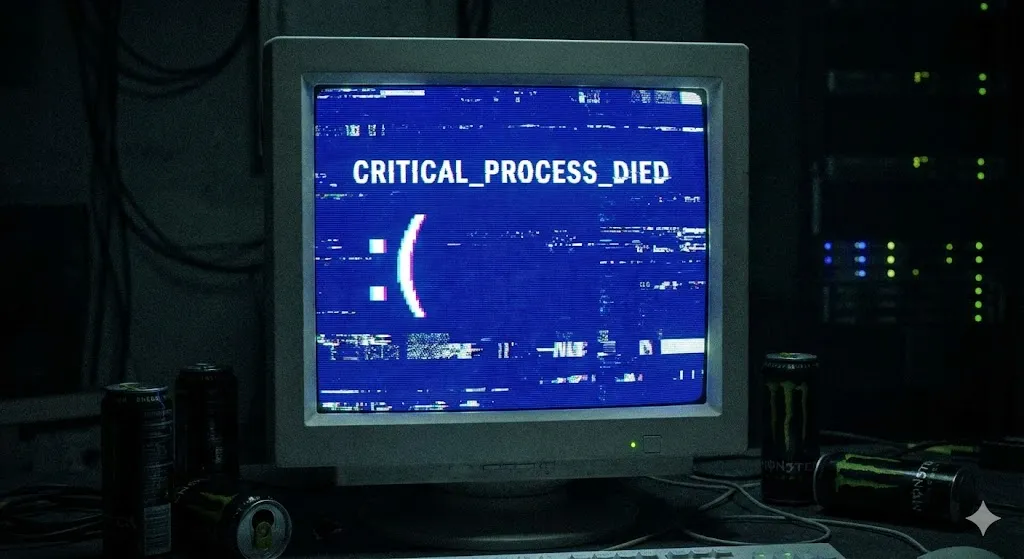
You are in the middle of an important document or an intense gaming session. Suddenly, everything stops. Your screen turns bright blue, a sad smiley face 🙁 appears, and you see the cryptic error code:
CRITICAL_PROCESS_DIED
Your PC restarts, but the fear remains. Will it happen again? Did you lose your data?
The “Critical Process Died” error basically means a background process that Windows needs to run has unexpectedly stopped. Think of it like a car engine suddenly turning off while driving on the highway. It’s critical, dangerous for your data, and needs immediate attention.
But don’t rush to buy a new computer yet. In this guide, I will walk you through the proven fixes to revive your Windows system, from simple driver updates to deep system repairs.
Why Did This Happen?
This error is usually caused by software going rogue. The most common culprits are:
- Corrupted Device Drivers: Old or incompatible drivers are the #1 cause.
- Bad System Files: Windows files got damaged by a virus or power outage.
- Background App Conflicts: A new program you installed is fighting with Windows.
- Memory (RAM) Issues: Rarely, it could be a hardware failure.
Let’s troubleshoot it step-by-step.
Method 1: Update Your Drivers (The Most Common Fix)
Since bad drivers are the main suspect, updating them is the first line of defense.
- Right-click the Start button and select Device Manager.
- Look for any devices with a yellow exclamation mark (!).
- If you don’t see any, focus on Display adapters and Disk drives.
- Right-click on your graphics card (e.g., NVIDIA, AMD, Intel) and select Update driver.
- Choose “Search automatically for drivers”.
If Windows doesn’t find anything, visit the manufacturer’s website to download the latest version.
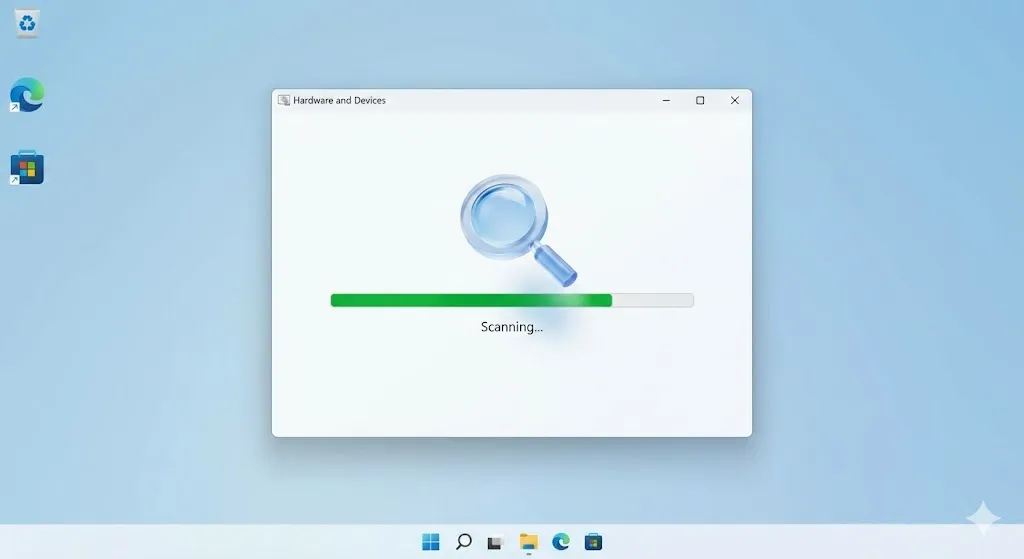
Method 2: Run the Hardware and Device Troubleshooter
Windows has a hidden troubleshooter specifically for hardware issues.
- Open Command Prompt (CMD) as Administrator.
- Type the following command and hit Enter:
msdt.exe -id DeviceDiagnostic - A window will pop up. Click Next and let Windows find and fix hardware problems.
Method 3: Run SFC and DISM (System Repair)
If drivers aren’t the issue, your core Windows files might be corrupted. We will use the System File Checker (SFC) again. (This is a lifesaver for almost all Blue Screen errors).
- Open Command Prompt (CMD) as Administrator.
- Type
sfc /scannowand press Enter. Wait for it to reach 100%. - If it fixes errors, restart your PC.
- If the problem continues, run this command:
DISM /Online /Cleanup-Image /RestoreHealth
This downloads fresh system files directly from Microsoft’s servers to replace the bad ones.
Method 4: Check for Viruses and Malware
Sometimes, a malicious program kills a critical process on purpose.
- Go to Settings > Privacy & security > Windows Security.
- Click Virus & threat protection.
- Select Scan options and choose Full scan.
- It might take an hour, but it ensures your PC is clean.
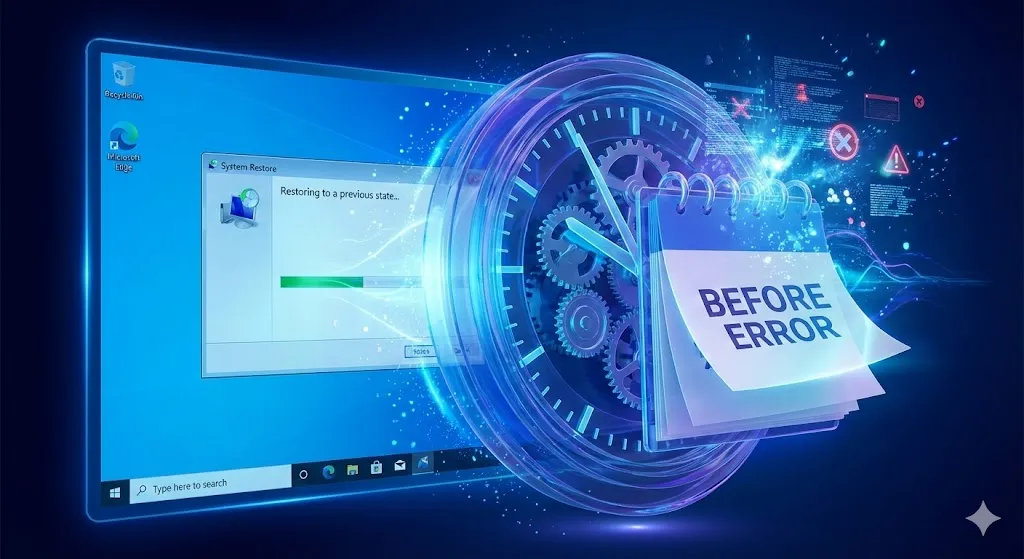
Method 5: System Restore (The Time Machine)
If you recently installed a new app or update and the crashes started after that, just go back in time.
- Type “Create a restore point” in the Windows search bar and open it.
- Click the System Restore button.
- Select a date before the Blue Screens started appearing.
- Click Next and Finish.
Windows will revert your system settings to that date, effectively removing whatever caused the error.
Frequently Asked Questions (FAQ)
Q: Will “Critical Process Died” delete my files? A: The error itself usually doesn’t delete files, but the sudden restart can cause you to lose unsaved work. However, if the cause is a failing hard drive, your data could be at risk. Backup immediately!
Q: I can’t even boot into Windows. What do I do? A: If you are stuck in a boot loop, try booting into Safe Mode. Turn your PC on and off 3 times forcefully to trigger the Recovery Environment, then choose Troubleshoot > Advanced options > Startup Settings > Restart > Press 4 (Safe Mode).
Q: Is this a hardware problem? A: Usually, it’s software (90%). But if you have tried everything including a clean install of Windows and it still happens, it might be your RAM or Hard Drive failing.
Conclusion
The “Critical Process Died” BSOD is terrifying, but usually fixable without spending money. Start with driver updates and system scans (SFC). 9 out of 10 times, that solves it.
Your PC is resilient. Treat the software right, and it will serve you for years.
Did these steps stop the blue screens? Or did you find another culprit? Share your experience in the comments to help others!