
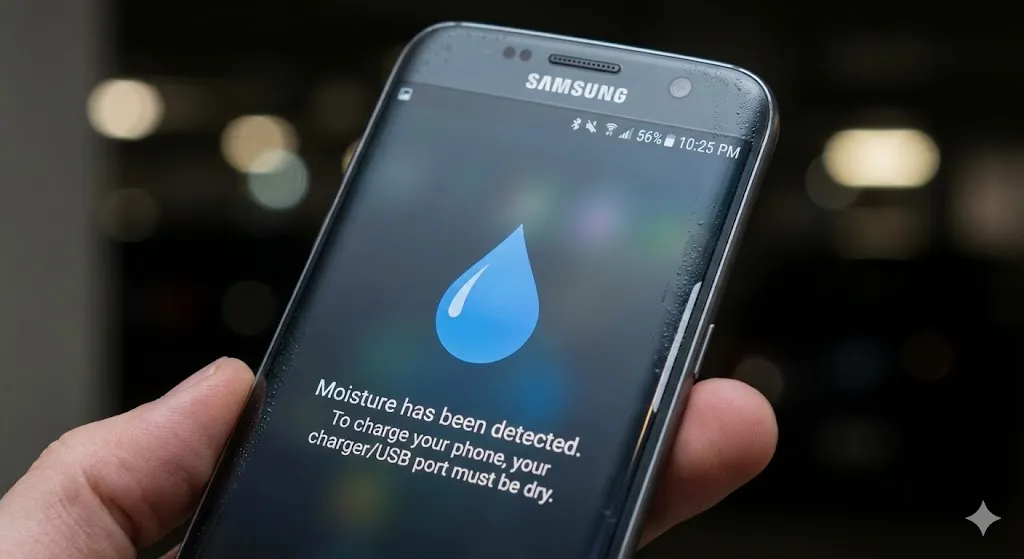
ou plug in your Samsung Galaxy phone before bed, expecting to wake up to a full battery. Instead, you hear a loud alarm sound and see a terrifying water drop icon on the screen with the message:
“Check charger/USB port. Moisture has been detected in your charger/USB port.”
Your heart sinks. Did you drop it in the sink? Did rain get in? Or worse—is it broken?
The “Moisture Detected” warning is a safety feature designed to protect your phone from short-circuiting. However, it is also notorious for being overly sensitive. Sometimes, it appears even if your phone is completely dry, leaving you unable to charge your device.
Don’t panic. In this guide, I will show you how to safely remove water if it’s there, and how to bypass the error if it’s a false alarm. Let’s get your phone charging again.
Why Am I Seeing This Error?
Your Samsung phone has a sensitive sensor in the charging port. It triggers this error when:
- Real Water: There is actual liquid inside the port (sweat, rain, humidity).
- Dirt or Lint: Dust accumulation can trick the sensor into thinking it’s wet.
- Software Glitch: The USB system cache is corrupted (very common).
- Damaged Cable: A faulty charging cable can trigger the warning.
Method 1: The “Shake and Fan” Technique
If your phone actually got wet, do NOT use a hairdryer (heat damages seals) and do NOT put it in rice (rice dust makes it worse).
- Hold your phone with the charging port facing down.
- Gently shake it 5-10 times to dislodge water droplets.
- Place it in front of a cool fan or in a well-ventilated area for at least 30 minutes.
If the error persists after it’s bone dry, move to the next step.
Method 2: Clean the Charging Port
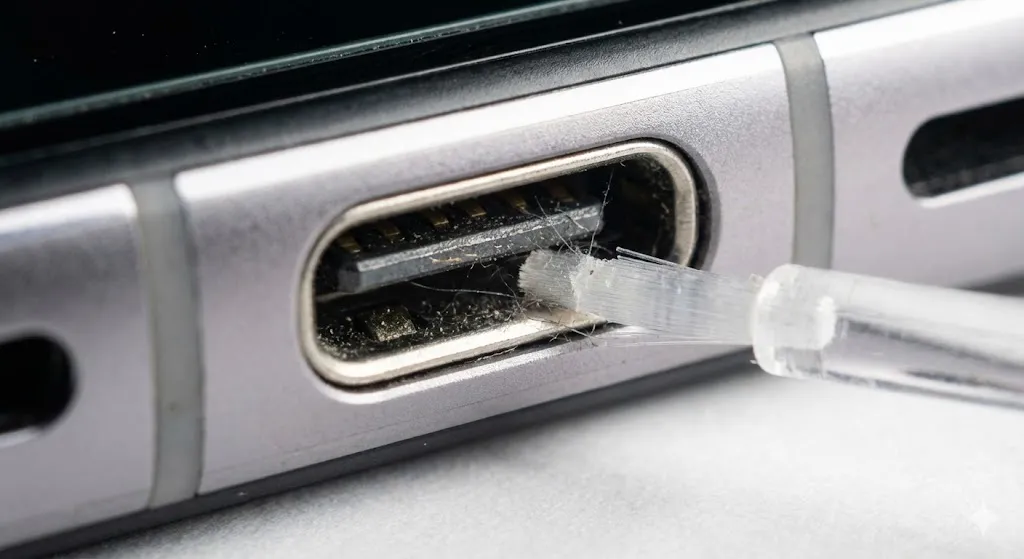
Often, the culprit isn’t water—it’s pocket lint or dirt bridging the electrical contacts. This tricks the phone into thinking there is moisture.
- Turn off your phone.
- Use a plastic toothpick or a non-conductive brush. (Avoid metal needles as they can short-circuit the pins).
- Gently scrape around the inside of the USB-C port.
- You might be surprised by how much lint comes out.
Method 3: Clear the USB Settings Cache (The Secret Fix)
If your phone is dry and clean but still screaming about moisture, it’s a software glitch. We need to reset the USB sensor data.
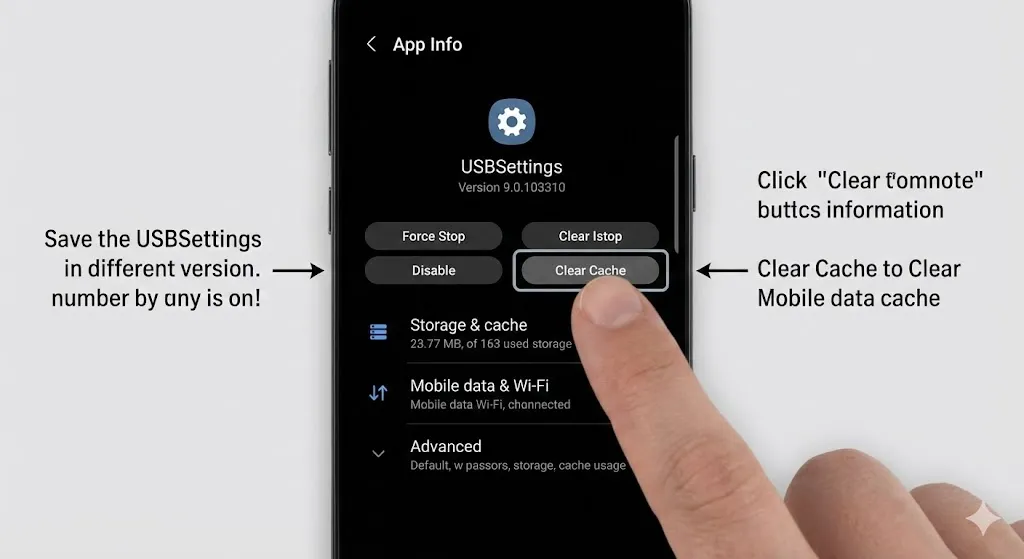
- Go to Settings > Apps.
- Tap the small Filter/Sort icon (usually next to “Your apps”).
- Toggle on “Show system apps” and tap OK.
- Scroll down and find USBSettings (or just USB).
- Tap Storage > Clear Cache.
- Restart your phone and try charging.
This is the most effective fix for the “false positive” moisture error.
[🖼️ Insert Image 3 Here]
Method 4: The “Restart While Plugged In” Trick
This is a temporary bypass if you desperately need to charge.
- Turn your phone OFF.
- Plug in the charger (the error might appear, ignore it).
- Turn the phone ON.
- Sometimes, the OS bypasses the check during the boot sequence, allowing it to charge.
Method 5: Use a Wireless Charger
If the port is permanently damaged or you can’t get the error to go away immediately, use a wireless charger. The moisture sensor only disables the wired USB port; wireless charging is completely safe and will work even with the error on the screen.
Frequently Asked Questions (FAQ)
Q: Can I put my phone in rice to dry it? A: No. This is a myth. Rice dust can get into the charging port and mix with the water, creating a paste that ruins the port harder. Use silica gel packets or a fan instead.
Q: Is my phone waterproof? A: Most modern Samsung phones (S20, S21, S22, etc.) are water-resistant (IP68), not waterproof. This means they can resist water entry, but the charging port is still exposed and sensitive to moisture.
Q: How do I disable the moisture sensor permanently? A: You cannot disable the sensor itself as it is a core safety feature. However, clearing the USB cache (Method 3) resets its status.
Conclusion
The “Moisture Detected” error is annoying, but it usually means your phone is trying to protect itself. Start by ensuring the port is clean and dry, and use the USB Settings reset trick if the software is stuck.
Don’t force the charger in, or you might fry the motherboard. If all else fails, wireless charging is your best friend until you can see a technician.
Did the USB cache trick work for you? Let me know in the comments below!